Retrieve your API key:
1. Go to Settings > API Authentication
https://stageportal.logicbroker.com/profile/api-authentication/
2. Click on "Create Primary Key" to generate a key for the first time. Primary Keys are generally for your internal use whereas Secondary Keys can be shared with your 3rd party development or external resources.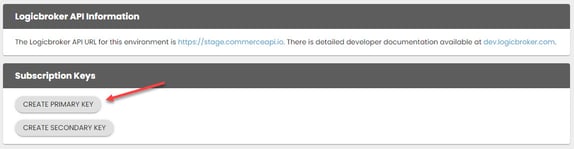
3. If you need to regenerate the key for any reason, after you create the Primary key there will be a "Regenerate" button. Important! If there is an API key already there, confirm with your team before regenerating, as that could break an existing connection.
4. Review the documentation and reference files below to set up your API connection.
-
-
- Stage API Reference: https://stage.commerceapi.io/swagger/ui/index
- Production API Reference: https://commerceapi.io/swagger/ui/index
- API Testing Documentation: https://dev.logicbroker.com/
-
FTP/SFTP (XML, JSON, and CSV)
Use our virtual hosted FTP site to trade XML, JSON, and CSV formatted files.
/kb/logicbroker/360022067631-SFTP-FTP
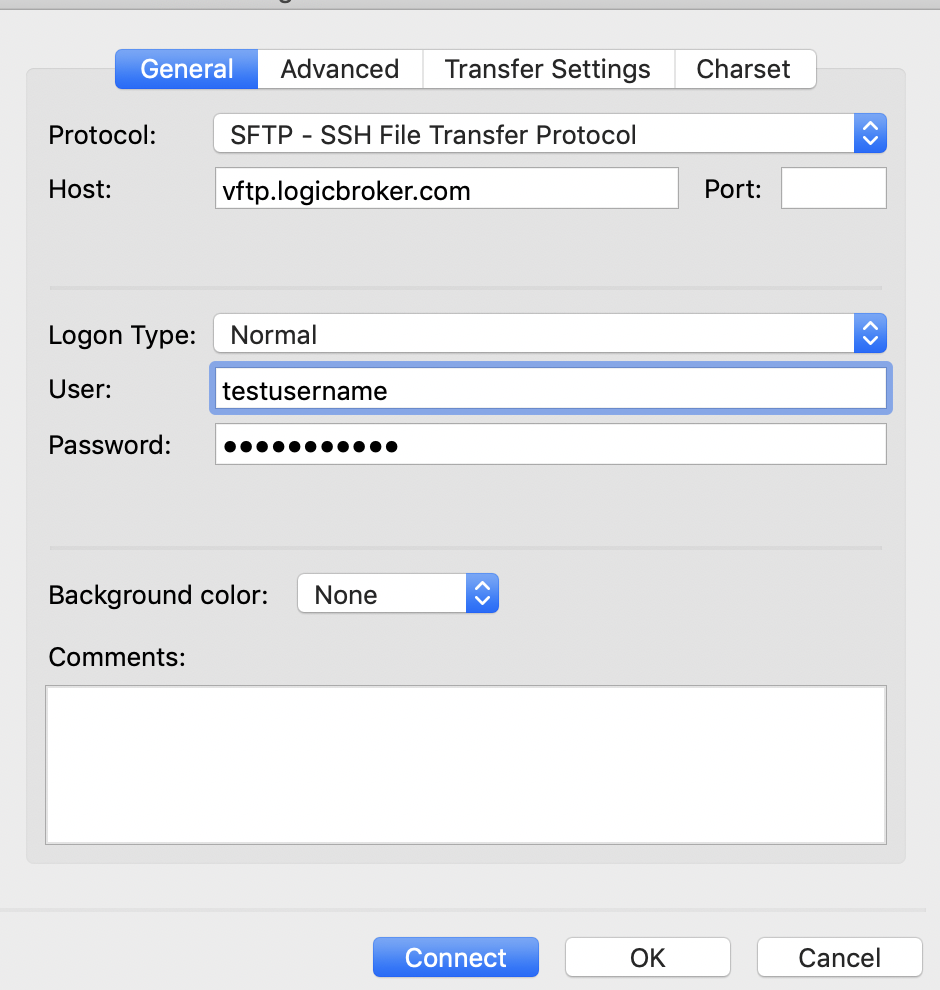
For every user login created in the Logicbroker portal, that user will have access to a Logicbroker-hosted FTP/SFTP site for that company. Your Logicbroker username and password will be used to log on to both the Stage and Production FTP/SFTP sites.
Stage Host: vftp-stage.logicbroker.com
Production Host: vftp.logicbroker.com
RECOMMENDATION: If you are setting up an automated integration to post your FTP/SFTP files, it is best to create a new FTP/SFTP user. This is to ensure that no single user's FTP credentials are being used for an automated FTP/SFTP process. To add a new user you can follow the instructions below.
NOTE: If you need to white list the Logicbroker IP address, it is 23.101.133.17 for both Stage and Production. We support both FTP/SFTP setups (no certificates), however, if you use FTP it will require a plain, non-encrypted setup.
Setup FTP/SFTP
1. From the Dashboard, go to Settings -> Manage Users
2. Click Create New User and enter the required information
- Assuming you have created the FTP user or alias at your company, enter in the email address (that you will have access to) that will serve as the FTP login email.
- Select Send Invite to send the email.
3. Open the email, click on the link and create the FTP username/password that you will be using for your FTP automation.
4. Test your FTP credentials by logging in using a standard FTP client like FileZilla or WinSCP.
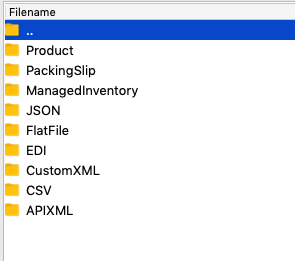
Once logged in, you should see a folder structure similar to below: