
Request to go live
Once you have completed onboarding steps, click on Request to go live. Ace Hardware will review and reject or approve your request.
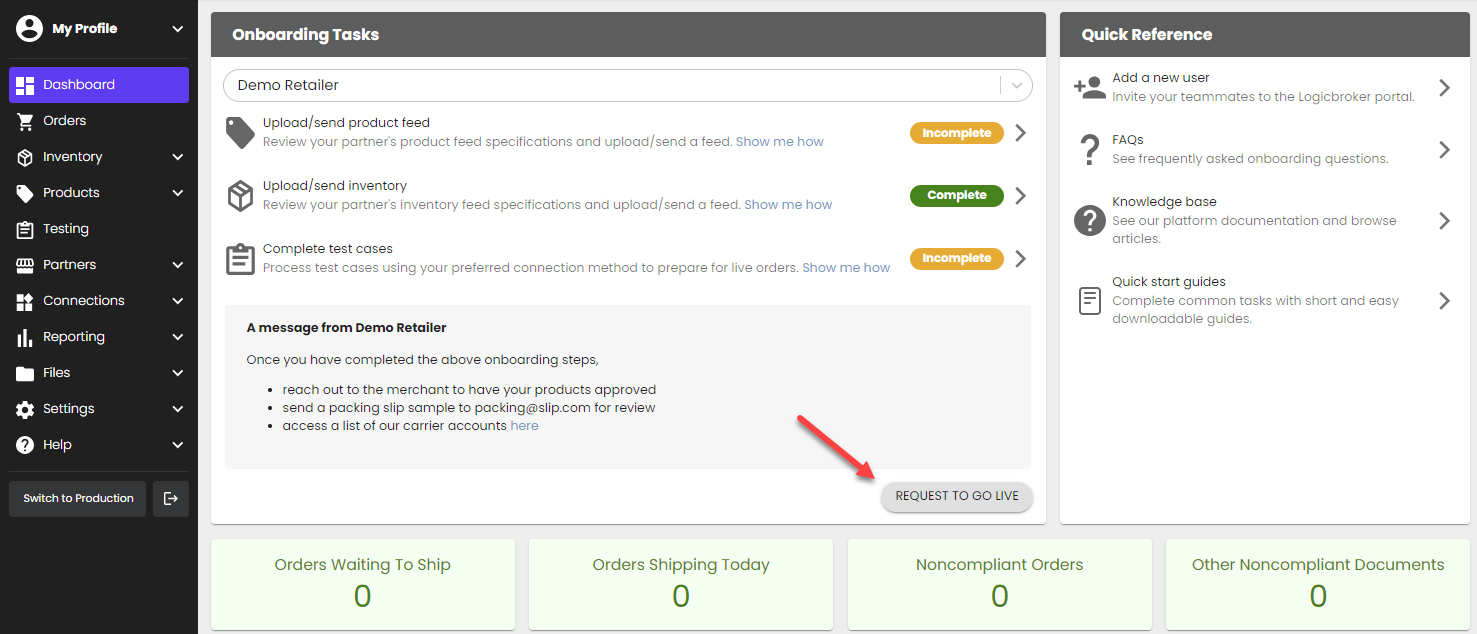
Ace Hardware will push your account live
Ace Hardware will confirm all onboarding steps are complete and will push your account into production. You will receive an email with the subject line "[Supplier]'s connection with Ace Hardware is live!" This email will link you to our production portal.
Complete post-production steps
Once you are live, you will need to complete post-production onboarding steps. Any settings added in stage will not carry over so these will need to be re-configured in production:
- Set up your connection in production
- Upload/send live inventory in production from the Inventory Feeds page
- Re-configure any stage settings in the production portal
Set up EDI ID (Portal/API suppliers)
*This step is required for all Portal and API suppliers
Ace's order sourcing requires all suppliers to have an EDI ID. Even if you are not connecting to Logicbroker using EDI, you will need to set this up anyway for orders to source correctly.
- Collect your EDI ID from Ace Hardware
- In the Logicbroker portal, go to Connections > EDI > My EDI Identifiers
- Click on Add my identifiers and create an entry with the Qualifier, Identifier and the Partner as 'Ace Hardware Corporation'
- Save
Set up EDI ID (EDI suppliers)
*This step is required for EDI suppliers
Ace's order sourcing requires all suppliers to have an EDI ID. Even if you are not connecting to Logicbroker using EDI, you will need to set this up anyway for orders to source correctly.
- Collect your EDI ID from Ace Hardware
- If your EDI Qualifier/ID is the same as what Ace Hardware provided:
- In the Logicbroker portal, go to Connections > EDI > My EDI Identifiers
- Click on Add my identifiers and create an entry with the Qualifier, Identifier and the Partner as 'Ace Hardware Corporation'
- Save
- If your EDI Qualifier/ID is different than what Ace Hardware provided:
-
- In the Logicbroker portal, go to Connections > EDI > My EDI Identifiers
- Click on Add my identifiers and create an entry with your the Qualifier, Identifier and the Partner as 'Any Partner'
- Save
- Click on Add my identifiers and create another entry with the Qualifier, Identifier Ace Hardware provided and the Partner as ' Ace Hardware Corporation'
- Save
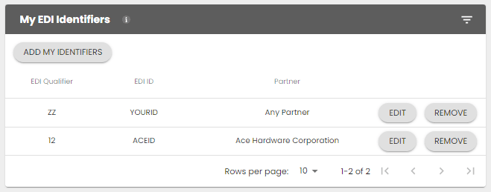
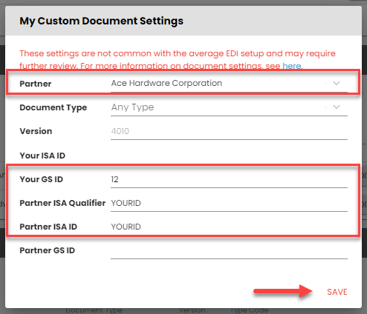
- In the Logicbroker portal, go to Connections > EDI > My Custom Document Settings
- Click on Add a document setting override and create an entry with your Qualifier and ID as the Partner ISA Qualifier and Partner ISA/GS ID
- Save
-
- If your EDI Qualifier/ID is the same as what Ace Hardware provided: