In this article, you will find the steps required to upload products in bulk using the Product Onboarding Center. By the end of the article, you should be able to successfully send products to ADI so they can review, merchandise, and list your products on their eCommerce site.
NOTE: Please upload products into the staging environment. The ADI team will review and confirm before you proceed with re-uploading them to production.
- Navigate to the portal. Ensure you are in the staging environment by either accessing the portal through this link https://stageportal.logicbroker.com/ or clicking Switch to Staging at the bottom left of the page once logged in, if visible. Select Products from the left-hand side toolbar. Select Onboarding from the dropdown.
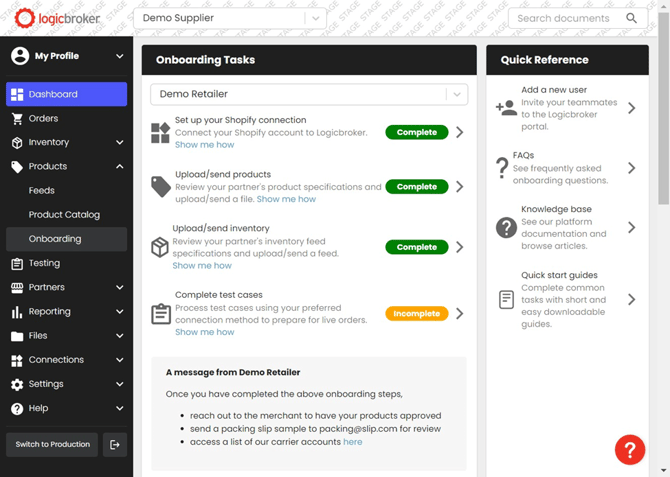
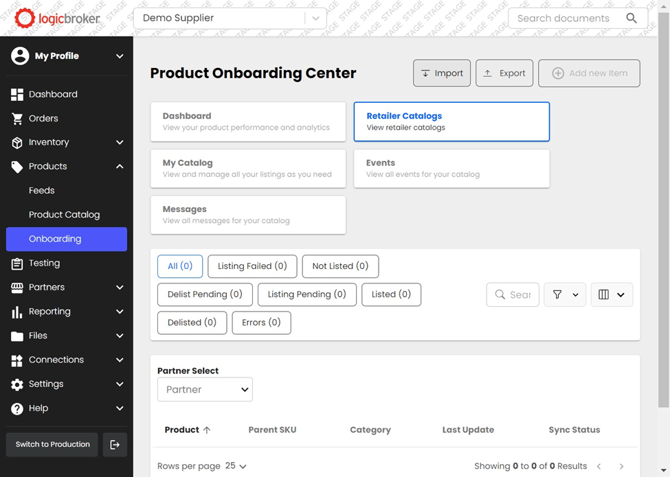
- Click Import in the top right corner of the screen.
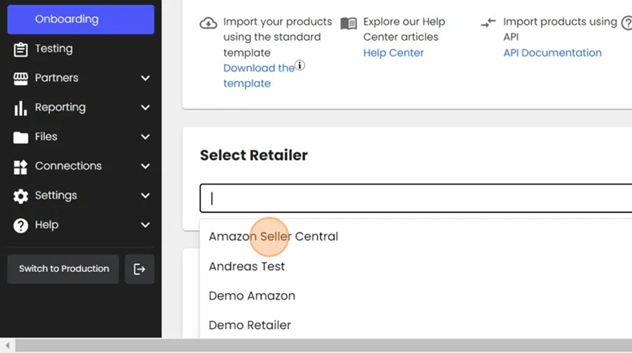
- Select ADI from the dropdown.
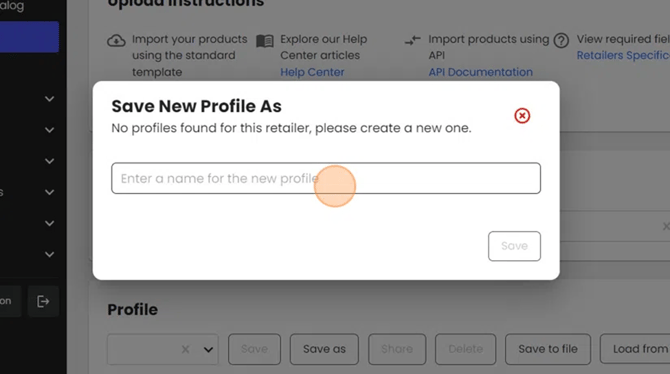
- Provide a name for the profile. This profile will be used to save all of the mapping done in the upcoming steps so the work done upfront can be reused in future product imports. Once the profile has been named, click "Save".
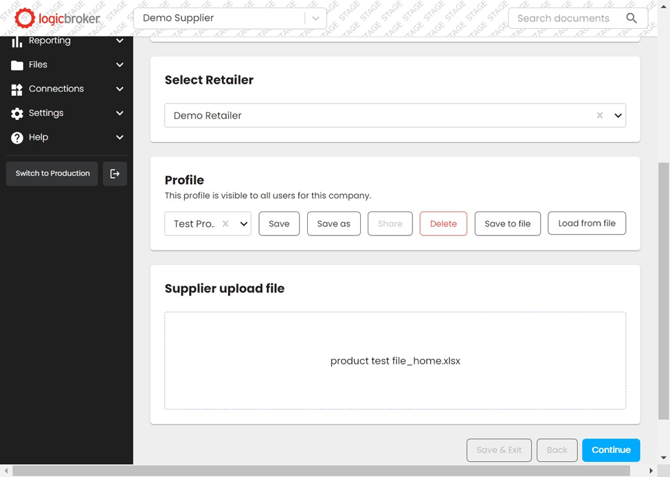
- Drop your product file into the upload space provided. Click "Continue" once complete.
- Select the field from your file you would like to map to the |categoy. The inputs are in the dropdown, these values are based on the headers in your Excel file.
Please note that the category is used to drive the attribute requirements. By selecting this field, the required attributes are paired down to only the data required per category you are working in.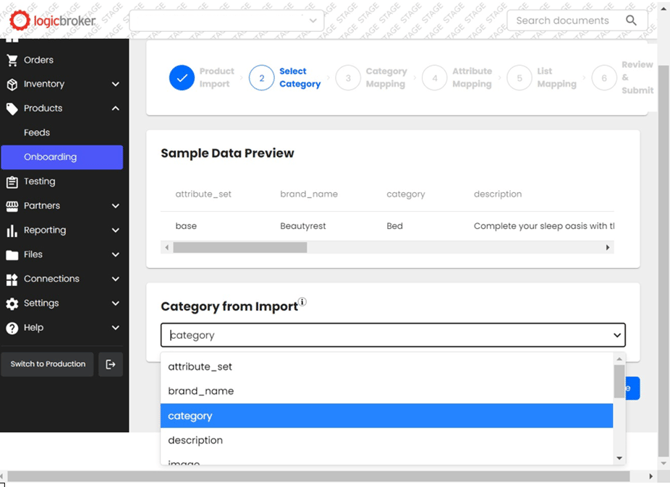
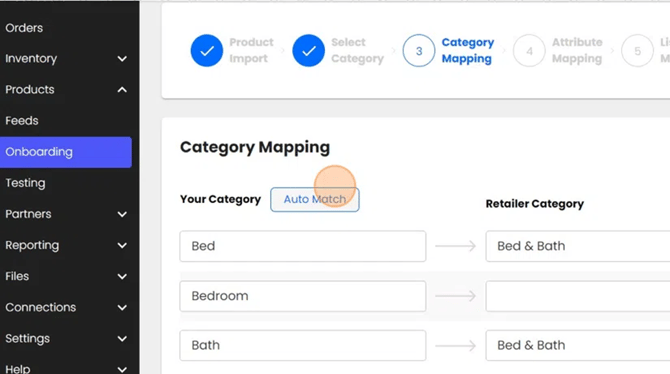
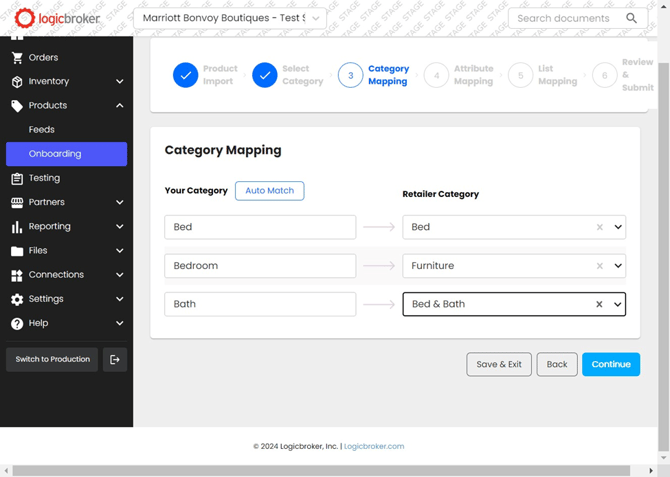
- For category mapping, you will be prompted to map all of the categories present in the product spreadsheet to ADI's categories. You can use Auto Match, which will match based on like-terms, or you can use the dropdown to manually match your category to ADI's.
-
Once all of your categories are mapped, click continue to move on to the next step.
-
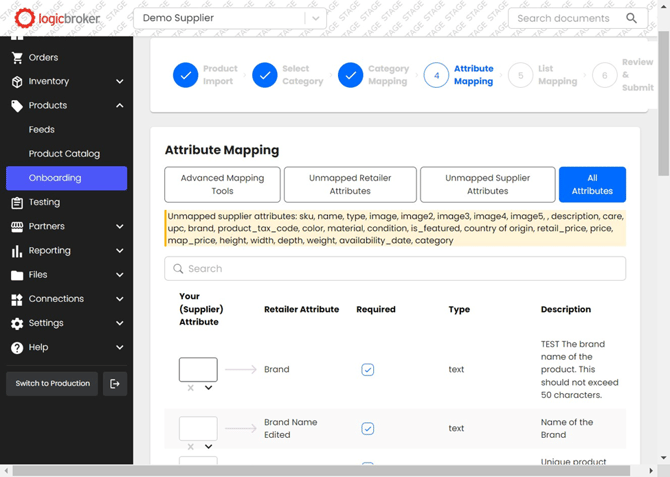
This is where you take your attributes and map them to ADI's attributes. All of your attributes listed on the file will show up in the dropdown shown below. You are also able to search quickly to find the attribute you are looking for.
ADI's required attributes will have a checkbox marked off in the required column. All of the required attributes are shown at the top of the attribute list.Note: Your attribute may not always be exactly the same because your organization may call something one name while ADI's may call it something different. i.e. Supplier Name in your catalog and Vendor in ADI's catalog.
Use the description to help find the best match for ADI's attribute.
- ADI may have some attributes set up to include product lists. When applicable, you will be prompted to map values from your list to the values in ADI's list.
Your values will appear in the dropdown to make for easier mapping.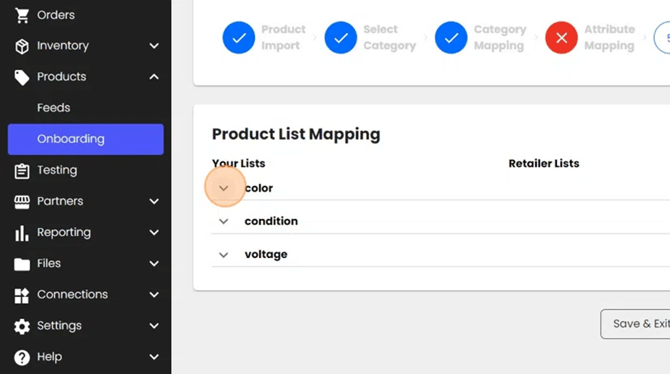
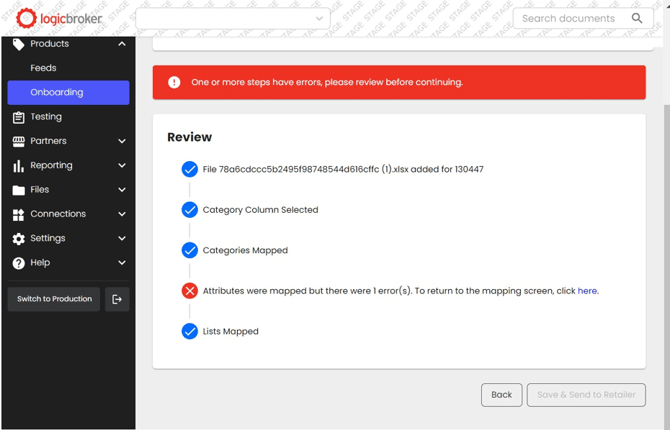
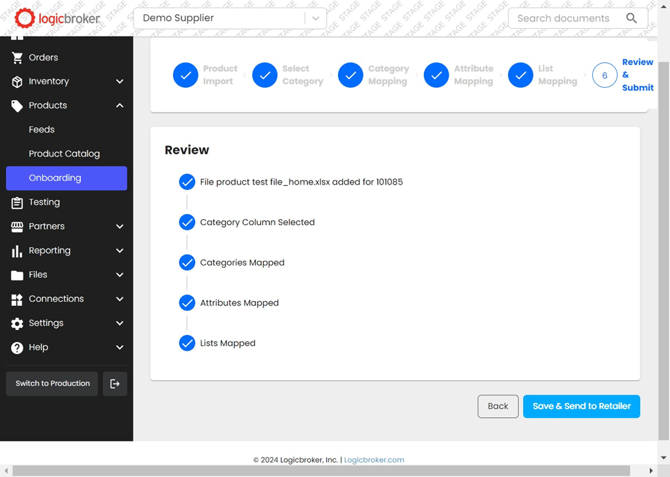
- Once you have walked through each of the steps, you will be brought to the review page shown below. Logicbroker performs front-end validation, meaning we check for any missing attributes or attribute types that are mapped incorrectly. If there are any errors, you will see a red "X" on the respective step. Click on the “here" button, shown below, to be brought to the step that needs updating and make any edits listed on the page.
- One all the steps are complete and have passed initial validation, you will be prompted to process this file and send the data to ADI. Click Save & Send to Retailer to process the file.
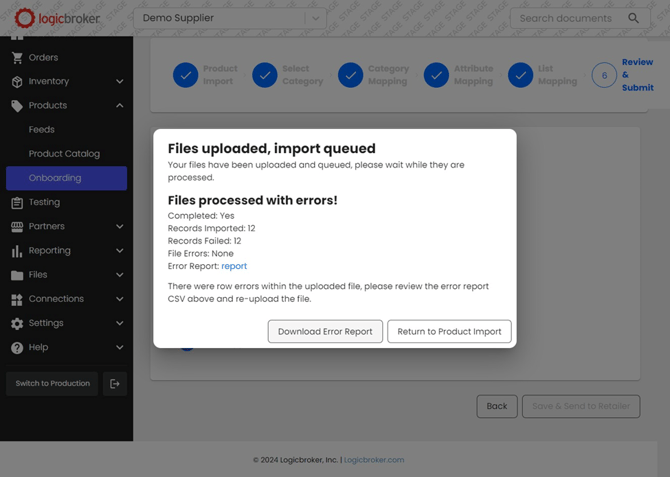
- If there are errors within the data, meaning the inputs do not follow what the attribute rules are asking for, you may receive a message similar to the one below. To review the errors, click Download Error Report.
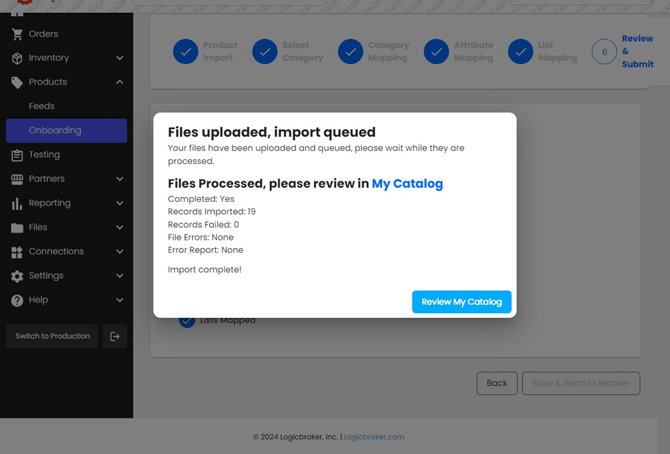
- If there were no errors within the data, you will see the message below explaining that your import was successful. You will then be prompted to navigate to your catalog by clicking on Review My Catalog.
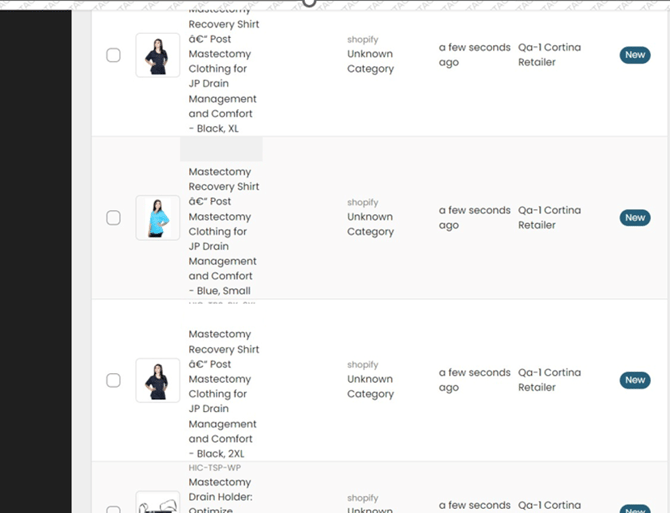
- Once you navigate to my catalog, you should see all of the products you just imported with a status of New. The New status indicates that a brand-new product has been uploaded and is ready for ADI to review.