Generate Test Orders
Regardless of the communication method (EDI, API, Portal, etc.), you will use the Testing module in Stage Portal to generate your test orders and review the results of your testing. Please make sure to complete the testing using your chosen connection method. (EDI, API, FTP). Orders are always created in the portal but completed using your connection type.
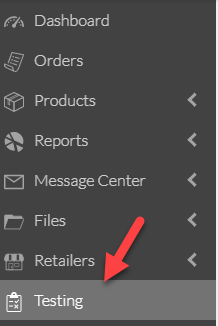
1. Navigate to Testing.
2. If you have multiple partner connections, you may see multiple test scenarios. Make sure you are selecting the correct retailer to test with. Select the appropriate Retailer by clicking View at the end of the testing progress bar.
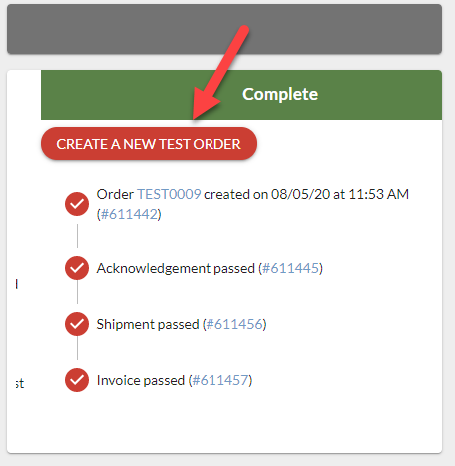
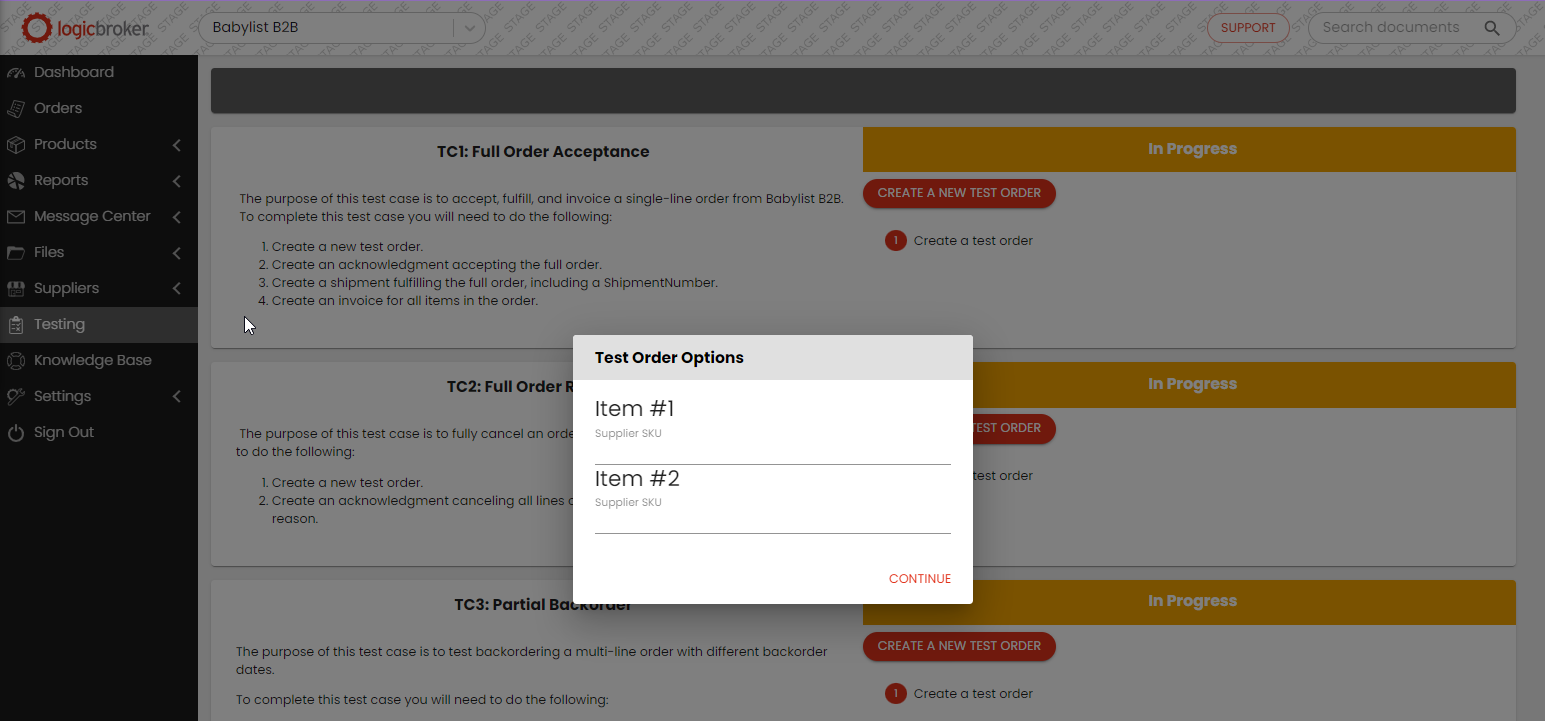
3. You will need to complete all test cases for that connection. Click on Create A New Test Order for the first test.
- NOTE: When you generate the order, it creates a test order that will be visible in the Portal but will also send via EDI, API, etc. depending on your communication method.
4. Enter SKU's. Two products are required for testing.
5. If you are using a connection type besides portal please make sure to complete testing using your connection type. Ie. If you are using EDI, complete the test via EDI not in the portal.
If you will be using the portal, click on the order number and process the order through the portal
- NOTE: Once you click on the order, you can see at the top of the order a link that takes you back to the Test Case page. It may take a moment (less than 30 seconds) for the test order to be "ready" to start taking action.
5. Once you complete a test, the status moves to Complete (green) automatically.
6. At any time, you can generate a new test order if you would like to start over, try again, etc. Just click on Generate A New Test Order.