Request to go live
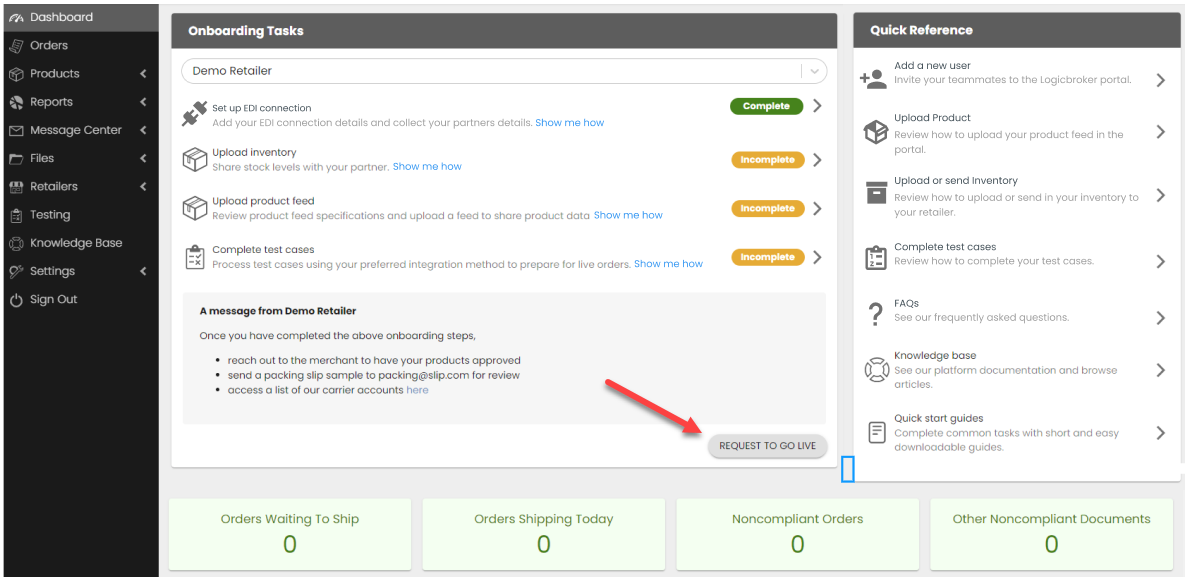
Once you have completed onboarding steps, click on Request to go live. Boscov's will review and reject or approve your request.
Boscov's will push your account live
Boscov's will confirm all onboarding steps are complete and will push your account into production. You will receive an email with the subject line "[Supplier]'s connection with Boscov's is live!" This email will link you to our production portal.
Complete post-production steps
Once you are live, you will need to complete post-production onboarding steps. Any settings added in stage will not carry over so these will need to be re-configured in production:
- Set up your connection in production
- API Suppliers: Generate a production API key from the API Authentication page
- EDI Suppliers: Add your production EDI connection from the EDI Connection page
- Upload/send live inventory in production from the Inventory Feeds page
- Re-configure any stage settings in the production portal
Upload a matching file
You will need to upload a Matching File into Logicbroker to match your SupplierSKU to Boscov's MerchantSKU. Matching files control what SKUs are sent to your partner.
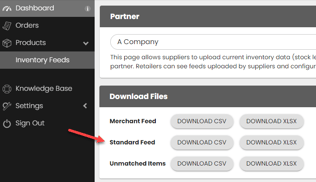
- Download an CSV/XLSX template from the Inventory Feeds page > Download Files > Standard Feed
- Fill in SupplierSKU (Column A) and Merchant SKU (Column B) Note: Reach out to Boscov's if you do not know the merchant/partner SKU
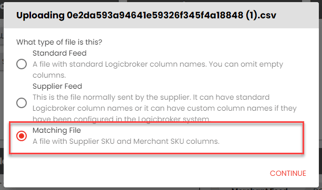
- Upload your template file into the portal from the Inventory Feeds page > Upload Files > Matching File. Note: Excel uploads are preferred since CSV may cause scientific notation errors