Audience: Retailer customers
In this article, you will find information related to the My Catalog functionality within the Product Onboarding Center. The sections within this article are outlined below:
Adding a Product Manually
Retailers have the ability to add products manually to their catalog by clicking the Add New Item button on the top right corner of the screen. Retailers will be prompted to populate the attributes according to the attribute set. Upon completion, the product should be saved and be set to the appropriate listing status.
Statuses
The products brought into My Catalog have already gone through the Product Review Process and are now in the Product Listing Process. When interacting with My Catalog, you are presented with quick filters at the top of the screen to determine which products are in which statuses easily.
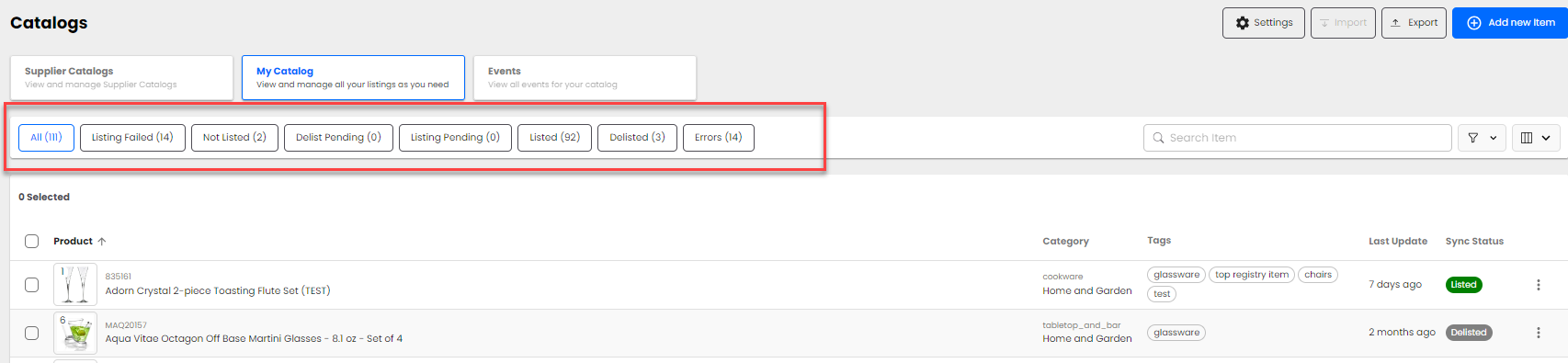
The different listing statuses and their meanings can be found in the dropdown below.
Navigation & Display
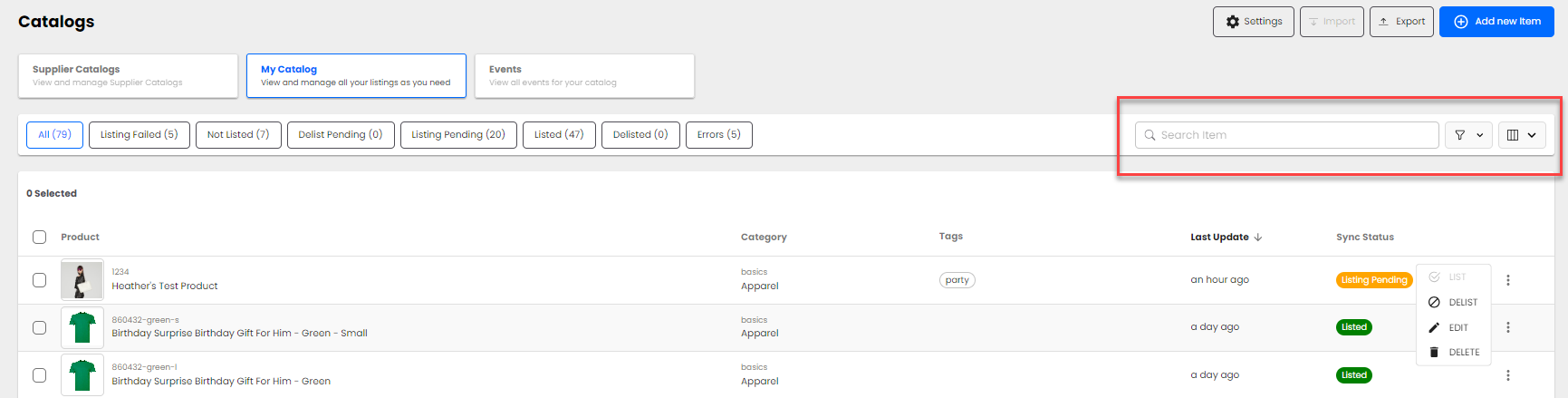
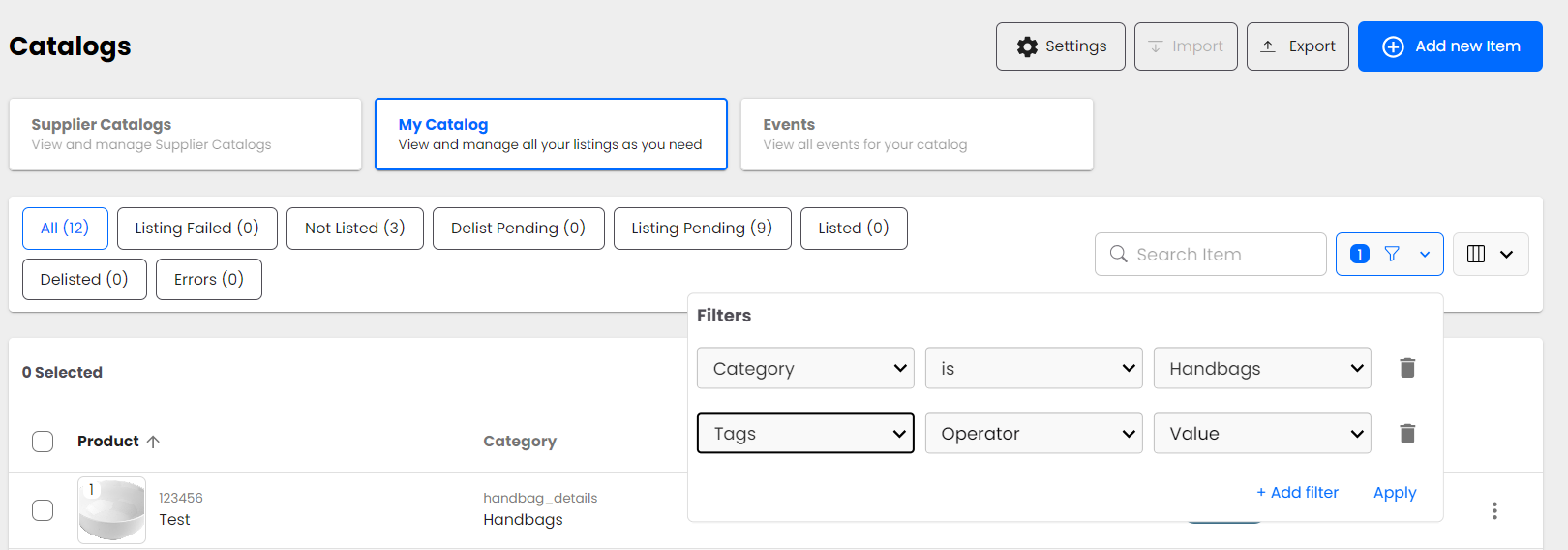
There are a few display options available to users that will allow you to show/hide columns, filter results, and search for products in your catalog. These are useful when looking at your assortment for specific categories, what products specific suppliers are providing, etc. Display options can be found in the top right corner of the My Catalog page shown below.
Actions
The Product Onboarding Center provides users with various actions to take on a single product level. The actions are displayed by clicking on the 3 vertical dots on the right of the product.
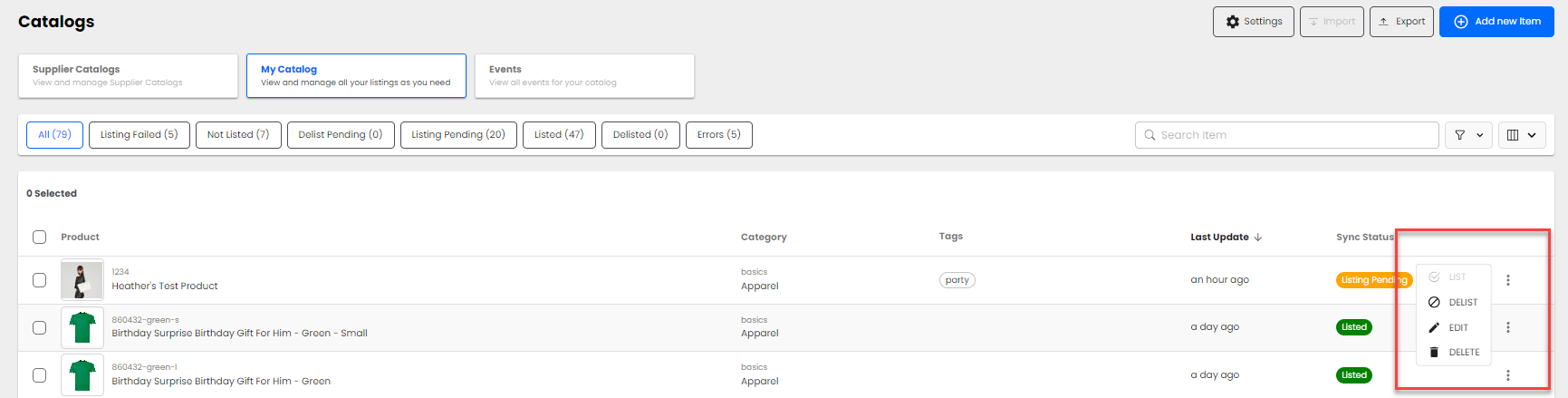
Please note: These actions are only available for the products in My Catalog. Some of the actions may be grayed out depending on the product's current status.
Bulk Actions
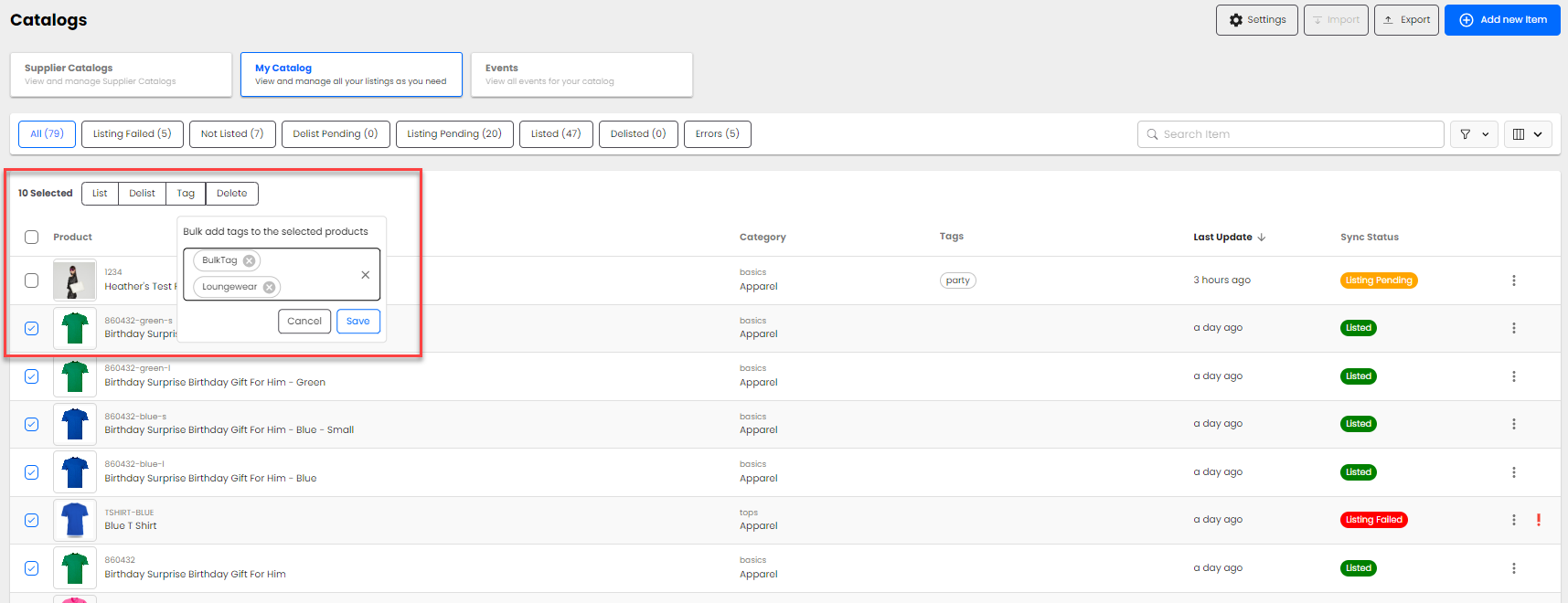
Bulk actions enable retailers to perform actions in bulk to list, delist, delete, or tag products in their catalog.