
The first step in getting setup in the Logicbroker Portal involves setting up your products for inventory transmission to your channel/retailer.
✨Tip:
Not all retailers/channels are capable of receiving inventory feeds. It is best to always check with your partner to verify their requirements.
Matching File
✨Tip:
IMPORTANT: Not all users are required to load a matching file. Before starting the matching file process, confirm with Logicbroker Support whether the retailer or supplier should be loading the matching file.
Select the Partner you plan to set up inventory for:

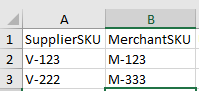
Sending an inventory update to your partner will first involve setting up a link between your SupplierSKU and the MerchantSKU. Creating this link for each item will allow you to send inventory updates with only the SupplierSKU and will automatically match and update the quantity for that product and retain the MerchantSKU, even if it wasn't provided in the update.
This is done to prevent sending products that are not set up in the Channel/Retailer's system. In this way, the process is separated so that any new products available to be updated via Inventory Feed will need to be setup using this matching file first. This will allow you to send all products in your inventory updates and the only products that will update are ones that have been set up previously.
You can also view a list of your unmatched products by going to Download Files and downloading the Unmatched Items CSV or XLSX. If Ignore unmatched under Feed Settings is set, no unmatched records will be kept.
✨Tip:
To avoid the process of setting up products with a matching file, you may be able to set the Auto match option under Feed Settings. If you aren't sure, confirm with Logicbroker Support. Auto match will allow you to submit all inventory feeds using your standard item feed, and any products will automatically get created with a MerchantSKU that matches the SupplierSKU provided. This should be used in cases where the MerchantSKU is the same as the SupplierSKU, or it is not required to provide the MerchantSKU or it is provided in another field.
Setting up your matching file begins by downloading the Standard Feed and populating the MerchantSKU and SupplierSKU fields. No other data will update when submitting the matching file.
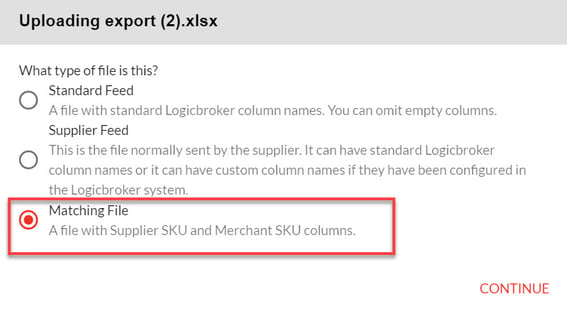
Once your prepared your file, you can upload it and select Matching File.
Uploading Inventory
Now that you have set up your products, you can begin updating the inventory and other attributes for those items. Begin by downloading the Standard Feed under the Download Files section. You can download CSV or XLSX.
For all the products listed in that file, you can begin adding attributes such as Quantity, Description, Cost etc. For more details on all the field attributes and the standard, see the Inventory Specification under the Document Standards section.
When uploading the new file make sure Standard Feed is selected.
✨Tip:
If you have a customer inventory CSV or XLSX mapped to our standard you can use the Supplier Feed. To learn more about setting up a custom CSV or XLSX format contact support.
Once your feed is uploaded, we validate the format for that partner. We only check to verify all proper fields are populated for the partner selected, we do not do any validation to verify the SKUs match in the partner's system.
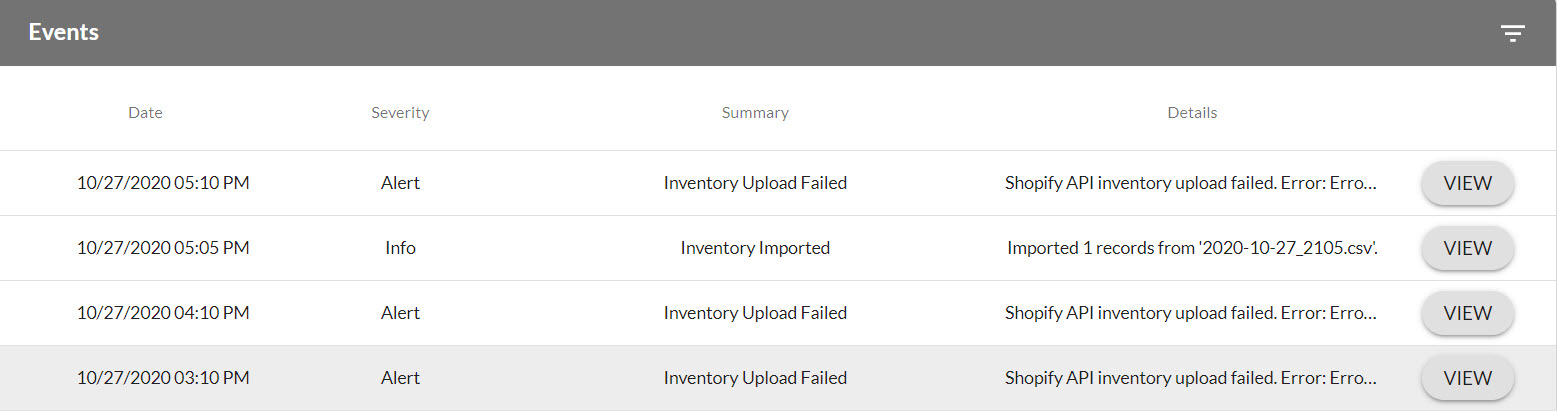
After the processing is complete you will see an audit log of all inventory uploaded attempts under Events. Here you can view all transmissions and review any errors from failed submissions.
Based on the partner you are integrating with Logicbroker will send the inventory update on a periodic basis. This differs between channels/retailers, but typically will send at least once every 24 hours. The inventory feed will only send updated products from the last transmission to the retailer.
For example, if you had 100 products setup, and sent 2 feeds, one updating 25 and 50 in the other; the next update sent to your partner will show 75 products in the inventory update.
✨Tip:
If you send multiple feeds before the update is transmitted to your partner, and only want to include information from the last feed, you can enable Latest Feed Only under feed settings.
For more information on other settings available on the Inventory Feeds page see information below.
Under the Feed Settings section there are a few things you can setup to help you process files.