
Audience: EDI users
Logicbroker-hosted SFTP
SFTP only
Logicbroker-hosted SFTP accepts SFTP connections only. FTP and FTPS connections to our hosts no longer work. Set your client or script to SFTP (sftp://) on port 22. Your username, password and folder paths stay the same. If you stopped receiving files or cannot connect, see I stopped receiving files or cannot connect after the SFTP change.
All users are able to connect to us using our Logicbroker-hosted SFTP. See credentials below to access the stage and production SFTP sites created on your behalf:
Stage Host: vftp-stage.logicbroker.com
Production Host: vftp.logicbroker.com
Protocol and port: SFTP on port 22
Credentials: Users can either use:
- User Credentials: Use the same username and password you use to log into the portal
- Account Credentials (recommended): The username will be your Logicbroker Account Number (My Profile > Account Information > Account Number) and your password will be your API key (Connections > API > Subscription Keys > Primary Key)
Stage and production use the same account number, but each environment has its own API key. Copy the primary key from the portal of the environment you connect to. The links above open the stage portal. For the production key, use API in the production portal. To see the primary key, your user needs the API/Webhook Management permission. If you regenerate the primary key, update the password in your SFTP client too.
🗒️ Note:
If you are using an automated integration, it is recommended to use the Account Credentials instead of the User Credentials in order to prevent the integrated portal user from changing their password and breaking the connection.
🗒️ Note:
If you need to white list the Logicbroker IP address, it is 20.85.228.97 for Stage and 20.124.32.239 for Production. Please be aware that Logicbroker does not monitor these IP addresses (if they change), and users should be able to look up the vFTP IP address independently.
Directory Descriptions
When you login to your SFTP site you will see the following directories.
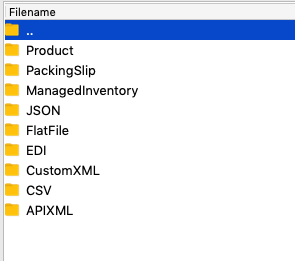
This is where you can send/receive documents to your trading partner; each directory indicating the format to be sent/received. Please see the Document Specification here for sending correct formats.
This directory will be used to send and receive all Logicbroker document types (except inventory). There will be sub-directories for direction (inbound/outbound) and each document type; see details below.
For all JSON documents you are receiving in the /Inbound directories, they will appear based on status of the document. If the status is in Submitted (100) the document will be available for pickup. There will be a file per each document, there will never be multiple documents in one file.
Once a file is removed the status will update to Acknowledged/Processing (200). There is a direct synchronization between the documents in the portal and their files. This is to provide a full audit of all SFTP/FTP activity and provide full visibility and verification when a document is removed from the directory.
| Directories | Sub-Directories | Description |
|---|---|---|
|
/Archive |
/Acknowledgement /Invoice /Order /Return /Shipment |
The Archive directory is an open directory allowing users to read and write without any files getting removed. Typically this is used only to archive data after picking up information. No Logicbroker processes, removing or adding files, will run for any of the Archive sub-directories. Jobs can be configured to auto-archive for each document type if needed; contact support for more details. |
|
/Inbound |
/Acknowledgement /Invoice /Order /Return /Shipment |
The Inbound directory is where you will pick up all files that are sent from your partner. If you are a Supplier, this means you will be using the /Order. If you are a Channel/Retailer, you will be using /Acknowledgement, /Shipment, /Invoice, /Return |
|
/InboundByPartner |
/<PartnerAccount>/Acknowledgement /<PartnerAccount>/Invoice /<PartnerAccount>/Order /<PartnerAccount>/Return /<PartnerAccount>/Shipment |
InboundByPartner has the same functionality as /Inbound, however each of your partner's will have their own directory. <PartnerAccount> will be the Logicbroker account number for your partner. Inside each sub-directory for the document types will only contain documents from that partner. |
|
/Outbound |
/Acknowledgement /Invoice /Order /Return /Shipment |
The Outbound directory will be used to send all documents to your partners. If you are a Supplier, you will be using the /Acknowledgement, /Shipment, /Invoice, /Return sub-directories to send your partners. If you are a Channel/Retailer you will be using the /Order sub-directory to send to your partners. |
This directory will be used to send and receive all Logicbroker document types. There will be sub-directories for direction (inbound/outbound) and each document type; see details below.
For all XML documents you are receiving in the /Inbound directories, they will appear based on status of the document. If the status is in Submitted (100) the document will be available for pickup. There will be a file per each document.
🗒️ Note:
Logicbroker has the ability to add batching to your files, contact support for more information.
Once a file is removed the status will update to Acknowledged/Processing (200). There is a direct synchronization between the documents in the portal and their files. This is to provide a full audit of all SFTP/FTP activity and provide full visibility and verification when a document is removed from the directory.
| Directories | Sub-Directories | Description |
|---|---|---|
|
/Archive |
/Acknowledgement /Invoice /Order /Return /Shipment |
The Archive directory is an open directory allowing users to read and write without any files getting removed. Typically this is used only to archive data after picking up information. No Logicbroker processes, removing or adding files, will run for any of the Archive sub-directories. Jobs can be configured to auto-archive for each document type if needed; contact support for more details. |
|
/Inbound |
/Acknowledgement /Invoice /Order /Return /Shipment |
The Inbound directory is where you will pick up all files that are sent from your partner. If you are a Supplier, this means you will be using the /Order. If you are a Channel/Retailer, you will be using /Acknowledgement, /Shipment, /Invoice, /Return |
|
/InboundByPartner |
/<PartnerAccount>/Acknowledgement /<PartnerAccount>/Invoice /<PartnerAccount>/Order /<PartnerAccount>/Return /<PartnerAccount>/Shipment |
InboundByPartner has the same functionality as /Inbound, however each of your partner's will have their own directory. <PartnerAccount> will be the Logicbroker account number for your partner. Inside each sub-directory for the document types will only contain documents from that partner. |
|
/Outbound |
/Acknowledgement /Invoice /Order /Return /Shipment |
The Outbound directory will be used to send all documents to your partners. If you are a Supplier, you will be using the /Acknowledgement, /Shipment, /Invoice, /Return sub-directories to send your partners. If you are a Channel/Retailer you will be using the /Order sub-directory to send to your partners. |
This directory will be used to send and receive all custom XML maps that have been configured for each Logicbroker document type.
There will be sub-directories for direction (inbound/outbound) and each document type; see details below.
For all XML documents you are receiving in the /Inbound directories, they will appear based on status of the document. If the status is in Submitted (100) the document will be available for pickup. There will be one file per each document.
Once a file is removed the status will update to Acknowledged/Processing (200). There is a direct synchronization between the documents in the portal and their files. This is to provide a full audit of all SFTP/FTP activity and provide full visibility and verification when a document is removed from the directory.
🗒️ Note:
If you are batching your XML the status will change asynchronously. It will move from status Submitted (100) to Acknowledged/Processing (200) when the document is successfully added to the SFTP/FTP directory.
✨ Tip:
Using CustomXML will allow you to support the use of an XML FuncAck. XML FuncAck will send as a receipt for your records when a file is received by the Logicbroker System successfully.
| Directories | Sub-Directories | Description |
|---|---|---|
|
/Archive |
/Acknowledgement /FuncAck /Invoice /Order /Return /Shipment |
The Archive directory is an open directory allowing users to read and write without any files getting removed. Typically this is used only to archive data after picking up information. No Logicbroker processes, removing or adding files, will run for any of the Archive sub-directories. Jobs can be configured to auto-archive for each document type if needed; contact support for more details. |
|
/Inbound |
/Acknowledgement /FuncAck /Invoice /Order /Return /Shipment |
The Inbound directory is where you will pick up all files that are sent from your partner. If you are a Supplier, this means you will be using the /Order. If you are a Channel/Retailer, you will be using /Acknowledgement, /Shipment, /Invoice, /Return |
|
/InboundByPartner |
/<PartnerAccount>/Acknowledgement /<PartnerAccount>/FuncAck /<PartnerAccount>/Invoice /<PartnerAccount>/Order /<PartnerAccount>/Return /<PartnerAccount>/Shipment |
InboundByPartner has the same functionality as /Inbound, however each of your partner's will have their own directory. <PartnerAccount> will be the Logicbroker account number for your partner. Inside each sub-directory for the document types will only contain documents from that partner. |
|
/Outbound |
/Acknowledgement /Invoice /Order /Return /Shipment |
The Outbound directory will be used to send all documents to your partners. If you are a Supplier, you will be using the /Acknowledgement, /Shipment, /Invoice, /Return sub-directories to send your partners. If you are a Channel/Retailer you will be using the /Order sub-directory to send to your partners. |
This directory will be used to send and receive all Logicbroker document types. There will be sub-directories for direction (inbound/outbound) and each document type; see details below.
For all CSV documents you are receiving in the /Inbound directories, they will appear based on status of the document. If the status is in Submitted (100) the document will be available for pickup.
Once a file is removed the status will update to Acknowledged/Processing (200). There is a direct synchronization between the documents in the portal and their files. This is to provide a full audit of all SFTP/FTP activity and provide full visibility and verification when a document is removed from the directory.
| Directories | Sub-Directories | Description |
|---|---|---|
|
/Archive |
/Acknowledgement /Invoice /Order /Return /Shipment |
The Archive directory is an open directory allowing users to read and write without any files getting removed. Typically this is used only to archive data after picking up information. No Logicbroker processes, removing or adding files, will run for any of the Archive sub-directories. Jobs can be configured to auto-archive for each document type if needed; contact support for more details. |
|
/Inbound |
/Acknowledgement /Invoice /Order /Return /Shipment |
The Inbound directory is where you will pick up all files that are sent from your partner. If you are a Supplier, this means you will be using the /Order. If you are a Channel/Retailer, you will be using /Acknowledgement, /Shipment, /Invoice, /Return |
|
/InboundByPartner |
/<PartnerAccount>/Acknowledgement /<PartnerAccount>/Invoice /<PartnerAccount>/Order /<PartnerAccount>/Return /<PartnerAccount>/Shipment |
InboundByPartner has the same functionality as /Inbound, however each of your partner's will have their own directory. <PartnerAccount> will be the Logicbroker account number for your partner. Inside each sub-directory for the document types will only contain documents from that partner. |
|
/Outbound |
/Acknowledgement /Invoice /Order /Return /Shipment |
The Outbound directory will be used to send all documents to your partners. If you are a Supplier, you will be using the /Acknowledgement, /Shipment, /Invoice, /Return sub-directories to send your partners. If you are a Channel/Retailer you will be using the /Order sub-directory to send to your partners. |
This directory will be used to send and receive all custom FlatFile maps that have been configured for each Logicbroker document type. These are typically positional files or other formatted files.
🗒️ Note:
If you have a custom FlatFile format that you need Logicbroker to process, contact support.
There will be sub-directories for direction (inbound/outbound) and each document type; see details below.
For all FlatFile documents you are receiving in the /Inbound directories, they will appear based on status of the document. Logicbroker will run a queued job for all documents in the Submitted (100) status and will post the files to the directories asynchronously, once successful moving the status to Acknowledged/Processing (200).
| Directories | Sub-Directories | Description |
|---|---|---|
|
/Archive |
/Acknowledgement /Invoice /Order /Return /Shipment |
The Archive directory is an open directory allowing users to read and write without any files getting removed. Typically this is used only to archive data after picking up information. No Logicbroker processes, removing or adding files, will run for any of the Archive sub-directories. Jobs can be configured to auto-archive for each document type if needed; contact support for more details. |
|
/Inbound |
/Acknowledgement /Invoice /Order /Return /Shipment |
The Inbound directory is where you will pick up all files that are sent from your partner. If you are a Supplier, this means you will be using the /Order. If you are a Channel/Retailer, you will be using /Acknowledgement, /Shipment, /Invoice, /Return |
|
/InboundByPartner |
/<PartnerAccount>/Acknowledgement /<PartnerAccount>/Invoice /<PartnerAccount>/Order /<PartnerAccount>/Return /<PartnerAccount>/Shipment |
InboundByPartner has the same functionality as /Inbound, however each of your partner's will have their own directory. <PartnerAccount> will be the Logicbroker account number for your partner. Inside each sub-directory for the document types will only contain documents from that partner. |
|
/Outbound |
/Acknowledgement /Invoice /Order /Return /Shipment |
The Outbound directory will be used to send all documents to your partners. If you are a Supplier, you will be using the /Acknowledgement, /Shipment, /Invoice, /Return sub-directories to send your partners. If you are a Channel/Retailer you will be using the /Order sub-directory to send to your partners. |
🗒️ Note:
Logicbroker can support mapping any EDI specification to our standard document types. Please contact support for more information.
| Directories | Sub-Directories | Description |
|---|---|---|
|
/Archive |
/ |
The Archive directory is an open directory allowing users to read and write without any files getting removed. Typically this is used only to archive data after picking up information. No Logicbroker processes, removing or adding files, will run in the Archive directory; there are no sub-directories. Jobs can be configured to auto-archive contact support for more info. |
|
/Inbound |
/ |
The Inbound directory is where you will pick up all files that are sent from your partner. If you are a Supplier, this means you will be using the receiving orders (850) and FuncAcks (997s) here. If you are a Channel/Retailer, you will be receiving Acknowledgements (855), Shipments (856), Invoices (810) Returns (180), and Inventory (846). There is no sub-directory in this folder. |
|
/Outbound |
/ |
The Outbound directory will be used to send all documents to your partners. If you are a Supplier, you will be sending Acknowledgements (855), Shipments (856), Invoices (810) Returns (180), and Inventory (846). If you are a Channel/Retailer you will be sending your orders (850). There is no sub-directory in this folder. |
🗒️ Note:
You can use this directory to send custom CSV/XLSX or XML. To add a custom map for CSV or XML contact support.
| Directories | Sub-Directories | Description |
|---|---|---|
|
/<PartnerAccount>/Delta |
/ |
Delta directory will provide an inventory file of all products that were last updated. This will only be used if you are receiving inventory updates from your suppliers. |
|
/<PartnerAccount>/Matched |
/ |
Matched will provide a full list of all products that are setup for your selected supplier; this includes products updated with inventory and containing no new updates. |
|
/<PartnerAccount>/Outbound |
/ |
Outbound will be used to send your inventory update to your channels/retailers; this will be used by suppliers. |
|
/<PartnerAccount>/OutboundMatching |
/ |
OutboundMatching will be used to setup products. This is adding the SupplierSKU to MerchantSKU link. Once a product is setup with that linking they can be updated using the standard inventory import show in /Outbound. |
|
/<PartnerAccount>/Unmatched |
/ |
Unmatched includes a list of all products that were received in an inventory update that did not have a matching SKU. All inventory updates must contain a SupplierSKU to match our system to properly update quantities and other data. This is a list of all products that are not setup, but received the update from your partner anyway. |
If you need a way to receive packing slips, we can configure posting packing slips for orders received or shipments sent. All files will be in PDF type only. You will need to contact us to setup the configuration.
| Directories | Sub-Directories | Description |
|---|---|---|
|
/Archive |
/Order /Shipment |
The Archive directory is an open directory allowing users to read and write without any files getting removed. Typically this is used only to archive data after picking up information. No Logicbroker processes, removing or adding files, will run for any of the Archive sub-directories. Jobs can be configured to auto-archive for each document type if needed; contact support for more details. |
|
/Inbound |
/Order /Shipment |
The Inbound directory is where you will pick up all packing slip files that have been automatically sent to your SFTP/FTP. All packing slip files will be in PDF format. /Order will provide 1 packing slip per order, while /Shipment will provide one packing slip per Box.The packing slip will generate off the order as soon as it is received. If generating off the shipment, it will run when a shipment is submitted. |
This directory only includes CSV format for sending product content to your channel/partner or receiving content from your supplier. Every format is setup differently per partner, to check your channel/retailer's feed specification, navigate to the Logicbroker Portal > Products > Feeds
| Directories | Sub-Directories | Description |
|---|---|---|
|
/<PartnerAccount>/Archive |
/ |
The Archive directory is an open directory allowing users to read and write without any files getting removed. Typically this is used only to archive data after picking up information. No Logicbroker processes, removing or adding files, will run for any of the Archive sub-directories. Jobs can be configured to auto-archive for each document type if needed; contact support for more details. |
|
/<PartnerAccount>/Inbound |
/ |
Used by the retailer to pick up all product content that was sent by their suppliers. |
|
/<PartnerAccount>/Outbound |
/ |
Used by suppliers to send product content in a format specified by the retailer. |
Troubleshooting SFTP connections
These situations apply to suppliers and retailers who connect to Logicbroker-hosted SFTP with an SFTP client, a script or an integration tool. They apply to every file format in the directories above.
I stopped receiving files or cannot connect after the SFTP change
What you see. Your client cannot reach vftp.logicbroker.com, or the connection times out, for example "Connection is timing out on vftp.logicbroker.com". Orders stop arriving in your folders, and the acknowledgements, shipments or invoices your system sends do not reach Logicbroker. Your system may not show an error. You may first hear about it from your retailer, as late acknowledgements, shipments or inventory.
What it means. The most common cause is that your connection still uses FTP or FTPS. Logicbroker-hosted SFTP now accepts SFTP only, so FTP and FTPS connections fail. A firewall that blocks port 22 can cause the same timeout.
What to check:
- Open the connection settings in your SFTP client, script or integration tool.
- Check the protocol. If it says FTP, FTPS, ftp:// or ftps://, that is the cause.
- Check the port. It must be 22. A port of 21 means the connection still uses FTP.
- Check the host. Use vftp.logicbroker.com for production or vftp-stage.logicbroker.com for stage.
- If your network only allows approved outbound connections, ask your network team to allow port 22 to the Logicbroker IP address listed at the top of this article.
The fix. Change the protocol to SFTP, or change the start of the address to sftp://, and set the port to 22. Keep your username, password and folder paths. If an automated job or integration platform makes the connection, the person who maintains it must make this change there.
How to check it worked. Your client connects and lists the directories described above. Orders waiting for you appear in your inbound folders. Upload again any documents your system could not send while the connection failed, then check that they appear in the portal. If an order shows in the portal but not in your folders, see Missing orders.
When to contact Support. Contact Support if you still cannot connect over SFTP on port 22. Include your company name, your account number, the environment (stage or production), the host and port you used, the client or tool you use, the exact error, the time it failed and what you already tried.
"Authentication failed" or "Access denied" when you log in
What you see. Your client reaches the host but rejects the login. Common messages are "Access denied", "Authentication failed.", "Critical error: Could not connect to server" and "Auth fail".
What it means. The host accepted the connection, but the username or password is wrong for that environment.
What to check:
- If you use Account Credentials, check that the username is your account number from My Profile > Account Information.
- Check that the password is the primary key from Connections > API > Subscription Keys. Copy it from the portal of the same environment as the host. The production key does not work on the stage host, and the stage key does not work on the production host.
- Check that you copied the whole key. The key can be longer than the field shows, so scroll to the end of the field before you copy it.
- Check whether anyone regenerated the primary key since you set up the connection.
- If you use User Credentials, check that the same username and password still log in to the portal.
The fix. Choose the path that matches what you found.
- If the password came from the other environment, replace it with the primary key from the portal that matches the host.
- If the key was cut off or someone regenerated it, copy the current primary key again in full and paste it into your client.
- If a portal user's password changed, update the client. For automated connections, switch to Account Credentials so a password change does not break the connection.
How to check it worked. The login succeeds and your client lists the directories described above.
When to contact Support. Contact Support if the login still fails with the account number and the current primary key. Include your company name, your account number, the host, the exact error and what you already tried.
Orders are in the portal but not on the SFTP, or you connected to Stage instead of Production
What you see. Orders appear in the production portal but not in your SFTP folders. Or the documents you upload never appear in the production portal. You may also log in to stage without a problem but fail to log in to production.
What it means. Your client may connect to the stage host instead of the production host. Stage and production are separate environments with separate hosts and separate API keys. Files on the stage host stay in stage, and production orders go only to the production host. If your client cannot connect to the production host at all, see I stopped receiving files or cannot connect after the SFTP change.
What to check:
- Check the host in your client. Production is vftp.logicbroker.com. Stage is vftp-stage.logicbroker.com.
- Check which portal you are looking at. Production is portal.logicbroker.com and stage is stageportal.logicbroker.com. The menu has a Switch to Production or Switch to Stage button.
- Check that the password is the primary key from the production portal when you connect to the production host.
The fix. Set the host to vftp.logicbroker.com. If you use Account Credentials, set the password to the production primary key. The username stays your account number. Then upload your production documents to the production host.
How to check it worked. New production orders appear in your inbound folders on vftp.logicbroker.com. Documents you upload there appear in the production portal.
When to contact Support. Contact Support if production orders still do not reach your folders. Include your company name, the retailer, the PO numbers, the host you connect to and what you already tried.
We're updating this article. Some steps and screenshots may not match the portal yet. If anything is unclear, contact support@logicbroker.com.