
Audience: All users in Logicbroker.
In this article, you will find information related to Shipment Options. Suppliers can create box presets and suppliers and retailers can view partner ship methods and map their own custom codes. The sections within this article are outlined below:
Boxes
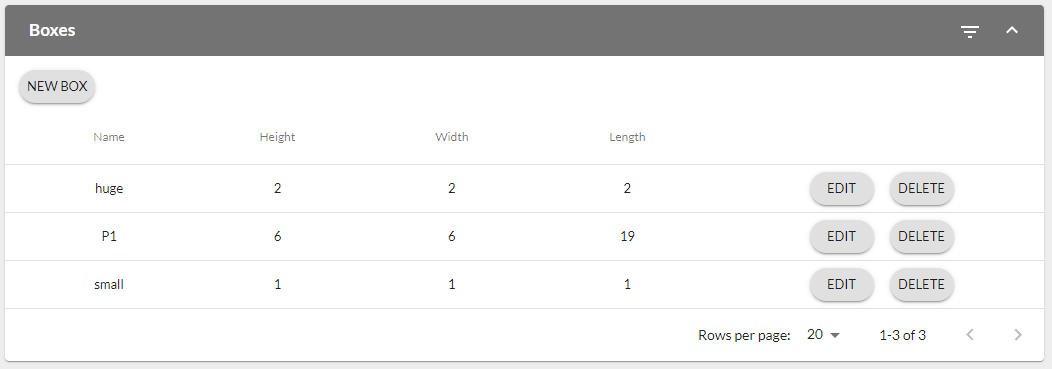
The Boxes section allows suppliers to configure their commonly-used box dimensions as presets. This saves users time when creating documents by not having to input these fields on each shipment. For more information on shipments including fields, settings and instructions on individual document creation, see our Shipments article.
- New Box: to add a new box, click on New Box > enter in what you want to name it and the dimensions - you'll still have to input weight on shipments since this may vary depending on what is in the box
- Edit/Delete Box: click on Edit or Delete to make changes to your saved boxes or remove them
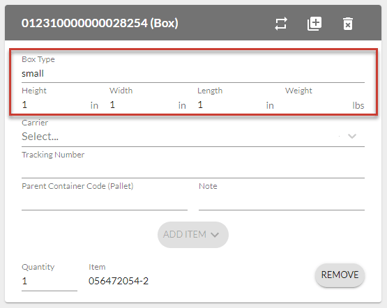
- See it in action: Once you set up a box preset, you will see a dropdown in the Box/Packages section of shipments. Click on the dropdown > select you preset > see dimensions reflected > enter in your box weight
Ship Methods
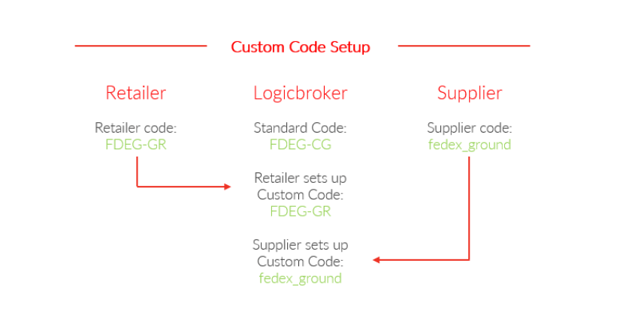
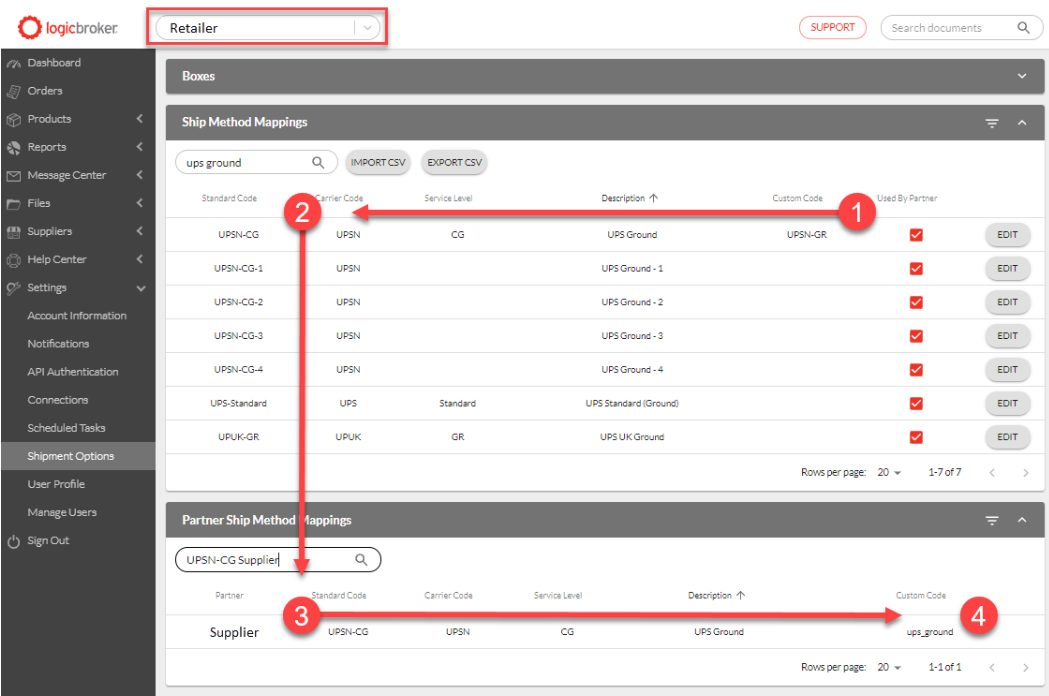
Ship Methods are the way in which information is communicated through partners about how an order will be shipped. Every partner has their own way of expressing a specific carrier and service level through a variety of codes and descriptions. Logicbroker’s ship method mappings function allows suppliers and retailers to map their unique custom codes to our standard codes.
Creating this mapping will ensure the correct codes (both carrier and service level) will be sent to your partner in full compliance.
✨Tip:
Suppliers can avoid mapping custom codes and have all codes for shipments defaulted to what is received on the order. This is a Logicbroker Direct feature, to learn more about this offering, see Logicbroker Direct (scroll down to Features and Their Use Cases > Portal Configurations > Copy Ship Method from Order to Shipment)
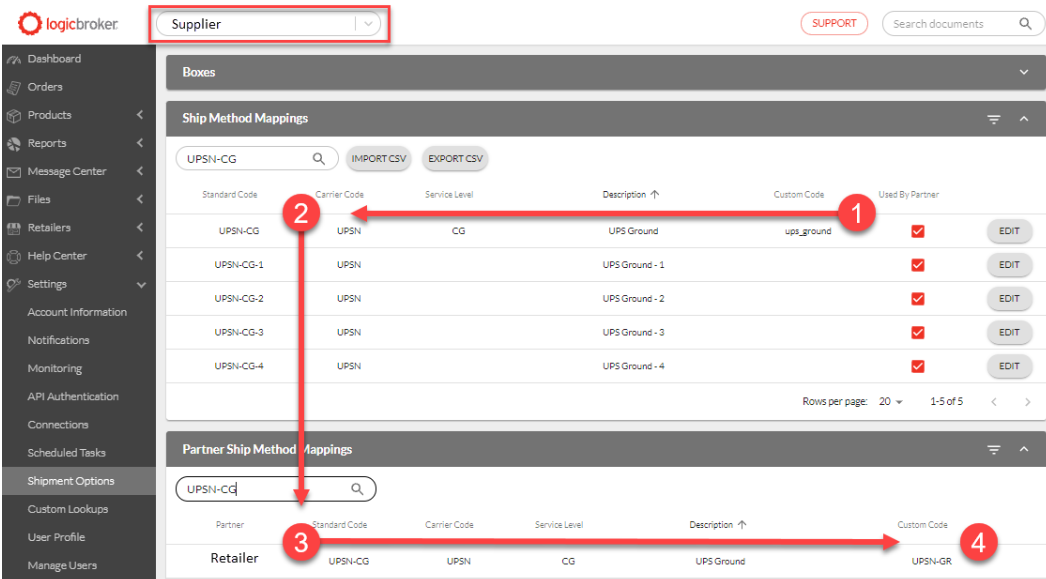
-
- Suppliers will send in Shipments with a ship method using the Custom Code they configured
- Logicbroker translates the Custom Code to a Standard Code
- Logicbroker sets the Standard Code on the Shipment
- Before the Shipment leaves the system, Logicbroker translates the Logicbroker Standard Code to the retailer’s Custom Code
Troubleshooting ship methods
Use these sections when a shipment fails because of its ship method, or when you can't find the carrier you need.
Shipment failed with "Invalid Ship Method"
Who this applies to. Suppliers who send shipments to a retailer that checks ship methods. Not every retailer checks them. The check applies to shipments sent through the portal, EDI, API or file import.
What it means. Logicbroker reads the ship method on your shipment. If it matches one of your Custom Codes, Logicbroker replaces it with the Standard Code on that row. If you send a Standard Code, Logicbroker uses it as it is, and you don't need a mapping. Some retailers accept only the Standard Codes they have mapped. The shipment fails when its ship method is not one of them.
What to check
- Open the failed shipment and click the Most recent event, "Invalid Ship Method". The details read "Invalid ship method(s):" followed by the code Logicbroker checked. You can also find this event in Reporting > Events.
- Go to Settings > Shipment Options. Expand Partner Ship Method Mappings and search for your retailer. This table lists each Standard Code your retailer uses, with their code in Their Code and yours in Your Code.
- Compare the code from the event with that list. Codes must match exactly, including capital letters, hyphens and underscores. For example, USPS_PB does not match USPS-PB.
- If the code in the event is your own code, look for it in the Custom Code column of Ship Method Mappings. The table hides codes that no trading partner uses and that you have not mapped. Click Show Unused Codes to see every Standard Code.
- Check your retailer's document standards or routing guide for the ship method they require. Some retailers require you to send back the ship method that was on the order.
Fix it
If your code is not mapped, or is mapped to the wrong Standard Code:
- In Ship Method Mappings, click Edit on the row for the Standard Code your retailer requires.
- Enter your code in Custom Code exactly as your system sends it, then click Save.
- If your code is also on a different row, click Edit on that row, clear Custom Code and click Save.
- Wait about a minute. Then open the failed shipment and click More Actions > Retry. Retry processes the same shipment again, and Logicbroker applies your new mapping. Logicbroker also applies the mapping to your future shipments.
If the shipment has the wrong ship method:
- Open the shipment and click More Actions > Edit, then confirm. Logicbroker puts the shipment back into draft.
- In each package, choose the ship method your retailer requires in Carrier.
- Click Submit. Logicbroker processes the edited shipment.
If you send shipments by EDI or API, also correct the ship method in your own system so your next shipments pass. In an EDI 856, send the full Standard Code or your mapped Custom Code in TD505. For example, send FDEG-CG, not CG alone.
How to check it worked. The shipment's status is no longer Failed, and its most recent event no longer says "Invalid Ship Method". If the shipment fails again, open the new event. The details show the code that still does not match.
When to contact Support. Contact Support if the Standard Code your retailer requires is not in Ship Method Mappings after you click Show Unused Codes, or if the shipment still fails after you map the code and retry. If you don't see Edit in Ship Method Mappings, your user can't change company settings. Ask a colleague who can, or contact Support. Include your company name, the retailer, the PO number, the shipment ID, the exact event text and what you already tried.
The carrier I need is not in Ship Method Mappings
Who this applies to. Suppliers and retailers who need a carrier or service level they can't find, often a freight or trucking carrier.
What it means. The Standard Code column lists the ship methods Logicbroker supports. Each Standard Code combines a carrier code and a service level, for example FDEG-CG. You can't add or change Standard Codes yourself. You can only set your own Custom Code on a row. An MC or DOT number is not a Standard Code.
What to check
- Go to Settings > Shipment Options and click Show Unused Codes.
- In Search mappings, search by carrier name, carrier code (SCAC), service level or description.
- If you find the carrier, click Edit on its row. Enter the code your system uses in Custom Code and click Save. If your system identifies the carrier by an MC number, DOT number or other internal value, enter that value here.
Fix it. If the carrier is not in the list, contact Support and ask for it to be added. Include the carrier name, the carrier code (SCAC), the service level, a description, the code your system sends and the retailer you ship to. Put MC or DOT numbers with your own codes, not in place of the carrier code. After Support adds a carrier, it appears only when you click Show Unused Codes, until a trading partner uses it.
How to check it worked. After you save a Custom Code, the row shows your code. The row stays in the table even when you click Hide Unused Codes.
A new Standard Code does not mean your retailer accepts it. If your retailer checks ship methods, a shipment with a code they have not mapped fails with "Invalid Ship Method". Confirm the carrier with your retailer before you ship.
The carrier I need is not in the Carrier list on my shipment
Who this applies to. Suppliers who create shipments in the portal.
What it means. The Carrier list in each package on a shipment shows the ship methods your retailer has mapped. Your own Ship Method Mappings don't change this list. When a retailer has no ship methods mapped other than unspecified ones, the list shows a general set of common carriers.
What to check
- Go to Settings > Shipment Options, expand Partner Ship Method Mappings and search for your retailer.
- Check whether the carrier you need is listed for that retailer.
- Check your retailer's routing guide or document standards for the carriers they allow.
Fix it. Choose a carrier from the list that your retailer allows. If your retailer has approved a carrier that is not in the list, contact Support before you submit the shipment.
How to check it worked. The carrier appears in the Carrier list on a new shipment for that retailer. After you submit, the shipment's status is not Failed.
When to contact Support. Include your company name, the retailer, the PO number, the carrier name and code, and your retailer's approval if you have it.
We're updating this article. Some steps and screenshots may not match the portal yet. If anything is unclear, contact support@logicbroker.com.