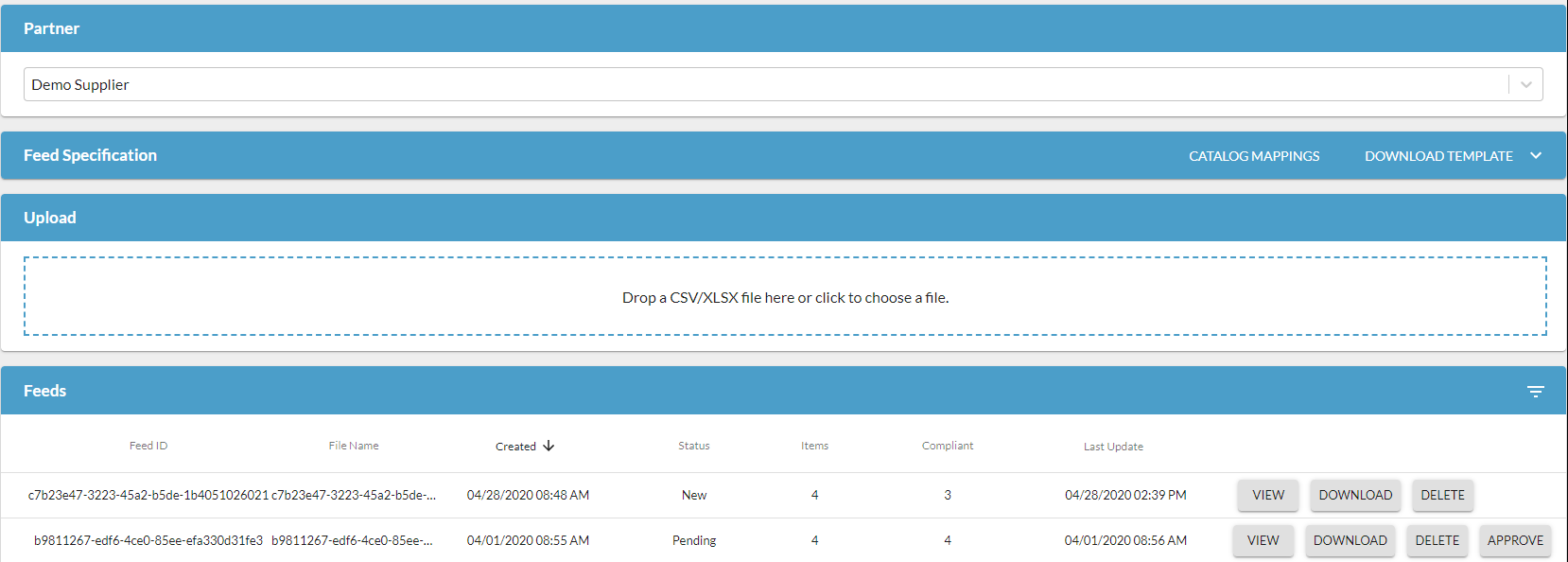
Suppliers on the Connected Commerce Network have the ability to manage and create their own product catalogs. The product catalog setup inside the Logicbroker platform has been designed to simplify and streamline the distribution of their catalogs into your desired format.
The suppliers will setup their product in the defined Logicbroker standard, use that format to map to your specifications through the catalog mapping interface, validate and send to your connected system. Logicbroker's product feeds operate as Pre-PIM solution, where data structure and format is validated in the Logicbroker platform before it is sent to your PIM, CMS, or product content management system.

Setting up your specification for suppliers to follow is simple, there are a few options depending on your system's capabilities, see below for options.
- Setup Product Catalog Standard
- Provide default mappings to your suppliers
- Integrating Product Feeds
Setting up your catalog standard
The Logicbroker implementation team, will help with guiding you on the best way to implement standardized fields. You can either use the standard product specification shown here, or provide your specifications to support@logicbroker.com or providing them in the survey.
If providing your specifications, provide as much detail as possible. Logicbroker's team will add validation rules to verify that all content is getting sent properly. This includes validation rules include, requiring specific fields per category or data format validation. This will keep the onboarding process with your suppliers clean and simple; the more information the better. For more details on how Product Content works see this article.
Provide default mappings to your suppliers
Once your standard is created, you can also provide default mappings from the Logicbroker product catalog standard to your custom format. Navigate to Products > Product Feeds > and click Catalog Mappings
You can provide templates to your suppliers, to easily integrate and send their products in one click.
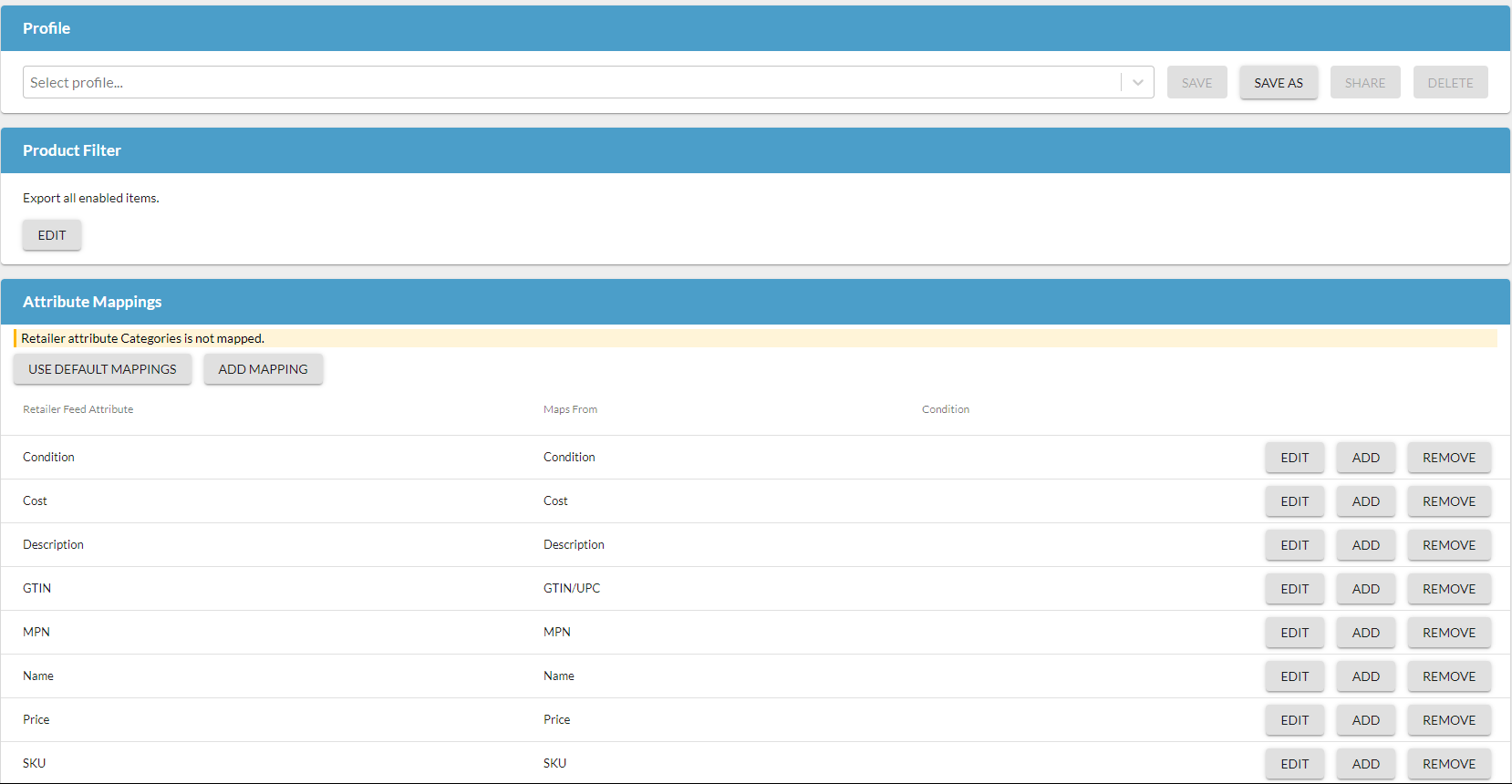
To add a new map from your custom attributes, click Add Mapping.
You can select one of the available Retailer Attributes setup in your catalog and map it to a source field or set a constant value from the Supplier's standardized catalog. Constant values will need to be added in quotes, for example "default value"
You can add a condition, comparing your source Field against another field or constant value.
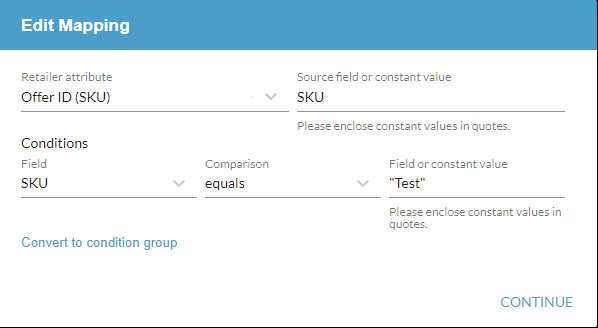
Comparison options include:
- Equals: must match the Field or constant value exactly. This includes capitalization.
- Does not equal: must not match the field or constant value exactly.
- Starts with: checks the beginning of the source string to match the exact the value provided.
- Does not start with: checks the beginning of the source string to not match the exact value provided.
- Ends with: checks the end of the source string to match the exact value provided.
- Does not end with: checks the end of the source string to not match the exact value provided.
- Contains: checks the entire source string to match any part for the value provided.
- Does not contain: checks the entire source string to not match any part for the value provided.
- Greater than: used for integers, if the value provided is greater than the checked value.
- Less than: used for integers, if the value provided is greater than the checked value.
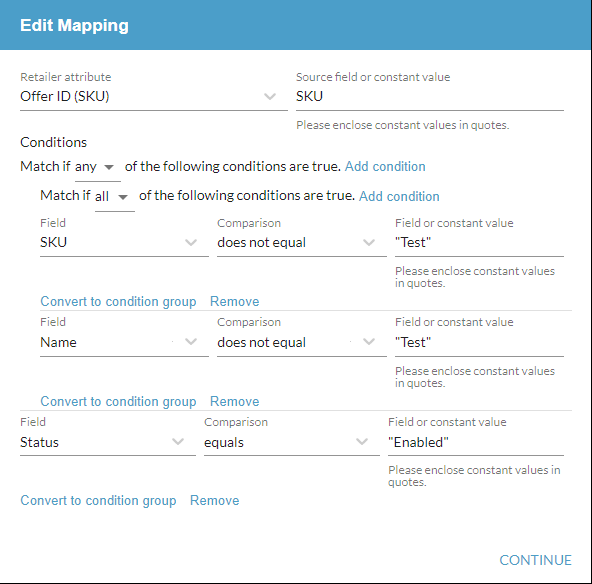
The mapping will only run if the Conditions setup are true. These conditions can also include multiple layers of grouping. Matching ANY or ALL conditions in a group. You can convert any condition into a group.
EXAMPLE:
In this case the Offer ID (SKU) will map from the SKU field if
(SKU !== "Test" and Name !== "Test") or Status == "Enabled"
Integration Options
All product catalogs sent to your company can be downloaded through the portal. Select your Partner for which catalog you want to review, and under Feeds you can find new catalogs that were sent. Clicking View on the product feed, you can review what was sent and find any non-compliant products, making updates or communicating with your supplier on the changes that need to be made. Click Download to get the CSV of the feed sent in your custom format. The Send button will also, send the product to your SFTP/FTP location, if needed to pick up there as well. If you are manually managing your products you will not need to do this. Once the file is sent the status will update to Complete. See CSV or custom flat file SFTP/FTP Integration for more information.