Below are the steps to start the onboarding process. All steps are required for suppliers unless otherwise specified. All steps will be completed in our stage (test) environment.
Accept the invitation and fill out the Onboarding form
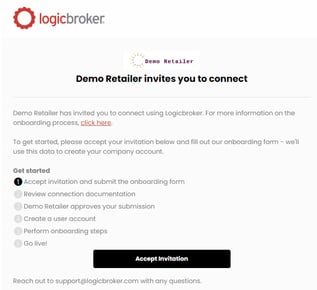
You will receive an onboarding invitation email that will link you to our Onboarding form to get started.
- From the "[Supplier] has been invited to connect with PetSmart" email, click on Accept invitation Note: If you don't see the email, check your junk folder and add do-not reply@logicbroker.com to your contact list
- Fill out the Onboarding form
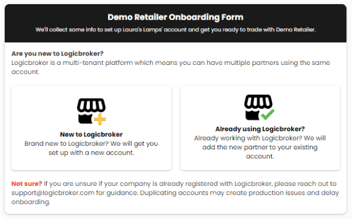
Note: If you are already working with another retailer through Logicbroker, DO NOT click on New to Logicbroker. Doing so will create a duplicate account and delay your onboarding.
Create a user account and access the stage portal
Once your submission has been reviewed and accepted, we will create your company account and send you next steps.
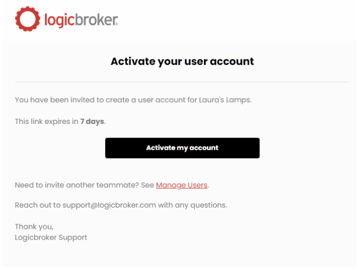
- You will receive a "Welcome to Logicbroker!" email. Click on Activate my account to create a username and password. Note: The link expires after 7 days, if you miss the window, contact PetSmart for a new invitation. If you are an existing Logicbroker user, you will not receive this email
- You will receive a "Connect [Supplier] with PetSmart– Next steps" email. Review next steps and click on Continue in the portal to access the stage portal to complete onboarding steps
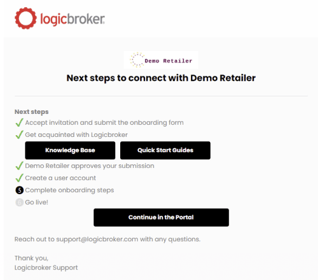
Review onboarding steps
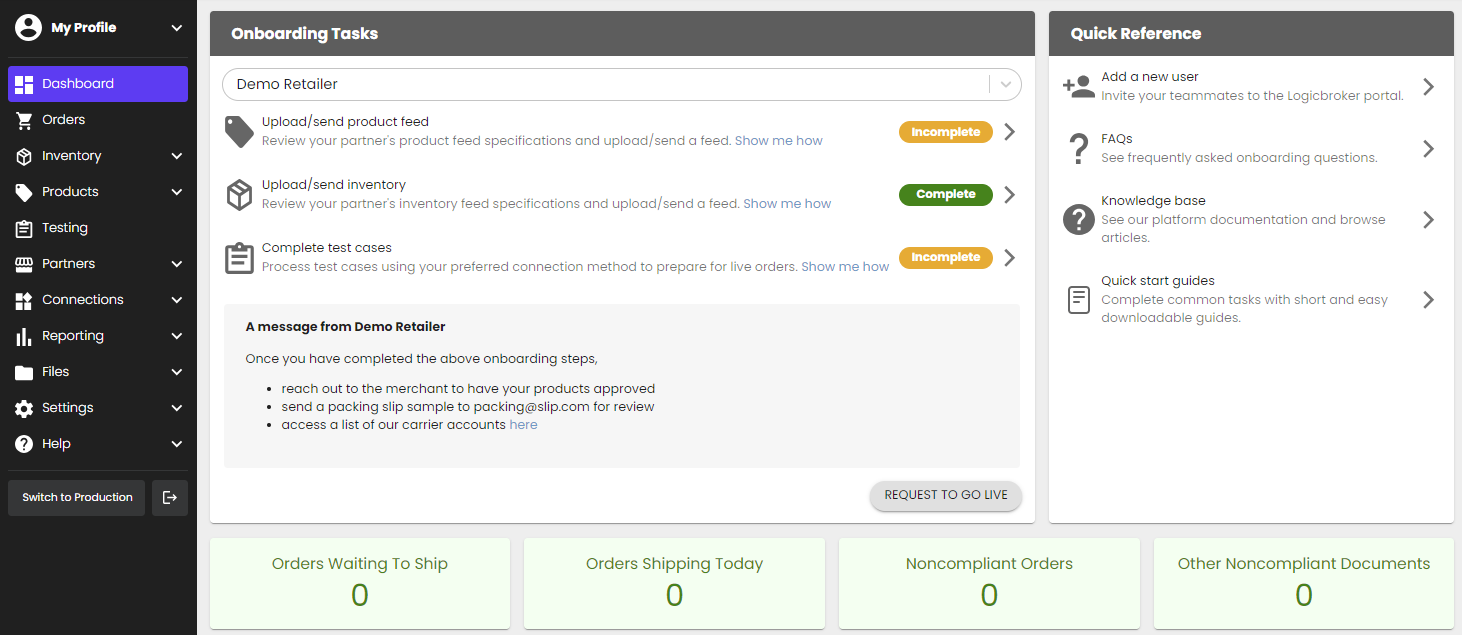
Once you log into the stage portal, you will see the Onboarding Task Manager which will show the onboarding tasks along with the progress. Note: This will only capture completion, not compliance. If there are any errors you need to fix, you may need to revisit the step.