
Note: You will need to upload/send a live inventory feed once you move to the production portal as feeds do not carry over from stage to production.
Review PetSmart's inventory specifications
- Portal, API Suppliers: Review PetSmart's inventory requirements from the Document Standards page in the portal.
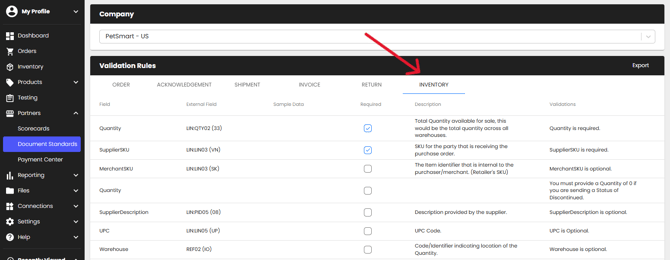
- EDI Suppliers: Review PetSmart's 846 specifications from the EDI Connections page or the EDI Specs page in the knowledge base.
Create your inventory file
- Portal Suppliers: Download an CSV/XLSX template from the Inventory Import page > Inventory > Import > Inventory Feed Template
- Once you have the template downloaded, you can fill out the sheet with your inventory information
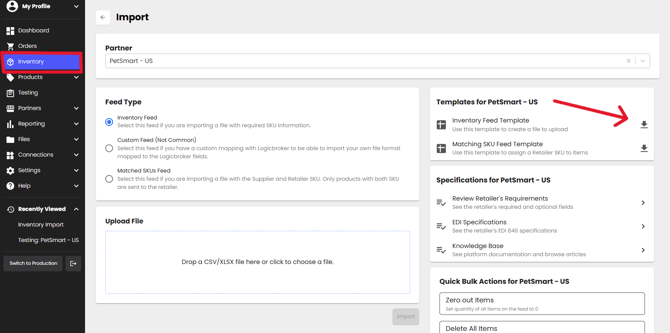
- Once you have the template downloaded, you can fill out the sheet with your inventory information
- API, EDI Suppliers: Your development and EDI teams should work on mapping all API/EDI specs and getting the file ready to send from your system.
- Shopify Suppliers: All items from Shopify will be pulled into Logicbroker as long as they are Active and have a SKU. Note: Duplicate SKUs in Shopify will cause issues. Remove duplicate SKUs in Shopify or reach out to support@logicbroker.com if you are unable to and need a workaround.
- Stock Levels
- If 'Track Quantity' is disabled, Logicbroker will pull quantity of 1000
- If 'Track Quantity' is enabled, Logicbroker will pull the 'Available' quantity from Shopify
- If 'Continue selling when out of stock' is enabled, Logicbroker will pull the 'Available' quantity from Shopify
- If any product has a negative quantity, Logicbroker will pull in 0
- Stock Levels
Upload or send your inventory file
- Portal Suppliers: Upload your edited template file into the portal from the Inventory Import page > Inventory > Import > Upload File.
- Make sure that Inventory Feed is the selected Feed Type
- Do not select Matched SKUs Feed, or upload an Inventory Feed with Retailer SKUs. Make sure that only your organization's SupplierSKUs are included
- Note: Excel uploads are preferred since CSV may cause scientific notation errors
- API, EDI Suppliers: Send the inventory file through your established connection. Ensure you are sending it to the correct environment (if you are testing, please send inventory to our stage environment).
- Shopify Suppliers: Feeds are pulled in on a schedule, normally once an hour. Logicbroker will then send the inventory to PetSmart based on their requested schedule.
Confirm your inventory file was uploaded/sent successfully
In the portal, from the Inventory page, go to Events > look for the Inventory Imported event to ensure your file was uploaded successfully. Review any errors and reupload/resend if necessary.
