
Create test orders
- In the Logicbroker portal, go to Testing > PetSmart > View
- Review testing requirements for all test orders. For each test case, click on Create a New Test Order Note: Once created, these orders will be visible in the Orders page of the portal
Order Note: For testing purposes, be sure to include one of your SKUs for both the Supplier SKU and Partner SKU when creating the test order
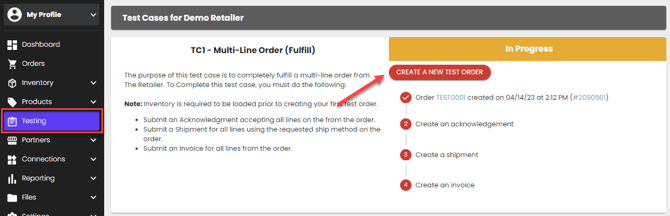
- Portal Suppliers: Review the order by clicking on the order number
- EDI/API Suppliers: You should receive the order document in your system within a few minutes
- Shopify Suppliers: You should receive the order in your Shopify account within a few minutes
- ShipStation Suppliers: You should receive the order in your ShipStation account within a few minutes
Note: At any time, you can generate a new test order if you would like to start over, try again, etc. Just click on Create A New Test Order. Just note the previous test order will move to an Ignored status.
Complete Testing
- Portal Suppliers: In this step, you will process the required test cases in the portal by creating return documents directly in the portal.
- Reference Logicbroker's general support documentation on return documents including Acknowledgements, Shipments, and Invoices
- CA Suppliers: Please reference the PetSmart CA Tax Guide for including provincial taxes on invoices, which can be tested in Stage
- EDI/API Suppliers: In this step, you will process the required test cases in your system by sending return documents via your EDI/API connection.
- CA Suppliers: Please reference the PetSmart CA Tax Guide for including provincial taxes on invoices, which can be tested in Stage
- Shopify Suppliers: In this step, you will process the required test cases by creating creating acknowledgements and invoices in the portal, and by creating shipments/fulfilling orders in Shopify. Based on Shopify requirements and workflows, you only need to complete Test Cases 01, 02, 04, and 05. Please contact support@logicbroker.com for assistance in having the remaining test cases completed for you.
- For each test case, you'll first create an acknowledgement(s) in the portal by clicking Accept/Reject on the top of the order page.
- Reference Logicbroker's general support documentation on Shopify and Acknowledgements (for cancellations), and a step-by-step guide here. While acceptance Acknowledgements are automatically created on your behalf and sent to PetSmart in Production, you will need to manually create Acknowledgements to complete the test case steps.
- After creating the acknowledgement(s), you will fulfill the order in Shopify (without physically shipping any items). Logicbroker will automatically pull in the fulfillment from Shopify as long as there is a test shipment with a tracking number and carrier.
- After the shipment is posted in Logicbroker, you'll create an invoice by clicking Invoice on the top of the order page.
- Reference Logicbroker's general support documentation on Invoices.
- US Suppliers: While Invoices will be automatically generated from Shipments for you in Production, you will need to manually create Invoices to complete the test case steps.
- CA Suppliers: Please reference thePetSmart CA Tax Guide for including provincial taxes on invoices, which can be tested in Stage
- For each test case, you'll first create an acknowledgement(s) in the portal by clicking Accept/Reject on the top of the order page.
- ShipStation Suppliers: In this step, you will process the required test cases in ShipStation by creating shipments/fulfilling and cancelling orders. Based on ShipStation requirements and workflows, you only need to complete Test Cases 01, 02, 04, and 05. Please contact support@logicbroker.com for assistance in having the remaining test cases completed for you.
- Acceptance acknowledgements should be automatically created for you in Stage as well as production
- Cancellations for entire orders created in ShipStation are sent to Logicbroker on a schedule (once an hour). Once in Logicbroker, they will be sent out to PetSmart
- To pass the shipment test step, you will ship/fulfill the order in ShipStation (without physically shipping any items). Logicbroker will automatically pull in the fulfillment from ShipStation as long as there is a valid shipment label with a carrier and tracking number (you can void the label in ShipStation if needed after the test shipment posts to Logicbroker).
- US Suppliers: While Invoices will be automatically generated from Shipments for you in Production, you will need to manually create Invoices to complete the test case steps. Reference Logicbroker's general support documentation on Invoices.
- CA Suppliers: Please reference the PetSmart CA Tax Guide for including provincial taxes on invoices, which can be tested in Stage
Note: You must complete testing using the connection method you plan on using in production. These are just test scenarios to ensure correct data flow, please do not ship any physical items out.
Note: For testing purposes, item prices and shipping costs will be artificially set by the system