
Request to go live
Once you have completed onboarding steps, click on Request to go live. PetSmart will review and reject or approve your request.
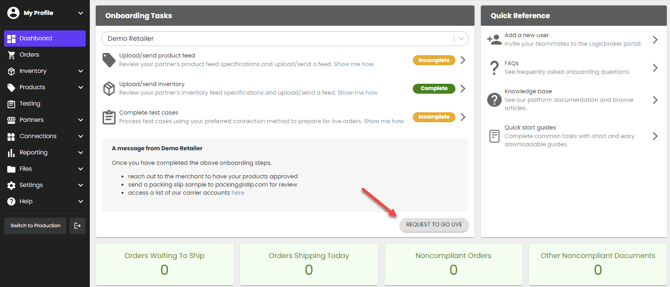
PetSmart will push your account live
PetSmart will confirm all onboarding steps are complete and will push your account into production. You will receive an email with the subject line "[Supplier]'s connection with PetSmart is live!" This email will link you to our production portal.
Complete post-production steps
Once you are live, you will need to complete post-production onboarding steps. The following settings added in stage will not carry over so they will need to be re-configured in production:
- Set up your connection in production
- API Suppliers: Generate a production API key from the API page
- EDI Suppliers: Add your production EDI connection from the EDI page
- Shopify Suppliers: Add your production Shopify connection from the Connections page
- You can reference this guide for connecting to Shopify through the Logicbroker portal
- ShipStation Suppliers: Add your production ShipStation connection from the Connectors page
- You can reference this guide for connecting to ShipStation through the Logicbroker portal
- Upload/send live inventory in production from the Inventory Feeds page
Note: If you were already connected to Logicbroker for a different partnership (prior to onboarding with PetSmart), you will also need to configure the following settings in production if they are specific to PetSmart:
- Notifications
- Inventory settings
- Document settings
- Shipment Options
- Shipment Boxes
- EDI Custom Document settings