
PetSmart Canada suppliers must enter the applicable provincial taxes during invoice creation. Depending on your connection type, you can follow the following steps to include the required taxes on your invoices.
Portal Suppliers
-
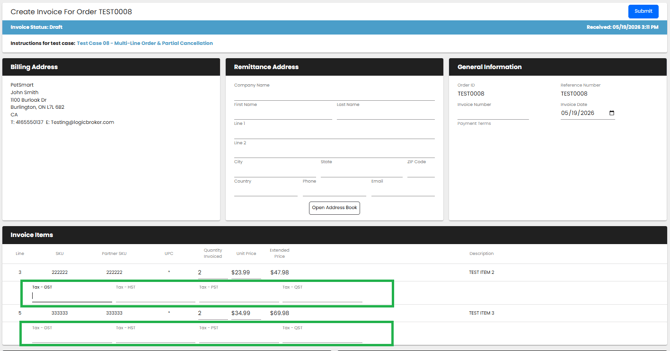
Manually enter the applicable tax amounts in the tax fields provided on the invoice screen for each line item
On the invoice creation screen below, the user can click on the line for any of the Tax fields highlighted to enter a value
-
The system validates those values against the configured percentages for PetSmart
- If the entered values are outside the allowed range based on the line item total, the invoice will fail validation and return an error.
- If the entered values are valid, the taxes will appear correctly on the final invoice and within the payout/reporting totals.
- If these fields are skipped entirely, no tax amounts will appear on the invoice, order, or payout report.
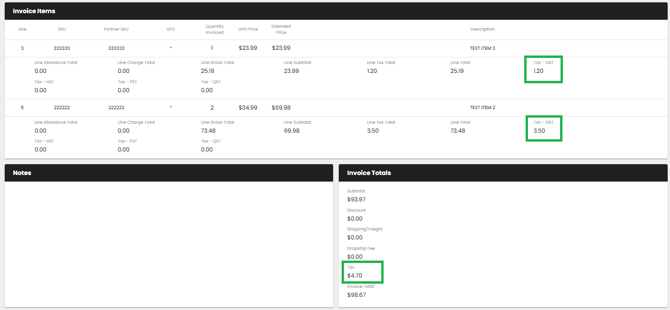
In the example below, the two GST amounts for each line are based on a 5% standard, calculated from the line price total. The GST amounts are then included in the Tax line for the Invoice Totals.
EDI Suppliers
- Include the TXI line in your 810
- The tax type code will go in TXI01
- The monetary amount will go in TXI02
- Reference the EDI specifications for line structure and formatting
-
The system validates the values in TXI02 against the configured percentages for PetSmart
- If the values are outside the allowed range, the invoice will fail validation and return an error.
- If the values are valid, the taxes will appear correctly on the final invoice and within the payout/reporting totals.
API Suppliers
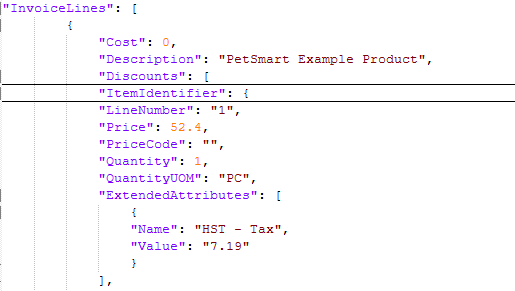
- Send the tax values in the following fields
- InvoiceLine.ExtendedAttribute.GST - Tax
- InvoiceLine.ExtendedAttribute.PST - Tax
- InvoiceLine.ExtendedAttribute.HST - Tax
- InvoiceLine.ExtendedAttribute.QST - Tax
-
The system validates the values in each field against the configured percentages for PetSmart
- If the values are outside the allowed range, the invoice will fail validation and return an error.
- If the values are valid, the taxes will appear correctly on the final invoice and within the payout/reporting totals.