
Request to go live
Once you have completed onboarding steps, click on Request to go live. Toys R Us will review and reject or approve your request.
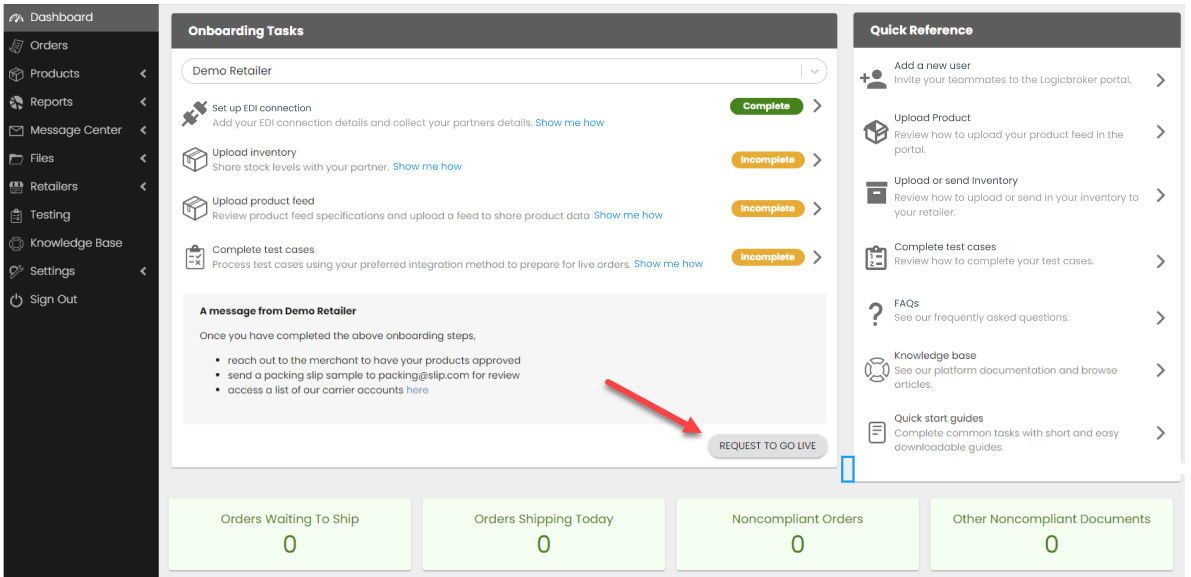
Toys R Us will push your account live
Toys R Us will confirm all onboarding steps are complete and will push your account into production. You will receive an email with the subject line "[Supplier]'s connection with Toys R Us is live!" This email will link you to our production portal.
Complete post-production steps
Once you are live, you will need to complete post-production onboarding steps. Any settings added in stage will not carry over so these will need to be re-configured in production:
- Set up your connection in production
- API Suppliers: Generate a production API key from the API Authentication page
- EDI Suppliers: Add your production EDI connection from the EDI Connection page
- Upload/send a live product feed from the Product Feeds page
- Upload/send live inventory in production from the Inventory Feeds page Note: Make sure to add Feed Settings (Add your Vendor Number and enable Auto-match)
- Re-configure any stage settings in the production portal
Set up remittance address
You will need to configure a remittance address for your invoices going to Toys R Us. Setting this up will save you time so you don't have to manually input the address on each invoice.
- In the Logicbroker production portal, navigate to Settings > Account Information > Document Settings > Remittance Address
- Add a default remit to address or set it up for a specific partner
- Save