
The Testing module is where you will view the test orders you have generated, the results of your test documents (shipments, invoices, etc.), and the completion of the test case scenarios.
Regardless of integration type (EDI, API, Portal, etc.), test orders will be generated through the testing module, then you will process the orders through your chosen method. IMPORTANT! Do not complete testing through the portal if you are planning to use another integration type. You must complete the testing steps through your chosen integration type!
1. Generate test orders in the portal. Regardless of connection type test orders must be generated in the portal. Go to Stage Portal > Testing section > Click Create Test Order. You will need to create a test order for each test case. If you are using an integration other than the portal you should see those orders appear in your integration for testing.
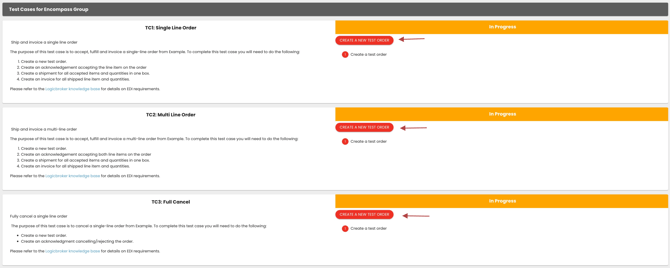
2. Complete test cases. If using the portal only, complete them in the portal. If using outside sources make sure to complete the test cases there. (ie. If you are using an EDI provider make sure they are processing the test orders using EDI)
3. Notify Support@logicbroker.com when you complete the test orders. This will allow us to send additional instructions and push you to production.
Please follow these steps to create and test your connection:
LINK TO ARTICLE
Note: If using EDI, API, FTP/SFTP please make sure files can be traded in both directions
Step 7: Go Live