
Product feeds are used when a retailer is using vendor data to create products. To learn more see here.
Manually via the Logicbroker Portal:
Manually uploading products through the portal is done via a CSV template
1. Log in to your Logicbroker Portal account in stage ( stageportal.logicbroker.com)
2. Select Products > Product Feeds from the left-hand navigation
3. From here you will make sure you select the correct partner from the dropdown. You can then download the template and then upload by dropping the file into the box. 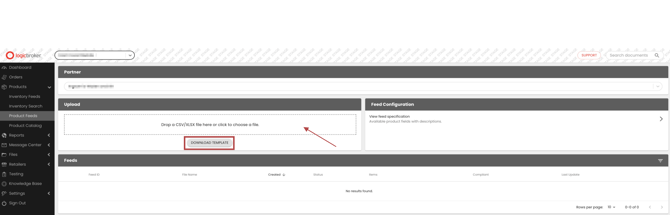
4. Once uploaded, you will see either a "completed" or "failed" message to indicate the status.
Completed: The retailer will receive a notification to review your product feed
Failed: Download the file and search for "error" in the doc. You will then be shown the column that lists any missing that is incorrect or missing. Please make your updates and re-upload your doc.
API:
https://stage.commerceapi.io/swagger/ui/index#!/Product/Product_Upload
EDI:
EDI does not support Product feeds. This must be managed manually through the portal or a supported automated option for product feeds (API or SFTP/FTP)
SFTP/FTP:
See here to set up the SFTP/FTP connection and then follow the steps below for product feeds.
-
- Login to your Logicbroker SFTP/FTP directories by using your normal portal login and navigating to /Product/Outbound to upload your CSV in the required retailer/channel's format.
- Once the file is uploaded, you will still need to log in to the portal under Products > Product Feeds to review and fix non-compliant products, and submit the file to the retailer.