
Loading Test Inventory
Test orders cannot be generated until the test inventory has been loaded. Ideally, you would load an inventory file that has real inventory data to ensure all data can be handled properly.
- EDI - load the 846 file through the established EDI AS2 connection or via FTP/SFTP
- Excel or CSV - load the file through Stage Portal.
- See the steps below for the template and steps.
- We recommend using an Excel file if you are not familiar with CSV-formatted files.
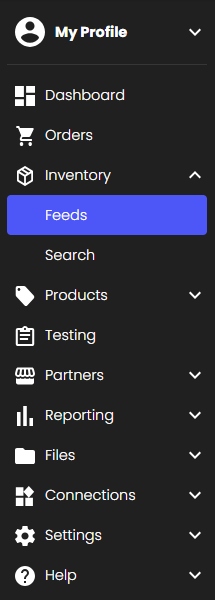
1. Navigate to Products --> Inventory Feeds.
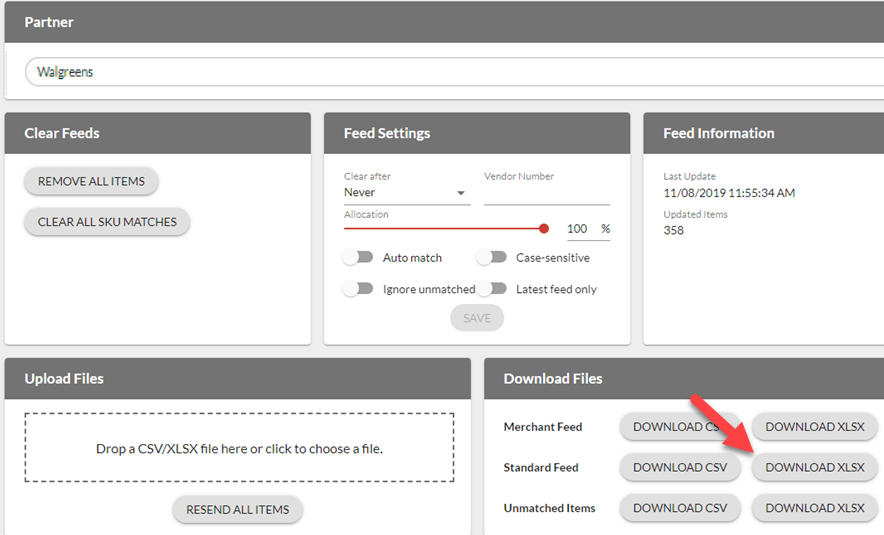
2. From the Download Files section, select Download XLSX (or CSV) to download the appropriate inventory headers in an Excel file.
3. Update the Excel file with the appropriate information.
- For testing, the only required fields are SupplierSKU, MerchantSKU, Quantity, and Cost. Additional fields may be required in Production, as defined by the Retailer.
- Be sure to load at least 5 unique SupplierSKUs (anything less may cause issues with test order generation).
- NOTE: A sample inventory file is attached to this article as well.

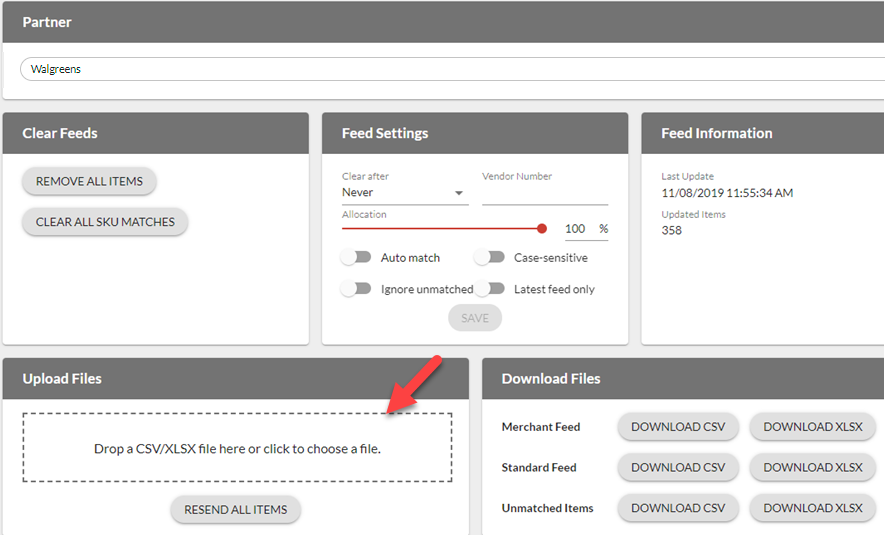
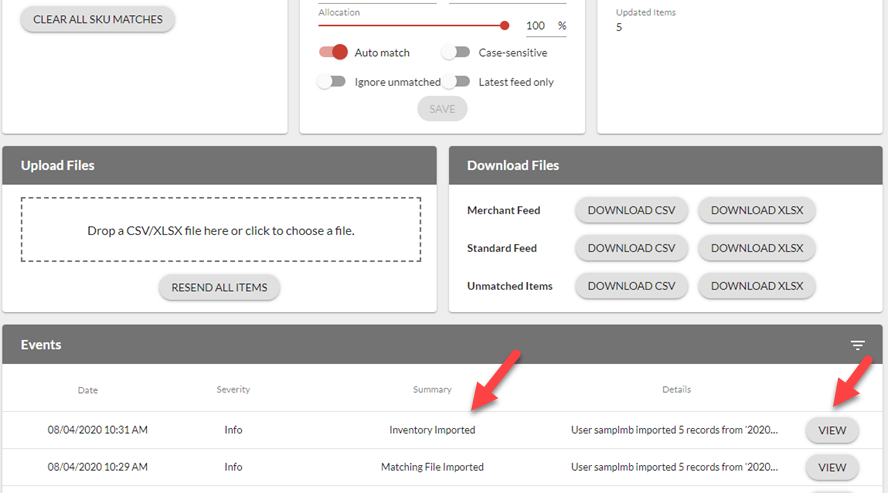
4. Drag and drop the Excel file in the Upload Files section OR click inside the dotted box to select a file to upload.
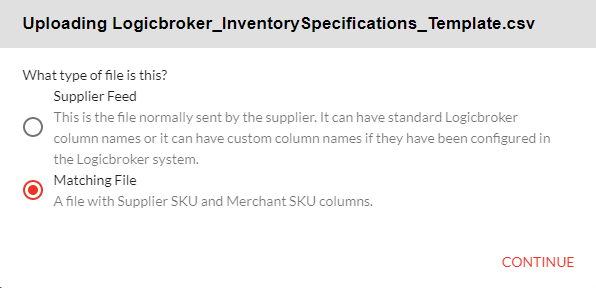
5. You need to upload your inventory as BOTH a Matching File and Supplier feed to receive and process orders, so you will upload the file two separate times.
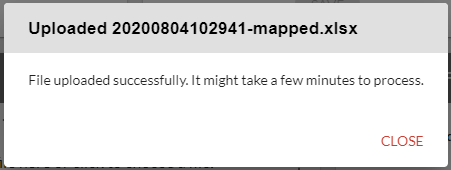
6. A dialogue box will appear advising you of the status of the upload. Click Close.
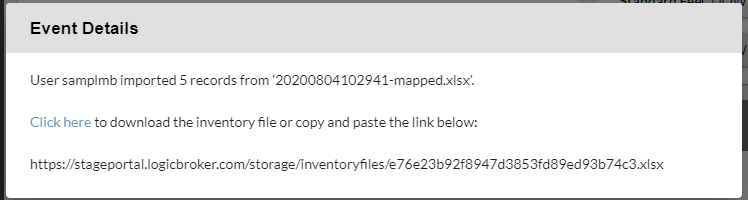
7. From the Events section, you can see that your file successfully loaded and you can review the file that was uploaded by clicking on View.
- A dialogue box appears where you can download the file that was originally uploaded.
You are now ready to generate your test orders.