
The first step in the integration process is to have your product feed uploaded into the Logicbroker portal for Zageno to review. Product setup will be managed through the Portal, and will consist of uploading a fully compliant product feed, as well as a corresponding inventory feed for your items.
To get started with your product feed, please log-in to your Logicbroker Portal account in stage (stageportal.logicbroker.com) and select Products --> Product Feeds from the left-hand navigation. From here, you can select "Download Template" and this will provide the most current Product Feed for Zageno Click here to review the ZAGENO product key that explains each element needed.
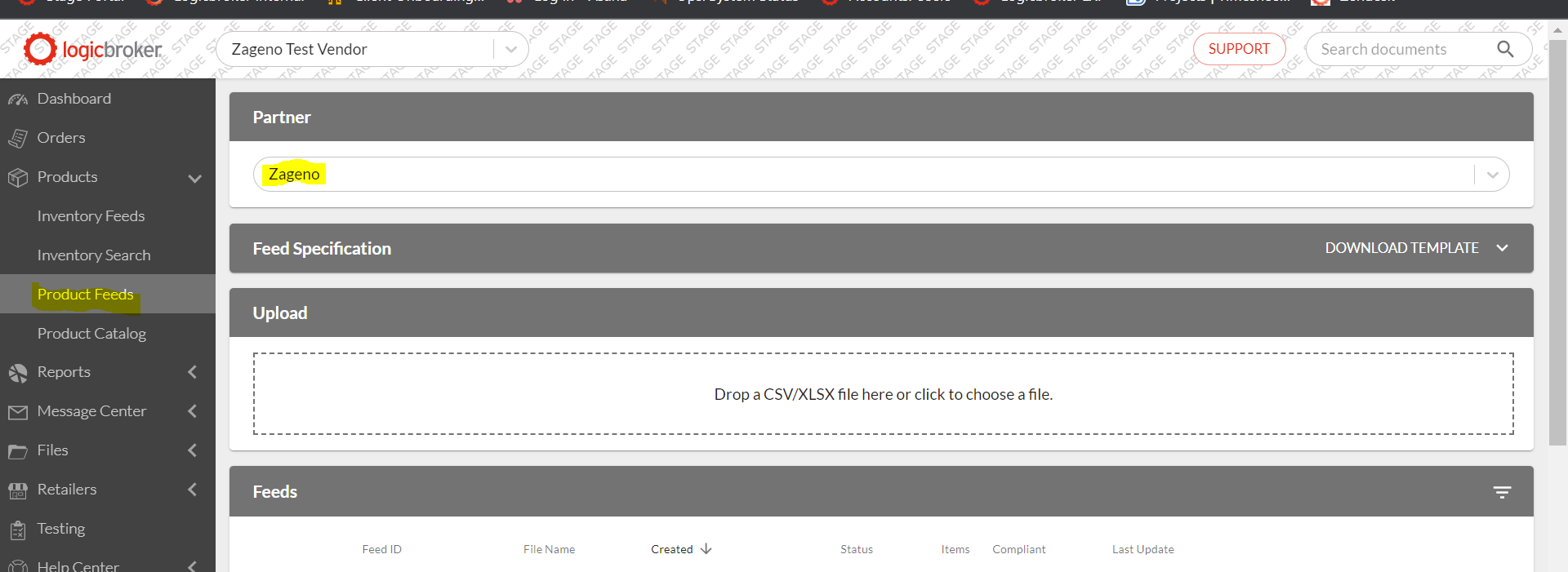
From here you will make sure you select "Zageno" from the partner dropdown and then you can drop your file in the spot specified in the above attachment.
NOTE: In order for the file to be processed it needs to be a single tabbed document. This document you have been provided has multiple tabs as it is instructional in nature so please make sure all of your product content is on one single tabbed xlsx or csv doc.
Once uploaded, you will see either a "completed" or "failed" message to indicate the status. If it is completed, you are all set and Zageno will receive notification to review your product feed. If it lists "failed" please download the file and search for "error" in the doc. You will then be shown the column that lists any missing that is incorrect or missing based on the Zageno requirements. Please make your updates and re-upload your doc.