Note: You will need to reapply these settings once you move to the production portal as settings do not carry over from stage to production.
Send packing slip sample for approval (required for some API/EDI suppliers)
*This step is required for some API and EDI suppliers
API and EDI suppliers have 2 options for handling packing slips:
If you do not plan on using Logicbroker's You can set up default or partner-specific payment terms. For more information, see Document Settings.
- Use Logicbroker generated packing slips – these are retailer-branded and are available in the portal. You will need to log into the portal to download/print. You may do this on individual orders or do this in bulk. For more information, see Shipments > Download Packing Slips
- Create your own – review BBQGuys' packing slip specs to map your own slip in your system. If you do this, send a sample to BBQGuys for approval
Set up your connection (API/EDI suppliers)
*This step is required for API and EDI suppliers
- API Suppliers: Generate a stage API key from the API Authentication page
- EDI Suppliers: Add your stage EDI connection from the EDI Connection page
Set up shipping SCAC codes (optional)
*This step is optional for API and EDI suppliers
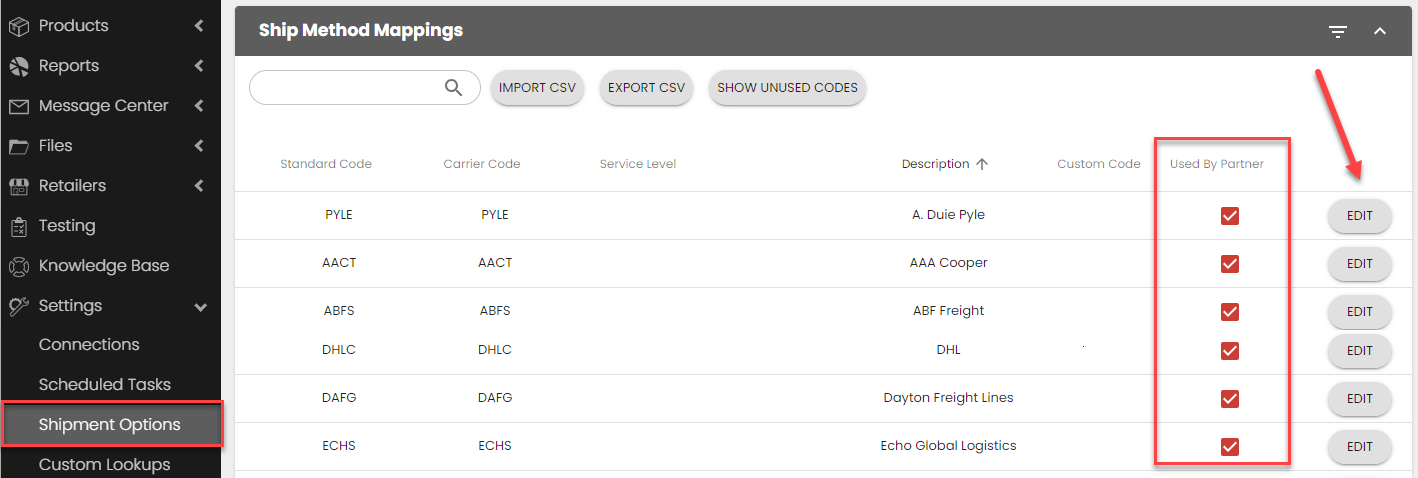
If your system uses a different code than the one listed under Standard Code, you will need to add a Custom Code so our system can match your Custom Code to our Standard Code. Our system will translate your custom code to our standard code on all orders and return documents. If a code is received that is not mapped, you may receive an error and your document may fail. For more information, see Shipment Options.
- In the Logicbroker portal, go to Settings > Shipment Options > Ship Method Mappings
- You will see a list of all the ship methods that all your retailers accept (to see partner-specific ship methods, scroll down to Partner Ship Method Mappings).
- If the Standard Code column lists a code different than the one in your system, click on Edit > add your Custom Code to map a Custom Code for our system to recognize the code you will be sending
Set up UCC 128 Company ID
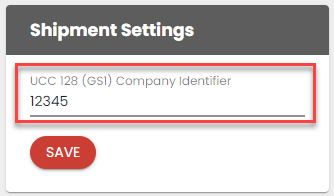
BBQGuys’ integration with Convey requires suppliers to input a dummy UCC 128 Company ID to be able to generate a GS1 label and a BOL.
- In the Logicbroker portal, navigate to Settings > Account Information > Shipment Settings > UCC 128 (GS1) Company Identifier
- Type in: 12345
- Save