Shopify
In order to activate your Shopify connection, you must be an active Logicbroker customer.
About this app
Shopify is an eCommerce platform for online stores and retail point-of-sale systems that allows merchants to build and customize their own online stores and sell in multiple places. Logicbroker’s connection to Shopify provides suppliers with an easy way to manage orders directly in Shopify with a direct connection to suppliers’ trading partners. Get started today with a subscription or try it for free! Shopify Pricing
Supplier Features
- Send Inventory
- Send Products
- Receive Orders
- Send Shipments
Retailer Features
- Receive Inventory
- Receive Products
- Send Orders
- Receive Shipments
- Receive Acknowledgments
Website: https://www.shopify.com/
Shopify Support: https://help.shopify.com/en
- are tagged with 'Logicbroker' (not case sensitive)
- are in an 'Active' status
- have a SKU (products with no SKUs will be ignored)
- Sales Channel: 'Online Store' enabled
- Tag: 'From Logicbroker'
- Delist: When delisting a product in Logicbroker, it will completely remove the product or variant from Shopify
- Suppliers: cannot have duplicate SKUs in their Shopify system - if duplicate SKUs are present, only the most recent product pulled into Logicbroker will be used when souring and creating orders
- Retailers: will require a matching file if there are duplicate SKUs accross multiple suppliers
- If 'Track Quantity' is disabled, we will pull quantity of 1000
- If 'Track Quantity' is enabled, we will pull the 'Available' quanitity from Shopify
- If 'Coninue selling when out of stock' is enabled, we will pull the 'Available' quantity from Shopify
- If any product has a negative quantity, we will pull in 0
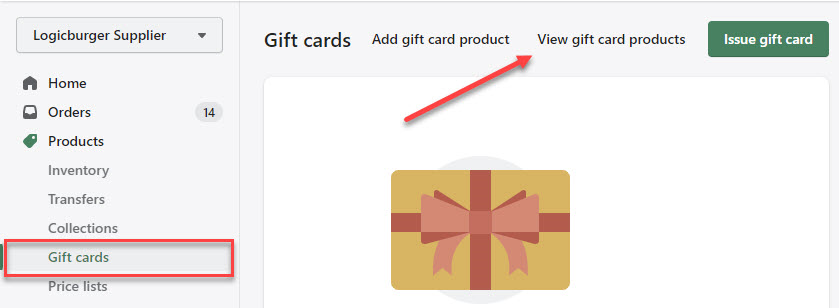
- In the Shopify portal navigate to Products > Gift cards > View gift card products
- Select the one you want to add a SKU to
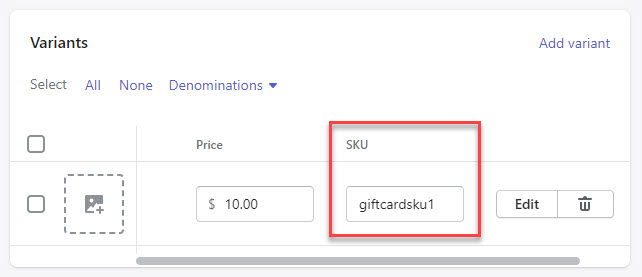
- Scroll down to Variants
- Add a SKU
Location
For suppliers, the Location setting in the portal controls where we pull inventory from. By default, we will pull inventory from all Shopify Locations unless a specific Location is specified.
Orders sent to suppliers
- 1 Store Location - all orders will be routed to that one store
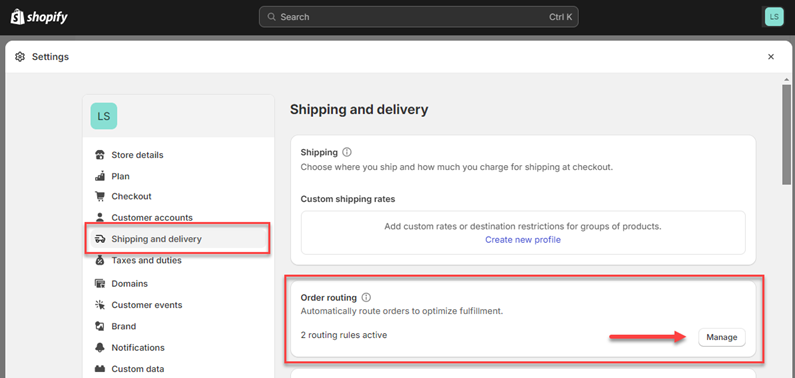
- Multiple Store Locations - orders will be sent to the location depending on the order rules configured in Shopify (in Shopify, see Settings > Shipping and delivery > Order routing)
- PO Box - Carrier dependant
- International Addresses - May require customs information if the label is created in Shopify
Partial Cancellations (Retailer Flow)
If your account is set up to post cancellations to Shopify, Logicbroker posts each supplier cancellation to your Shopify store as a refund. Partial cancellations work only if Logicbroker has turned them on for your connection. Logicbroker can't undo a cancellation or refund in Shopify. See order and fulfillment statuses depending on the scenarios below:
- Orders with free shipping fully canceled using multiple cancellations will show:
-
Fulfillment status: Unfulfilled
-
Payment status: Refunded
-
-
Orders with paid shipping (order or line level) fully canceled using multiple cancellations will show:
-
Fulfillment status: Unfulfilled
-
Payment status: Partially Refunded (we are not refunding shipping)
-
-
Orders with free shipping fully canceled using one cancellation will show:
-
Fulfillment status: Unfulfilled
-
Payment status: Partially Refunded
-
Order status: Canceled
-
Note : Logicbroker refunds shipping only when the whole order is canceled in one cancellation. The restock type we post back to Shopify is no_restock so there is no interference with inventory levels.
- Shipments: shipping label is created in Shopify
- Fulfillments: tracking is manually input into Shopify
Multi-box shipments
| Field | Pulled from Shopify | Sent to Shopify | Notes |
|---|---|---|---|
|
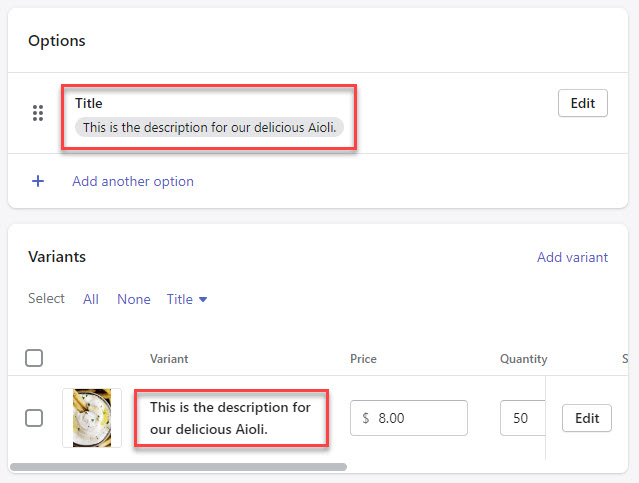
Name In Shopify:" 'Title' |
✓ |
✓ |
|
|
Variant Name In Shopify: 'Options' |
✓ |
✓ |
For products with no variants: this will show as 'Default Title' For products with variants: this will show as option values (ex. Gray / Small). |
| Description | ✓ | ✓ | |
|
Images In Shopify: 'Media' |
✓ | ✓ |
Variant images will show in 'Image 1' with main product images starting at 'Image 2' |
|
SKU |
✓ | ✓ | |
| Barcode | ✓ | ✓ | |
| Price | ✓ | ✓ | |
| Compare At Price | ✓ | ✓ | |
|
Taxable In Shopify: 'Charge tax on this product' |
✓ | ✓ | |
|
Tax Code |
✓ | ✓ | |
| Cost | ✓ | ✓ | |
|
Requires Shipping In Shopify: 'This is a physical product' |
✓ | ✓ | |
| Weight | ✓ | ✓ | |
| Weight Unit | ✓ | ✓ | |
| Country Code of Origin | ✓ | ✓ | |
| Harmonized System Code | ✓ | ✓ | |
|
Option Name |
✓ | ✓ | Up to 3 supported |
| Option Value | ✓ | ✓ | |
| Metafields | ✓ |
✗ |
Only text-formatted fields are supported. This is informational only and will not be sent to retailer's Shopify. |
| Category | ✓ | ✓ | |
| Product type | ✓ | ✗ | This is informational only and will not be sent to retailer's Shopify. |
| Vendor | ✓ | ✓ | |
| Tags | ✓ | ✗ |
This is informational only and will not be sent to retailer's Shopify. All products sent to retailer's Shopify will be tagged with 'From Logicbroker' |
| Logicbroker API Field | Shopify Field |
|---|---|
| PartnerPO | name |
| OrderDate | created-at |
| TotalAmount | total-price |
| Billing | |
| Billing Address (BillToAddress) | (billing-address) |
| FirstName | billing-address.first-name |
| LastName | billing-address.last-name |
| Address1 | billing-address.address1 |
| Address2 | billing-address.address2 |
| City | billing-address.city |
| State | billing-address.province-code |
| Zip | billing-address.zip |
| Country | billing-address.country-code |
| Phone | billing-address.phone |
| Shipping | |
| Shipping Address (ShipToAddress) | Shipping Address (shipping-address) |
| FirstName | shipping-address.first-name |
| LastName | shipping-address.last-name |
| Address1 | shipping -address.address1 |
| Address2 | shipping-address.address2 |
| City | shipping-address.city |
| State | shipping-address.province-code |
| Zip | shipping-address.zip |
| Country | shipping-address.country-code |
| Phone | shipping-address.phone |
| Ordered by / Customer | |
| Ordered by Address (OrderedByAddress) | Customer (customer) |
| FirstName | first-name |
| LastName | last-name |
| Address1 | default-address.address1 |
| Address2 | default-address.address2 |
| City | default-address.city |
| State | default-address.province-code |
| Zip | default-address.zip |
| Country | default-address.country-code |
| ExtendedAttribute["AcceptsMarketing"] | accepts-marketing |
| General Header Information | |
| ExtendedAttribute["ShopifyOrderID"] | id |
| ExtendedAttribute["CustomerEmail"] | |
| ExtendedAttribute["ShopifyNote"] | note-attributes |
| ExtendedAttribute["ShopifyTags"] | tags |
| ExtendedAttribute[" ShopifyVendor"] | vendor |
| Note |
note |
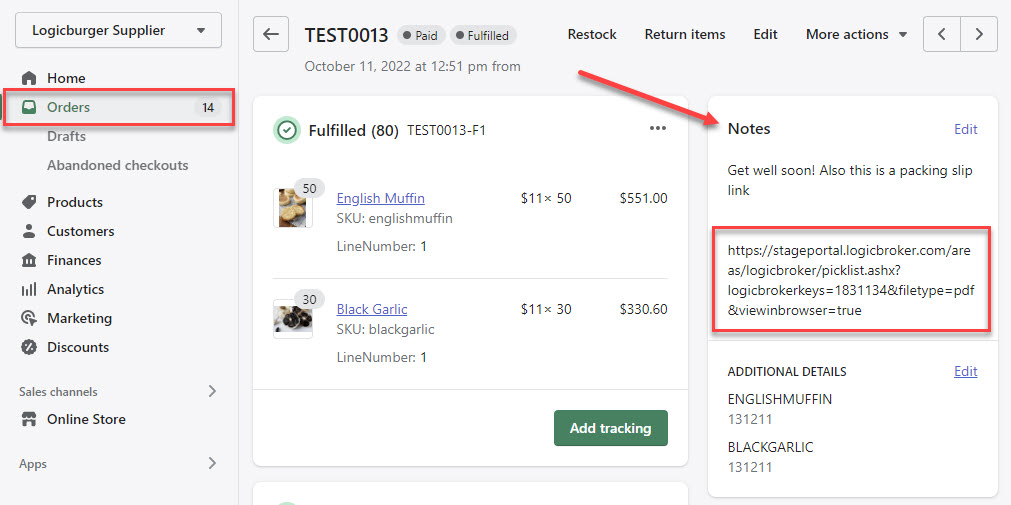
| ⚠️ This field can be used for gift messages, packing slip links, etc. | |
| TaxTitle | tax-line.title |
| TaxAmount | tax-line.price |
| DiscountCode | discount-code.code |
| DiscountAmount | discount-code.amount |
| DiscountName | discount-code.type |
| Shipping Information | |
|
ShipmentInfo.CarrierCode |
shipping-line.carrier_identifier |
| ShipmentInfo.ClassCode | shipping-line.title |
|
ShipmentInfo.ServiceLevelCode |
shipping-line.requested_ fulfillment_service_id |
|
ShipmentInfo.ExtendedAttribute ["discounted_price"] |
shipping-line.discounted-price |
|
ShipmentInfo.ExtendedAttribute ["price"] |
shipping-line.price |
|
Order Lines |
|
|
Order Lines (OrderLines) |
line-items |
|
ItemIdentifier.SupplierSKU |
sku |
|
ItemIdentifier.PartnerSKU |
id |
|
LineNumber |
Index + 1 |
|
Description |
title |
|
Quantity |
quantity |
|
Price |
price |
|
Weight |
grams |
|
Discounts.DiscountAmount |
discount-allocations.amount |
|
ExtendedAttribute["ShopifyItemID"] |
id |
| Logicbroker API Field | Shopify Field |
|---|---|
|
ShipmentContainer |
fulfillment |
|
WareshouseCode |
location-id |
|
ExtendedAttribute ["ShopifyNotifyCustomer"] |
notify-customer |
|
CarrierCode |
tracking-company |
|
TrackingNumber |
tracking-number |
| ⚠️ A tracking number is required to pull in shipments/fulfillments from Shopify. | |
|
ShippingLine.ExtendedAttribute ["ShopifyItemID"] |
line-items.id |
|
ShippingLine.Quantity |
line-items.quantity |
- Logicbroker account (supplier flow) - become a Logicbroker customer
- Shopify account - review pricing, or try it for free!
Shopify Bundles
- Shopify App: Shopify Bundles
- How it works: Retailers can create "bundles" using the Shopify Bundles app that customers can add to cart and purchase. When the order is created, the "bundle" gets split out into individual lines with the bundle price prorated across the lines. When Logicbroker pulls orders containing bundles, we will create POs for the individual lines and send it to the suppliers to fulfill those lines.
| Issue | How to troubleshoot or resolve |
|---|---|
| Business rule failed > SupplierName_WF: TypeError: Cannot read property 'forEach' of undefined at Script Document [377]:4:19 doc.ShipmentInfos.forEach(function(info)) |
The order is missing information such as customer shipping info or shipping method. These fields need to be populated or added to the order in the portal. |
| Failed Order > - Error posting order to Shopify API. > API Error 422: {"errors":{"order":["Shipping lines is invalid"],"shipping_lines":[" Title can't be blank"]}} |
Reach out to support@logicbroker.com. Internal setup may be missing info.ClassCode field setup |
|
Error posting order to Shopify API > API Error 422: {"errors":{"line_items":["Unable to reserve inventory"]}}. |
This normally happens when the SKU on the order is out of stock in your Shopify account. Make sure you have enough quantity to fulfill the order in Shopify, then click on More Actions > Retry in Logicbroker to resend the order |
|
Orders not routing to the correct location |
Logicbroker follows all order routing rules set up in Shopify. Make sure you have these set up according in Shopify > Settings > Shipping and delivery > Order routing |
Where to find the error on a failed Shopify order
Suppliers and retailers see the same error details. In the portal, go to Orders and open the order. If the order failed, the top of the page shows Most recent event followed by a summary such as "Error posting order to Shopify API." Click the summary to open the event and read the full error. To see all failed documents at once, go to Reporting > Failed Documents, find the summary, and click View Documents.
Orders stopped going through between Shopify and Logicbroker
Who it applies to. Suppliers and retailers who connected their own Shopify store on the Connectors page in Logicbroker.
What it means. Logicbroker can no longer access your Shopify store. Shopify changed how apps keep access to a store. Some connections moved over automatically, and others must be reconnected. Until you reconnect, orders that Logicbroker sends to a supplier's Shopify store fail with "Error posting order to Shopify API." For a retailer, Logicbroker can't pull new orders from the Shopify store or post shipments and inventory to it.
What to check. Look for these signs:
- Open a failed order and read the error (see Where to find the error on a failed Shopify order). The details may end with "The store must be reconnected."
- Go to Connections > Connectors and open the Shopify section. If you don't see Connectors, ask a user on your account who can manage settings.
- Click Check Permissions. A working connection returns a list of enabled permissions. If the result lists missing permissions, or doesn't show the enabled permissions, reconnect.
How to fix it. Reconnect the store from the same Shopify section:
- Check that Store Name shows your store name. It is the part of your Shopify web address before ".myshopify.com".
- Click Reconnect. If the button reads Connect, click Connect.
- Log in to Shopify if Shopify asks you to, and approve the app.
- Wait for Logicbroker to show that authentication is complete. If it shows "Authentication failed. Please try to connect again from the settings page.", start again from step 1.
- If you are a supplier, open each order that failed because of the connection and click More Actions > Retry. Read Before you retry a failed order, check Shopify for a duplicate first.
How to check it worked. Check Permissions lists the enabled permissions and no missing ones. For suppliers, retried orders leave Failed status and appear in Shopify. For retailers, new orders from your Shopify store appear in Logicbroker again.
When to contact Support. Email support@logicbroker.com if reconnecting keeps failing, or if orders still fail with the same error after you reconnect. Include your company name, your Shopify store name, the order's Reference Number and ID#, the exact error, and what you already tried.
Supplier troubleshooting: orders sent to your Shopify store
These situations apply to suppliers who receive retailer orders in their own Shopify store. Before Logicbroker creates an order in Shopify, it looks up the SKU on each order line among the product variants in your store. It only looks at products with an Active status.
Order failed with "SKU ... does not exist in Shopify"
What it means. The error details read like "Failed to get variant id for SKU 12345. SKU 12345 does not exist in Shopify." Logicbroker found no variant with that SKU on an Active product in your store. Logicbroker stopped before it created the order in Shopify.
What to check. Compare the order with your Shopify store:
- Open the order in the portal and note the value in the SKU column for each line.
- In Shopify, search your products for that SKU.
- Check that a variant has exactly that SKU. Letter case doesn't matter, but every other character must match.
- Check that the product's status is Active. Logicbroker ignores Draft and Archived products.
How to fix it. The fix depends on what you found:
- The SKU in Shopify is missing or different, or the product is Draft or Archived. Correct the SKU or set the product to Active in Shopify. Then open the order in Logicbroker and click More Actions > Retry. Retry sends the same order again, and Logicbroker looks up the SKU again.
- The SKU on the order isn't one of your Shopify SKUs, for example a UPC or the retailer's item number. The retailer's item isn't matched to your SKU. A retry fails again until the match is fixed, so contact Support with the correct Shopify SKU for that item.
How to check it worked. The order no longer shows Failed. In Shopify, a search for the order's Reference Number finds the order.
When to contact Support. Email support@logicbroker.com if the SKU matches in Shopify and the order still fails. Include your company name, the retailer, the order's Reference Number and ID#, the exact error, the correct Shopify SKU, and what you already tried.
Order failed with "Multiple product variants exist for SKU"
What it means. More than one variant on an Active product in your store has the same SKU, so Logicbroker can't tell which one the retailer ordered. The error details read like one of these:
- "Failed to get variant id for SKU ABC-1. Multiple product variants exist for SKU ABC-1: 111111, 222222"
- "Failed to get variant id for SKU ABC-1. Multiple tagged product variants exist for SKU ABC-1: 111111, 222222"
The numbers after the SKU are Shopify variant IDs. When several variants share a SKU, Logicbroker uses the one whose product has the "Logicbroker" tag. The first error means none of those products has the tag. The second error means more than one has it. In both cases, Logicbroker stopped before it created the order in Shopify.
What to check. Find every variant with the SKU:
- In Shopify, search your products for the SKU. Check all products, not only the one you expect.
- For each variant with that SKU, note whether its product is Active and whether the product has the "Logicbroker" tag.
How to fix it. In Shopify, make one variant the only match. Use one of these options:
- Give each variant its own SKU, or remove the SKU from the variant that shouldn't receive orders.
- Set a product you no longer sell to Draft or Archived. Logicbroker ignores products that aren't Active.
- Keep the "Logicbroker" tag on only one of the products with that SKU. Logicbroker also uses this tag to choose which products to pull, so it stops pulling product details for the products you untag.
Then open the order in Logicbroker and click More Actions > Retry. If the duplicates are identical products, see the FAQ "What should I do if I have duplicate SKUs?" below.
To find duplicates before orders fail, go to Connections > Connectors, open the Shopify section, and click Check Products. The result shows how many variants on tagged, active products "have duplicate SKUs and must be made unique, untagged, or not active".
How to check it worked. The order no longer shows Failed. In Shopify, the new order contains the variant you kept.
When to contact Support. Email support@logicbroker.com if Shopify shows only one variant with the SKU and the order still fails. Include your company name, the retailer, the order's Reference Number and ID#, the exact error with the variant IDs, and what you already tried.
Before you retry a failed order, check Shopify for a duplicate
What it means. More Actions > Retry processes the order again and sends it to Shopify. Retry only appears while the order's status is Failed. Logicbroker creates a new Shopify order each time it sends one, and Shopify doesn't check for duplicates. If an earlier attempt reached Shopify, a retry creates a second copy.
What to check. Before you click Retry:
- Read the error (see Where to find the error on a failed Shopify order).
- If the details include "Failed to get variant id for SKU", Logicbroker stopped before it sent the order. Fix the SKU and retry.
- For any other error, note the order's Reference Number and search for it in your Shopify orders.
How to fix it. The next step depends on what Shopify shows:
- The order isn't in Shopify. Fix the cause, click More Actions > Retry, and confirm.
- The order is already in Shopify. Don't retry. Contact Support.
- Shopify already has two copies. Archive or delete the extra order in Shopify.
Paying accounts can also resend an order with More Actions > Change Status > New. This can also create a second order in Shopify, so check Shopify first.
How to check it worked. The order no longer shows Failed. A search for its Reference Number in Shopify finds one order.
When to contact Support. Email support@logicbroker.com if the order is already in Shopify but Logicbroker shows it as Failed. Include your company name, the retailer, the order's Reference Number and ID#, the Shopify order number, the exact error, and what you already tried.
Retailer troubleshooting: orders from your Shopify store
This situation applies to retailers whose Shopify store sends orders to Logicbroker, which then sends them to suppliers.
An order from your Shopify store failed because it has no shipping method
What it means. Logicbroker reads the shipping method from the order's shipping line in Shopify. If the Shopify order has no shipping line, the order reaches Logicbroker without a shipping method. Rules on your account can require one, and then the order fails. The error can look like the first row in the table above ("Business rule failed ... doc.ShipmentInfos.forEach"). A retry fails again, because the order still has no shipping method.
What to check. Confirm the shipping method is missing:
- Open the failed order in the portal. In the Shipping & Payment Information section, check Shipping Method. If it is empty, this is the cause.
- In Shopify, open the same order and check whether it has a shipping method.
How to fix it. The fix depends on your account:
- If the fields on the failed order are editable, enter the shipping method in Shipping Method and click Save Changes. Logicbroker saves the order and processes it again. Paying accounts can edit failed orders this way.
- If the fields aren't editable, contact Support. Support can update the shipping method on the order.
To prevent this, make sure orders in your Shopify store have a shipping method.
How to check it worked. The order no longer shows Failed, and Logicbroker sends it to the supplier.
When to contact Support. Email support@logicbroker.com if the order has a shipping method and still fails. Include your company name, the supplier, the order's Reference Number and ID#, the Shopify order number, the exact error, and what you already tried.
FAQ’s
What is the difference between Shipments and Fulfillments?
Shipments – shipping label is created in Shopify
Fulfillments – tracking is manually input into Shopify
Can I have Customer Contact Information sent on orders?
Yes. Logicbroker does not send customer data into Shopify since the Shopify Customer Number is unique and would not exist in both your's and your retailer's Shopify accounts. Sending the retailer's Shopify Customer Number on orders sent to your system will cause orders to fail.
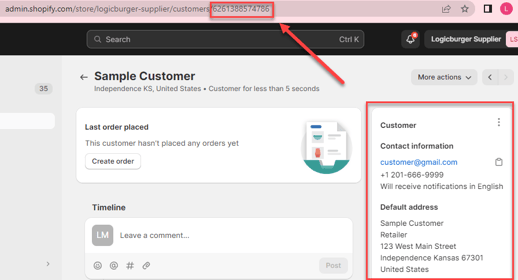
If you need Customer Information populated in Shopify, we can hard-code this field. To do so, go to Shopify > Customers > Add customer > create the profile of the customer you want to be defaulted (you can use your partner's information). Copy the Shopify Customer Number (found in the last segment of the URL) and send it to support@logicbroker.com and ask this field to be hardcoded.
Can I have orders sent to me in a different payment status?
Yes, Logicbroker supports different payment statuses:
- Status: Paid; Paid amount: $0 (default)
- Status: Paid; Paid amount: order total amount
- Status: Pending; Paid amount: $0
If you need a different Status and Paid amount sent aside from the default, reach out to support@logicbroker.com to have this set up.
What should I do if I have duplicate SKUs?
Supplier SKUs must be unique for products that are being sent to the retailer. If products are not unique, suppliers must fix duplicates on both the product and variant level. A workaround can be implemented if suppliers have duplicate SKUs for identical products (not different sizes, colors, styles, etc.) since our workaround will create orders using the latest uploaded product in our system. If you would like a workaround to be implemented to your account for identical products with duplicate SKUs, reach out to support@logicbroker.com to have this set up.
Also see Shopify's Help page.
| Date | Update |
|---|---|
| 11/27/19 |
Add ability to Poll for Orders Post inventory (quantity) updates |
| 12/27/2019 | Create orders specifying the customer ID |
| 3/31/2020 | Updated error message when posting unlinked shipments to Shopify |
| 4/30/2020 |
Add mapping for ClassCode, ShipmentCost, ServiceLevelDescription on Orders to Shopify Map Variant ID to UPC on outbound shipments from Shopify |
| 7/13/2020 |
Supplier: Shipments map "province_code" from state Retailer: Update Order Map to include:
Retailer: Make financial status configurable when pulling orders |
| 8/31/2020 |
Add customer address and email Map tracking_company to class code for shipments GDPR endpoint to receive notifications for GDPR requests Do not pull shipments without tracking numbers |
| 11/10/2020 |
Ship to and bill to phone added to Supplier orders Inventory quantity will be updated based on location |
| 11/30/2020 | Location ID is now visible in the Portal through the Connections feature |
| 2/1/2021 | Customers can be notified when orders (placed through API) are shipped |
| 4/6/2021 |
Supplier: Shopify tags to order on the header level Supplier: UPC added to inventory map from barcode |
| 6/1/2021 |
Supplier: Ship to email added to the order map |
| 6/28/2021 |
Weight and UOM displayed on orders - acceptable UOM is grams Link to packing slips are accessible in the note field when posted to Shopify |
| 7/28/2021 |
Support for custom fields to add additional details to the order |
| 10/27/2021 |
Support to configure an order remorse period |
| 2/9/2022 |
Map fulfillment service on inbound orders |
| 6/22/2023 |
Stop pulling in products in a Draft and Archived status |
We're updating this article. Some steps and screenshots may not match the portal yet. If anything is unclear, contact support@logicbroker.com.