
Audience: All users in Logicbroker.
In this article, you will find information related to Bulk Actions - users can perform actions in bulk to process orders, download attachments or reprocess failed documents. The sections within this article are outlined below:
- Document Selection
- Accept/Reject
- Ship/Cancel
- Invoice
- Export
- Import Tracking
- Download Packing Slips
- Download GS1 Labels
- Download Shipping Labels
- Retry
🗒️Note:
Bulk actions do not support some options that may be available on individual order creation/processing such as scheduled ship dates, multiple boxes/tracking numbers etc. For more information on actions available on individual documents see our document articles found in the Order Management section.
Document Selection
1. Set filters– depending on which documents you want to perform an action on, you may need to set filter(s). Common filters include document types (order, shipment, etc.) and document status (Ready to ship, Ready to invoice, Failed, etc.) You can select more specific filters using the Filter results
2. Select documents– Once you see the documents you want to work on in your Orders page, select the specific ones you want to act on. To do so, click the box for individual documents or click the select all box in the top. Please note: clicking select all will only select the documents visible on the page. You can increase the rows per page to select more, but you cannot select from multiple pages. To export all documents, use our Advanced Export tool.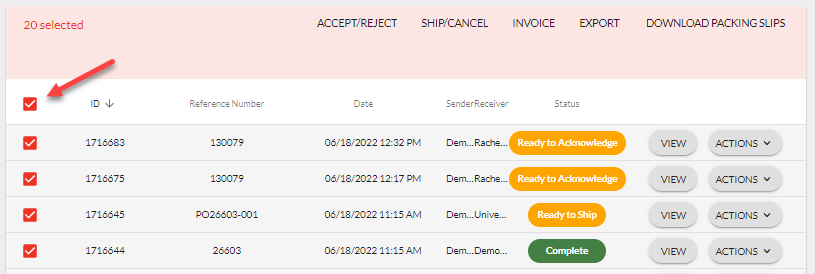
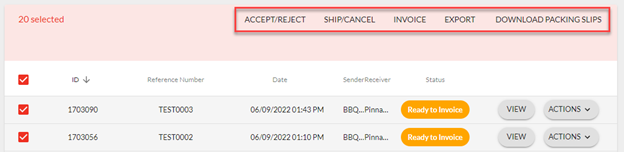
3. Select action – based on the types of documents you selected, a list of actions will appear. For example, the Accept/Reject action will only appear on orders.
Accept/Reject
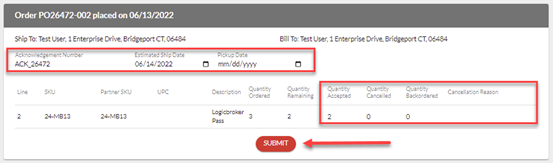
This option is only available on Orders - this action allows you to create an acknowledgment for orders to either accept, cancel or backorder items. You can acknowledge orders in Ready to Acknowledge or Ready to Ship status. Make sure you review your retailer's documentation and the Document Standards tab in the portal to know what fields are required. For more information on retailer document requirements, see our Document Standards article and for more information on acknowledgments including fields, settings and instructions on individual document creation, see our Acknowledgments article.

Ship/Cancel
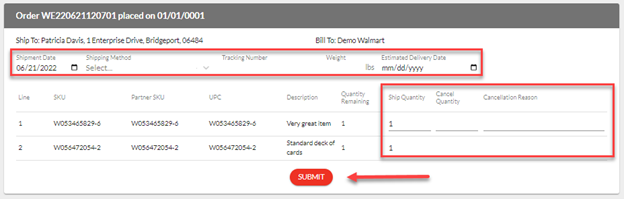
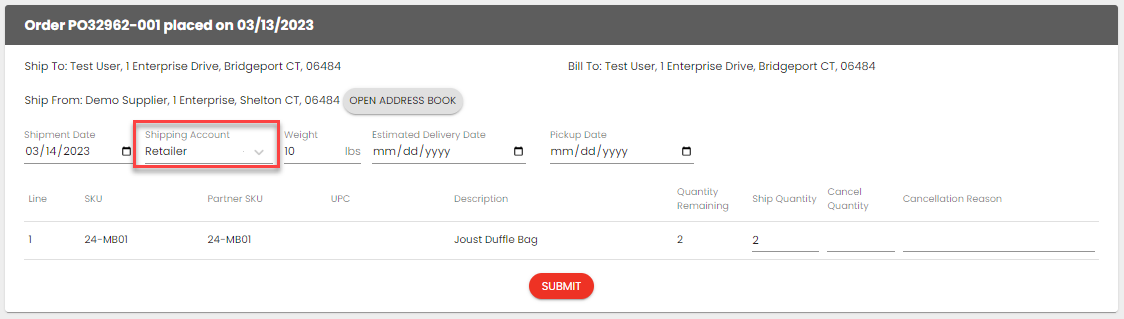
This option is only available on Orders - this action allows you to create an acknowledgment or a shipment for orders to either ship or cancel items. You can cancel or ship orders in Ready to Acknowledge or Ready to Ship status. Make sure you review your retailer's documentation and the Document Standards tab in the portal to know what fields are required. For more information on retailer document requirements, see our Document Standards article and for more information on acknowledgments and shipment including fields, settings and instructions on individual document creation, see our Acknowledgments and Shipments article.


-
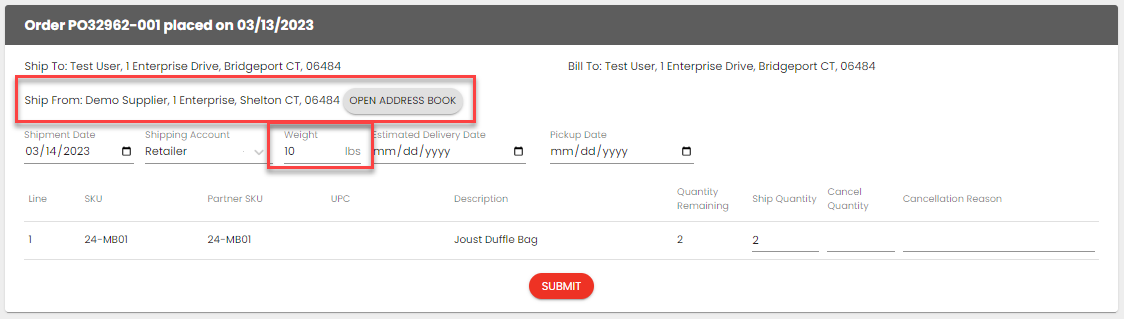
- Ship From Address - this can be defaulted, see Document Settings > Ship From Addresses for setup instructions
- Weight - if this is available on the order, we will default it on the shipment - if not, it will have to be input manually
Invoice
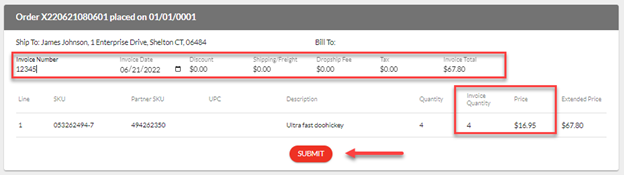
This option is only available on Orders and Shipments - this action allows you to create an invoice for all shipped items. You can invoice orders that have already been shipped and are in a Ready to Invoice status. It is recommended to invoice off shipments instead of orders that way you can be certain you are only invoicing shipped items. Make sure you review your retailer's documentation and the Document Standards tab in the portal to know what fields are required. For more information on retailer document requirements, see our Document Standards article and for more information on invoices including fields, settings and instructions on individual document creation, see our Invoices article.

Export
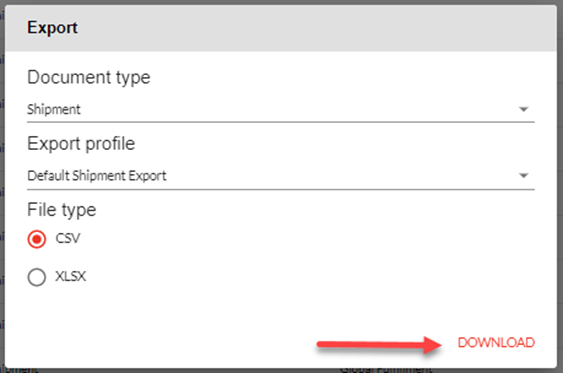
This option is available on all document types - this action allows you to export document information in a CSV or XLSX format. For more information on our Advanced Export tool including profiles, formats, filters, fields and instructions, see our Advanced Export article.
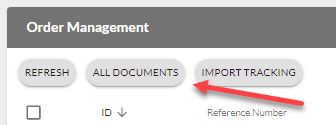
Import Tracking
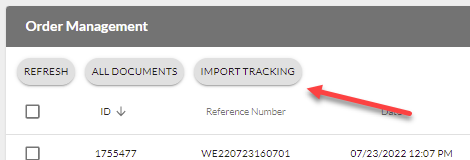
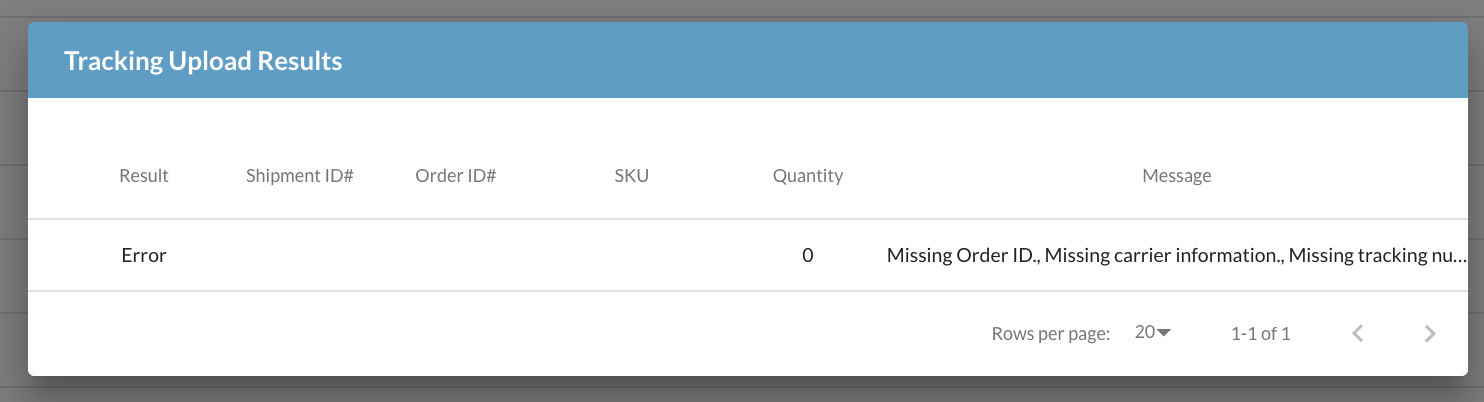
This option is only available on Orders - this action allows you to import tracking information for open orders by automatically creating Shipments (ASNs) using a spreadsheet (Excel or CSV format). Make sure you review your retailer's documentation and the Document Standards tab in the portal to know what fields are required. For more information on retailer document requirements, see our Document Standards article and for more information on our Advanced Import tool including profiles, formats, filters, fields and instructions, see our Advanced Import article.
-
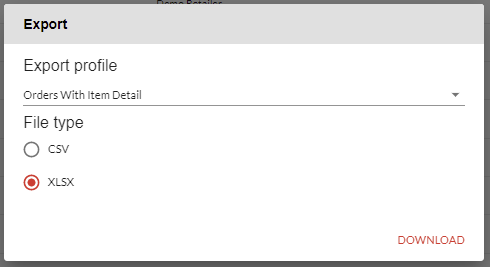
- Orders With Item Detail - this option allows you to mark items as shipped on a line level *recommended
- Orders Without Item Detail - this option marks items as shipped on an order level
-
- TrackingNumber
- CarrierCode
- ShipFromAddress.CompanyName
- ShipFromAddress.Address1
- ShipFromAddress.Address2
- ShipFromAddress.City
- ShipFromAddress.State
- ShipFromAddress.Zip
- ShipFromAddress.Country
- QuantityShipped
Please note: The key identifier that links to your orders will be the ID column. This is the ID of the document in Logicbroker.
Download Packing Slips
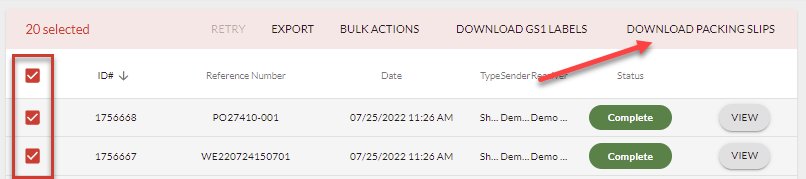
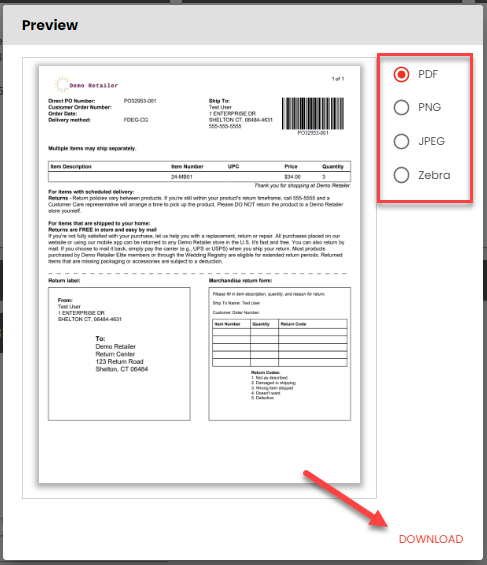
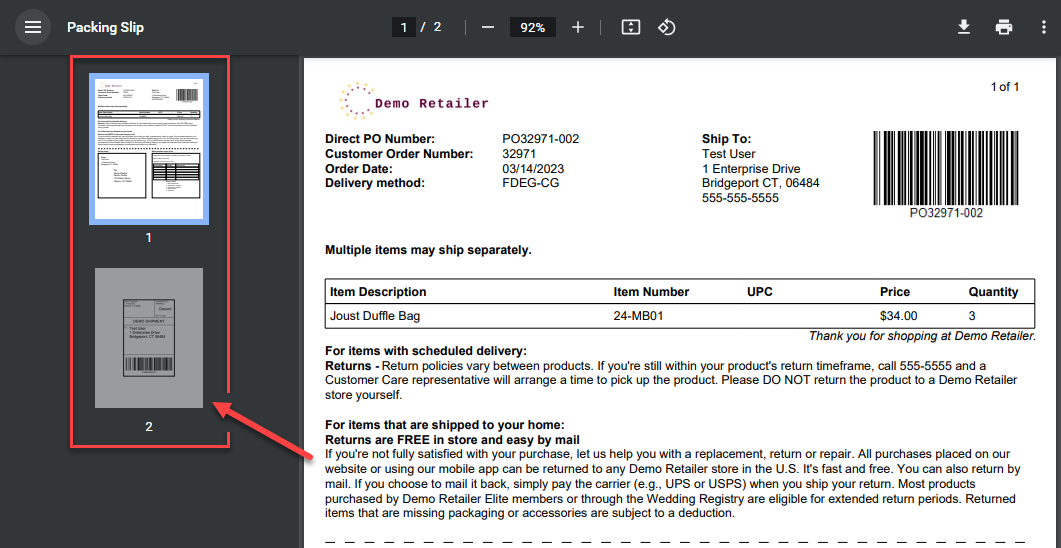
This option is available on complete Orders and Shipments - this action allows you to download a PDF of the packing slips for all selected orders for review or to print on an order or line level. These will be downloaded by how they were received, so if we receive order A, order C, and order B (in that order) the packing slip will appear in that same order. This is also true for the API endpoints.
Download GS1 Labels
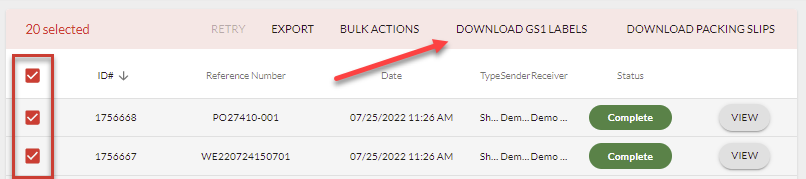
This option is available on Shipments - this action allows you to download a PDF of the GS1 Labels for all selected shipments for review or to print. These will be sorted by shipment and then by container code. Please note: before downloading GS1 labels, make sure you have configured your UCC 128 Company ID. For more information on setting up your UCC 128 Company ID, see our Document Settings article and for more information on downloading GS1 labels on individual shipments, see our Shipments article.
Download Shipping Labels
Please note: Only for suppliers using a shipping integrator such as ShipEngine or working with a retailer that is using a shipping integrator.
This option is available on complete Shipments - this action allows you to download a PDF of the shipping labels for all selected shipments for review or to print.
Retry
This option is available on documents in a Failed status - this action sets the status of documents back to New and allows them to flow through the normal status flow once more. Do this if the documents failed due to a time-out error or if new logic has been put in place to fix previous errors. If a document continues to fail, this indicates there may be something wrong with that document. Click on View > Most recent event to troubleshoot and resolve the error.
