
Audience: All users in Logicbroker.
In this article, you will find information related to the Orders Page. The sections within this article are outlined below:
At a Glance
The Orders page provides users with a view of all their orders along with related documents.
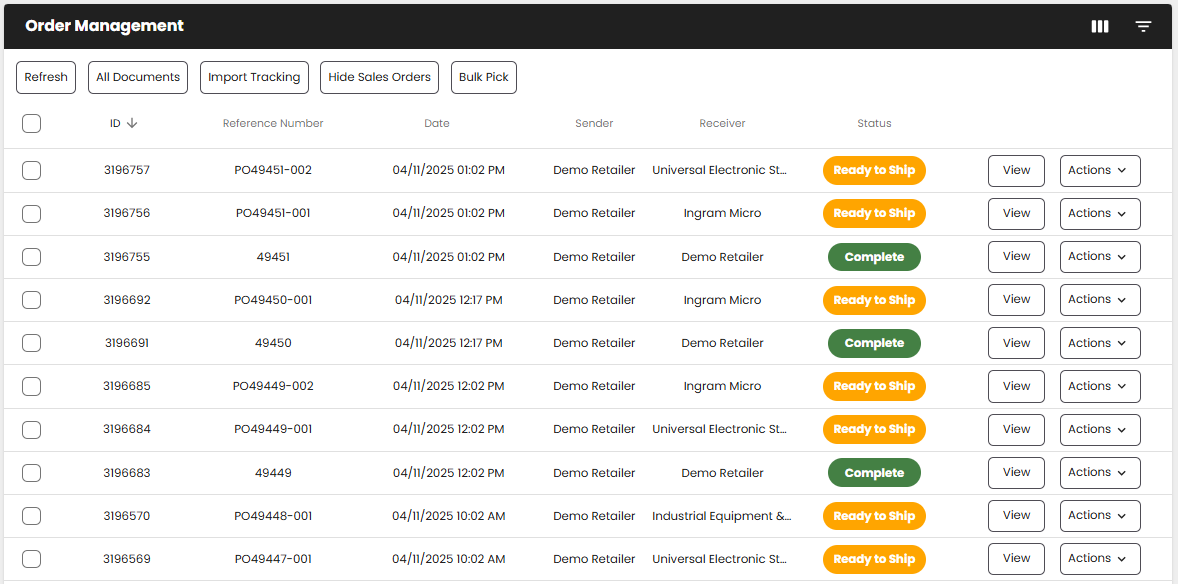
This value is only used in our portal and not sent out to external systems. Click on the up or down arrow to display results from newest to oldest.
This value is used in both our portal and external systems. Search by this value if you want to see all documents relating to a specific PO.
See more about document statuses Click on a status to pull up all documents with that same status.
This column will only show data on order documents.
This field is helpful when needing to know what system or integration method a partner is using. Some examples of systems include Shopify, Workflow, EDI, Portal, etc.
Add rows or move from page to page. All filters and columns will stick when moving from page to page
Actions
The Orders page provides users with a variety of actions that can be taken on documents and on the page itself. These options are visible in the top left hand of the Orders page and on order documents only, by clicking on the Actions button.
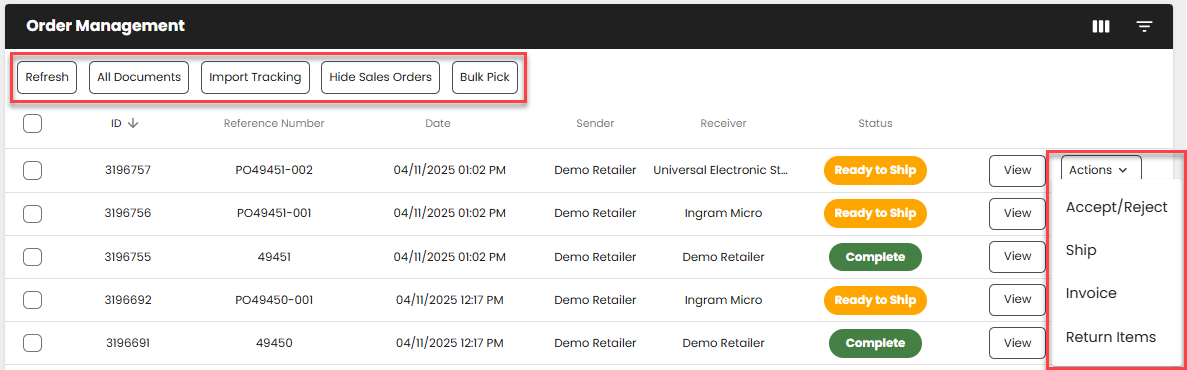
Please note: This article will only go over the actions shown above, to see more info on bulk actions or actions available when selecting documents from the Orders page, see our Bulk Actions article and document-specific articles found within the Order Management category in the Knowledge Base.