
Audience: All users in Logicbroker.
In this article, you will find information related to the Failed Document Summary to understand better how it works. The sections within this article are outlined below:
- Overview
- Navigating the Summary
- Which fix do I need?
- Fixing failed documents
- Failed orders: common causes
- The order failed on its shipping address
- Business Rule Failed: "There was an internal error when running business rules on this document"
- A bundle or kit SKU was not split into its components
- SKUs missing inventory, cost or product information
- Duplicate orders or the same SKU on several lines
- Order fields are wrong, missing or my portal changes were replaced
- Sending documents in the right order
- Extracting the Data from Logicbroker
Logicbroker offers the Failed Document Summary on the platform to all users. This report is used to manage document failures, by document type or failure reason, and troubleshoot accordingly. To access this feature, navigate to the left-hand side toolbar and click on Reporting and select Failed Documents from the dropdown.
You can also open failed documents from the failure widgets on your Dashboard, such as Failed Orders, Failed Shipments and Other Failed Documents (invoices, acknowledgements and other document types). Click a widget to see the documents it counts. Then open the document you want to fix.
To see the full history of events for your account, including failures, click Reporting and then Events.
Which fix do I need?Open the failed document and click the error next to Most recent event to read why it failed. Then find the case below that matches.
- The document has wrong data. Examples are a wrong quantity, item, tracking number, reference number or invoice number. Retry sends the same data again, so the document fails again. Correct the document instead. For a shipment, select Edit in More Actions, make your changes and click Submit. For an acknowledgement or invoice, send a corrected one and move the failed one to Ignored. For an order, see Order Validation Failed.
- The document is right, but something it needs was missing. Examples are a shipment that Logicbroker had not processed yet, an acknowledgement your retailer requires first, a missing ship method mapping or a connection problem. Fix that first. Then select Retry in More Actions. See Retrying after fixing the cause.
- The document should not be processed at all. Examples are a duplicate, a document you sent by mistake, or an extra copy that failed after the order was already complete. Move it to Ignored. See When to move a document to Ignored.
- The document is already Complete but wrong. You cannot correct it in the portal. See Correcting a completed invoice and When to contact Support.
If an order failed, see Failed orders: common causes. It covers address errors, business rule failures, bundles, missing SKU or cost data, duplicates and changed order fields.
If you retried and got the same error, see The same error returns after Retry. If an invoice failed with Cannot Invoice Unshipped Items, see Invoice failed before the shipment completed.
Navigating the SummaryTo better understand the Failed Document Summary, we will look at terminology and some common failures seen in this report. The terminology (shown in the "At a Glance" tab) will help users better understand what each column of the report is referring to. The common failures (shown in the "Common Failures" tab) will help users understand why the document failed and what can be done to fix the failure issue.
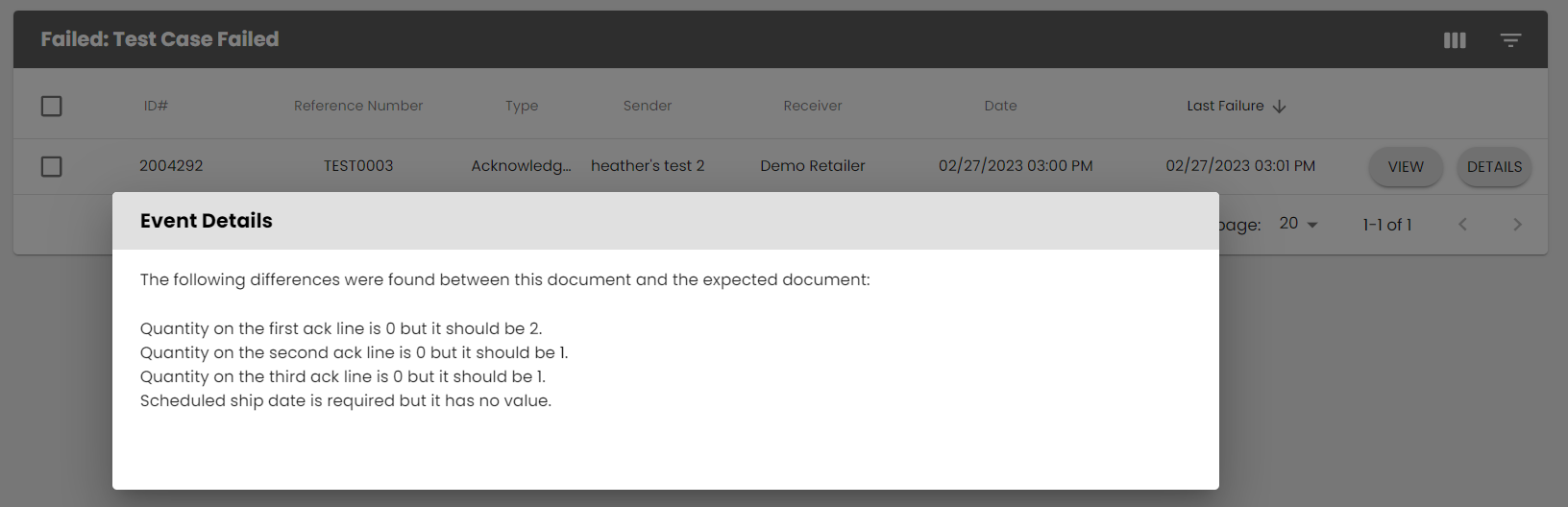
When the failure reason “Business Rule Failed” is received, users should click on the text and will be redirected to the event details.

The event details will indicate why the document failed, an example of these details are shown in the image below.
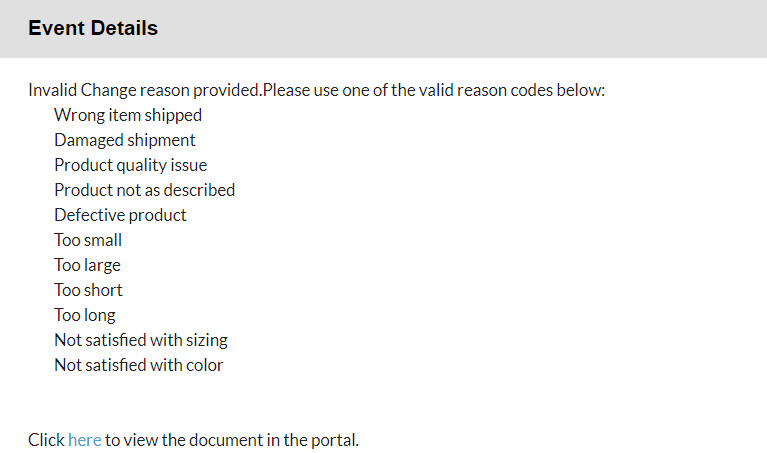
The most popular reason for a business rule failure is due to an invalid reason code. To fix this issue, use a valid reason code, usually predetermined by your partner. Retry processes the same document again without changing it. If the reason code on the document is wrong, correct the document or send a new one with a valid code (see Fixing failed documents). If you fixed the cause outside the document, retry it by navigating to More Actions in the top right corner and selecting Retry from the dropdown.
If you receive the failure reason “Error Transmitting EDI” it could have occurred because an issue has been encountered when sending your document via EDI. This could be due to the maximum number of retry attempts has been exceeded, the action is impossible while not connected, etc.

The most common reasons for receiving this failure are due to internal server errors and MDN errors.
 A 500 Internal Server Error indicates that there has been a time out. To fix this failure is to retry the document. To retry the document, navigate to the top right corner of the page and click More Actions, and select Retry from the dropdown.
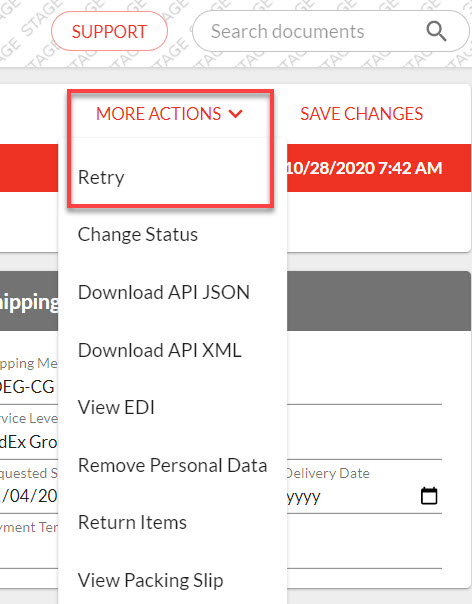
A MDN error indicates that the document hit your partner's system, but was not fully transmitted. If a MDN error is received then it usually is related to an AS2 certificate issue and the document should be retried. To retry the document, navigate to the top right corner of the page and click More Actions and select Retry from the dropdown.
If you continue to receive a failure for MDN and 500 errors after retrying the documents, you can submit a ticket to support. Please be sure to include your company name, contact information, partner, and the document number in question.
A validation failure can be related to orders, acknowledgments, shipments, invoices, or inventory. Click the document type below to learn how to fix the failure. What document type failed?
Order Validation Failed
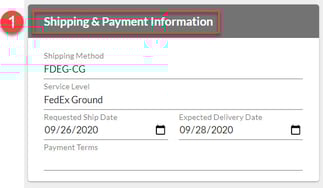
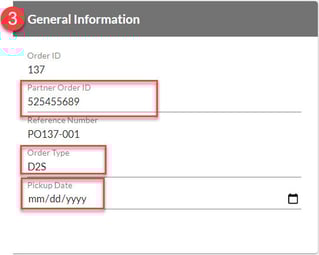
If you have received an order validation failure, click on the text to review the event details. This will indicate what needs to be fixed. Next, make the appropriate edits and click Save Changes. Logicbroker resubmits the order when you save it. If the order needs no changes because you fixed the cause elsewhere, retry it instead. To do this, navigate to More Actions in the top right corner and select Retry from the dropdown. Some accounts cannot edit failed orders. If you cannot change the fields, contact support. The images below show the 3 sections that users are able to edit.

Acknowledgement Validation Failed
If you have received an acknowledgment validation failure, click on the text to review the event details. This will indicate what needs to be fixed. You cannot edit an acknowledgement after you submit it. Retry processes the same acknowledgement again without changing it. If the acknowledgement needs correcting, send a corrected one from your own system. You can also open the order in the portal and click Accept/Reject. Then move the failed acknowledgement to Ignored. If you fixed the cause elsewhere, navigate to More Actions in the top right corner and select Retry instead.
Shipment Validation Failed
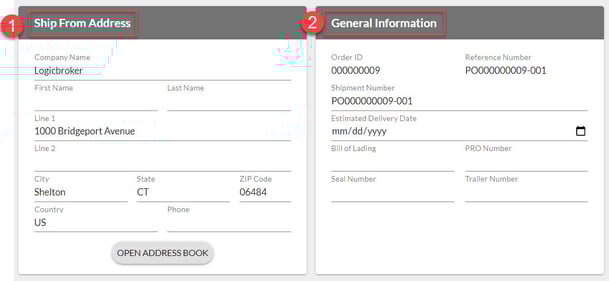
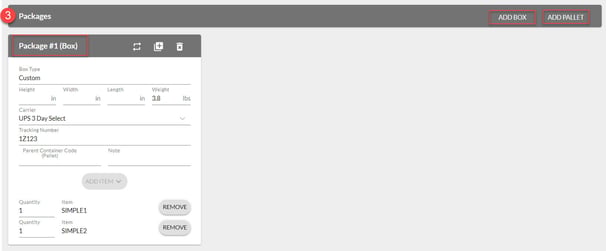
If you have received a shipment validation failure, click on the text to review the event details. This will indicate what needs to be fixed. Next, navigate to More Actions in the top right corner and select Edit. This puts the shipment back into draft so you can correct it. Make your changes and click Submit. Logicbroker processes the shipment again, so you do not need to retry it. If the shipment needs no changes because you fixed the cause elsewhere, select Retry from More Actions instead. For example, your retailer may require an acknowledgement that Logicbroker has now received. If you want to send a corrected shipment from your own system, move the failed shipment to Ignored.
The images below show the 4 sections that users are able to edit.

Invoice Validation Failed
If you have received an invoice validation failure, click on the text to review the event details. This will indicate what needs to be fixed. You cannot edit an invoice after you submit it. It opens read-only in the portal. The cause may be outside the invoice. Most often, Logicbroker had not yet processed the shipment for those items. Fix that first and then Retry the invoice from More Actions. If the invoice is wrong, send a corrected invoice from your own system. You can also use the order's Invoice button or the shipment's New Invoice button in the portal. Then move the failed invoice to Ignored. For the most common invoice failure reasons, see Cannot Invoice Unshipped Items below.
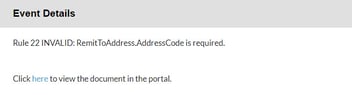
Inventory Validation Failure
If you have received an inventory validation failure, click on the text to review the event details. This will indicate what needs to be fixed. Next, correct the data in your inventory feed and send the update again.
If an order has already shipped in Logicbroker, any other shipment that tries to over ship the order will fail and a message similar to the one above will be received. This error may also occur when there is a mistake made with printing shipping labels and a new one needs to be generated. Printing a label triggers shipment creation, causing instances with duplicate shipments.
Quantities cancelled on your acknowledgements count toward this limit. Unless your retailer allows over-shipping, the quantity shipped on a line plus the quantity cancelled on all of the order's acknowledgements cannot be more than the quantity ordered. If more than one of your acknowledgements cancels the same items, each one counts.
To fix the failure, open the failed shipment from the "Failed Shipments" widget on your Dashboard. You can also click "Reporting" and then "Failed Documents". Click "View Documents" on the Cannot Over-Ship Lines row, and then click "View" on the shipment. The most recent event message will read “Cannot Over-Ship Lines” and the event details will be similar to the message shown in the image below.

Scroll down to the “Related Documents” and see if there is a shipment in a complete status. If so, you will need to compare the failed order with the completed shipment to see if the SKUs and quantity shipped match.
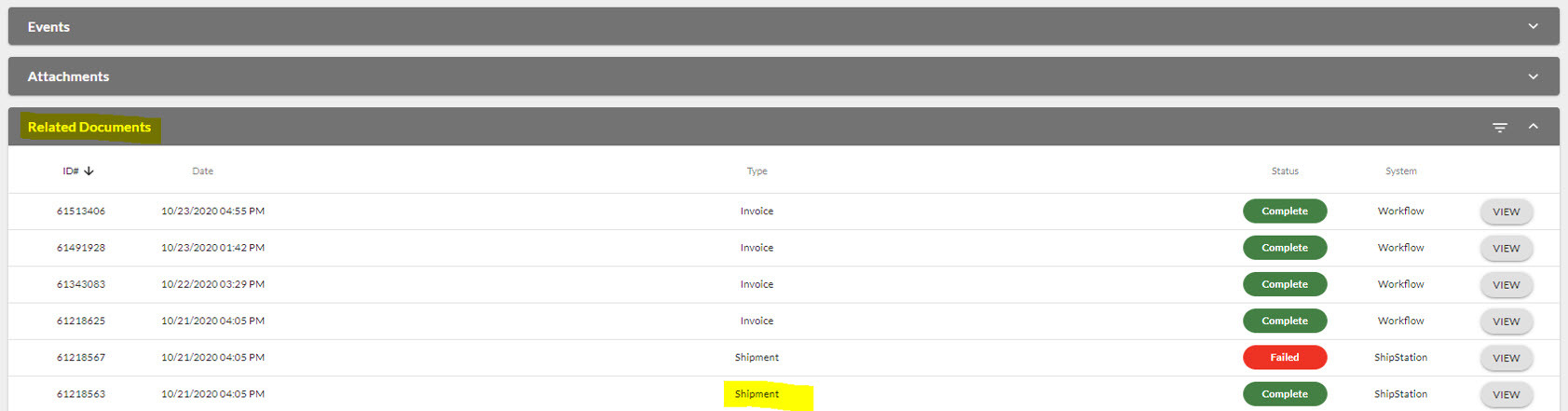
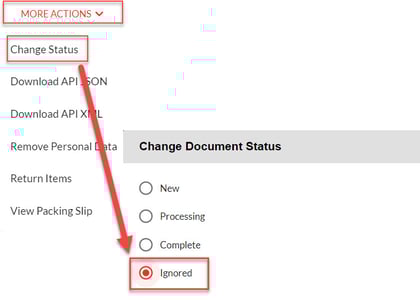
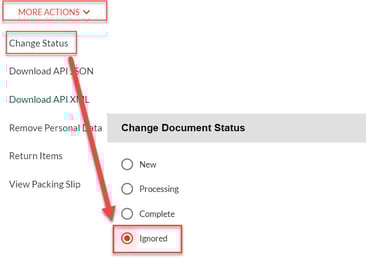
If the SKUs and quantity shipped on the completed shipment match with what is on the order then go to “Related Documents” and pull up the failed shipment. From there, navigate to “More Actions” and select “Change Status” from the dropdown. Set the status of the Failed shipment to "Ignored". If your "More Actions" menu shows "Ignore" instead of "Change Status", select "Ignore".
Some retailers have Logicbroker do this for you. Once other shipments fully ship the order, Logicbroker moves any failed shipments on that order to Ignored. An event on each shipment explains the change.
This failure only happens with retailers that require items to ship before you invoice them. It is one of the most common reasons an invoice fails. Logicbroker compares the invoice with the order's shipments. The event details list each line that is short, for example "Tried to invoice 1 but there are 0 shipped." The usual causes are these:
- The invoice reached Logicbroker before Logicbroker processed the shipment for those items. This can happen even when you send the shipment and the invoice at the same moment (see Sending documents in the right order).
- The shipment for those items failed. A failed, cancelled or ignored shipment does not count as shipped. Fix the shipment first.
- The items on the invoice do not match the shipped items. Logicbroker matches items by supplier SKU, UPC or partner SKU. Use the same item identifiers that are on the order.
Once Logicbroker has processed a shipment covering the items, retry the failed invoice by navigating to More Actions and selecting Retry. If the invoice is wrong, send a corrected invoice and move the failed one to Ignored. Some retailers have Logicbroker retry failed invoices once the order is fully shipped. An event on the invoice then explains the retry.
Unless your retailer allows over-invoicing, the quantity invoiced on a line plus the quantity cancelled on your acknowledgements cannot be more than the quantity ordered. Completed invoices and invoices that are still processing count toward this limit. Failed and ignored invoices do not. This failure usually means you already sent an invoice for those items. Check "Related Documents" on the failed invoice. If other invoices already cover the whole order, move the failed invoice to "Ignored". Some retailers have Logicbroker do this once other invoices cover the whole order.
This failure only happens with retailers that require unique invoice numbers. It means you already used the invoice number on another invoice to the same retailer, on this order or on a different one. Send the invoice again with an invoice number you have not used before for that retailer. Logicbroker does not count invoices in Ignored status.
When the failure reason is "Invalid Ship Method" this means that there was an issue with the ship method. There are a variety of reasons for this including a custom code was not set up, shipping information was not included, or the method being used is not supported by the trading partner. To resolve this issue, first look at the Events under Reporting. You can also click the most recent event on the failed shipment. You will see the failure along with detailed information about why it failed. Next, utilize the Ship Method Mappings function found under Settings, then Shipment Options, in the Portal. This will showcase the mappings supported by your trading partners as well as the custom code. Once you map the ship method, retry the failed shipment from More Actions.

If the failure reason is indicated as “Failed to Source Items” this means the SKU was not available or was unable to match the SKU to inventory. To resolve this issue, retailers should utilize the inventory search function within the Portal to review the quantity available in the feed, shown in the image below.
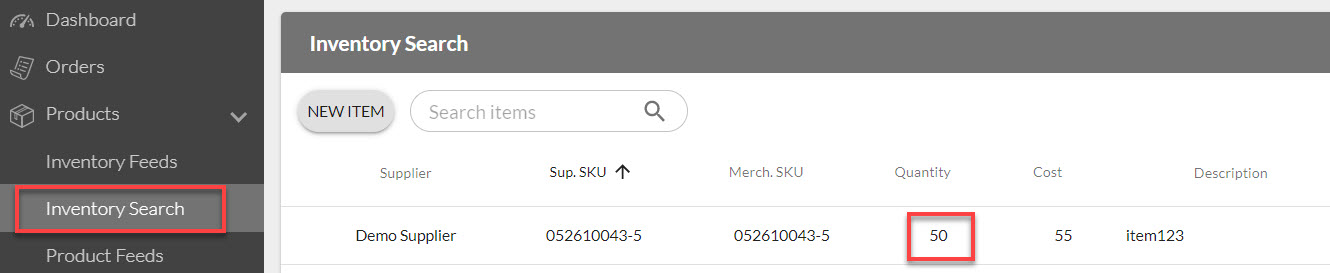
After reviewing the available inventory, the user should adjust the order to fulfill the amount available and click Save Changes. Logicbroker resubmits the order. If the order needs no changes, retry the document by navigating to More Actions and select Retry from the dropdown.
Open the failed document. Click View on the failed documents list, or open it from a Dashboard widget. Then use the More Actions menu in the top right corner. The options depend on the document type, its status and your account.
- Retry appears while the document is in Failed status. It sends the same document through processing again without changing it. Use it after you fix the cause somewhere else. For example, Logicbroker has now processed the shipment or acknowledgement the document needed, you added a ship method mapping, or a connection problem cleared. If nothing changed, the document fails again for the same reason.
- Edit on a shipment puts a failed shipment back into draft so you can correct it. Click Submit when you are done. Logicbroker then processes the shipment again.
- Save Changes on an order resubmits it. Some accounts can edit failed orders. On those accounts, you can change the order's fields on the page.
- Ignore or Change Status appears, depending on your account. Ignore appears on failed documents. In Change Status you can choose Ignored or another status. Logicbroker does not count an Ignored document when it checks an order's shipped and invoiced quantities. The Dashboard's failure widgets do not count it either.
You cannot edit an acknowledgement or invoice after you submit it. To correct one, send a new document from your own system or from the portal. In the portal, use Accept/Reject or Invoice on the order, or New Invoice on the shipment. Then move the failed one to Ignored.
When to move a document to Ignored
Move a failed document to Ignored when it should not be processed again, for example when:
- it is a duplicate, or you sent it by mistake. An example is a shipment with the wrong tracking number that you have since replaced.
- you are replacing it with a corrected document.
- it failed only because of timing and the order is already complete. For example, a second copy of a shipment that arrives after the order is fully shipped fails with Cannot Over-Ship Lines. You can ignore it.
Before you ignore a failure, open the order and check that it is Complete and that it has a completed shipment and a completed invoice covering every item. If it does not, do not ignore the failure. Fix it.
Retrying after fixing the cause
Many documents fail because a document they need was missing when Logicbroker processed them. Send or fix that document first, then retry. For example:
- Your retailer may require an acknowledgement before a shipment or invoice. Send the acknowledgement, then retry the failed shipment. Once the shipment is complete, retry the failed invoice.
- An invoice may fail because Logicbroker had not processed its shipment yet, or the shipment failed. Fix or resend the shipment. Wait for it to complete, then retry the invoice.
You can retry one document from its More Actions menu. You can also retry several at once from Failed Documents under Reporting, as described under Retry in At a Glance. If a document fails again, open its event details to see why.
The same error returns after Retry
This can happen to any order, acknowledgement, shipment or invoice, however you sent it.
Retry sends the same document through processing again without changing it. The document fails again with the same error if the cause is in its own data. It also fails again if the document it needs is still missing or failed.
What to check:
- Open the document and click the error next to Most recent event. Read the event details.
- If the details name a value in the document, such as a quantity, item, reference number or invoice number, the document itself is wrong. Another retry will not help.
- If the details point to another document, scroll down to Related Documents. Check that the shipment or acknowledgement it needs is listed and is not Failed.
- If the error is Invalid Ship Method, check that the code you send has a mapping under Settings, then Shipment Options, in Ship Method Mappings.
How to fix it:
- If the document is wrong, correct or replace it as described in Which fix do I need? Do not retry it again.
- If the document it needs is missing or failed, send or fix that document first. Wait until it shows Complete, then retry.
When the retry works, the document no longer shows Failed and moves on to its next status, such as Complete. If it fails again, the most recent event shows the new error.
If the same error returns after you corrected the document or the document it needs is Complete, contact Support (see When to contact Support). Do the same if Error Transmitting EDI keeps returning after a retry.
Invoice failed before the shipment completed
This applies to suppliers whose retailer requires items to ship before you invoice them. It applies to invoices you send by EDI or API and to invoices you create in the portal. The failure reason is Cannot Invoice Unshipped Items. The event details list each short line, for example "Tried to invoice 1 but there are 0 shipped."
It means Logicbroker checked the invoice before it had a shipment for those items on the order. For more detail on this failure, see Cannot Invoice Unshipped Items.
What to check:
- Open the failed invoice and scroll down to Related Documents.
- Find the shipment for this order and note its status.
- If the shipment is Complete, compare its items and quantities with the invoice.
How to fix it:
- The shipment is Complete and covers the items. The invoice arrived before Logicbroker processed the shipment. Select Retry in the invoice's More Actions menu.
- The shipment failed. Fix the shipment first. Select Edit in its More Actions menu, correct it and click Submit. You can also send a corrected shipment from your own system and move the failed one to Ignored. Wait until the shipment shows Complete, then retry the invoice.
- There is no shipment. Send the shipment from your own system. You can also open the order and click Ship to create it in the portal, if the order is still open. Wait until the shipment shows Complete, then retry the invoice.
- The shipment is Complete, but the invoice items differ. The invoice itself is wrong. Send a corrected invoice that uses the same item identifiers as the order. Then move the failed invoice to Ignored.
Do not move the failed invoice to Ignored only to clear the alert. Logicbroker does not process an ignored invoice, so you would need to send a new invoice for those items.
If many invoices failed this way, click Reporting, then Failed Documents. Click View Documents on the Cannot Invoice Unshipped Items row, select the invoices and click Retry.
When the retry works, the invoice no longer shows Failed and moves on, normally to Complete. To avoid this failure, send the shipment first and wait before you send the invoice (see Sending documents in the right order).
Contact Support if the invoice still fails after the shipment is Complete and covers every invoiced item (see When to contact Support).
Correcting a completed invoice
An invoice that is already Complete cannot be edited in the portal. Before you send a replacement, contact your retailer and support. Some retailers do not accept changes once an order is complete. Also, the completed invoice still counts toward the order. Unless your retailer allows over-invoicing, a new invoice for the same items fails with Cannot Over-Invoice Lines.
When to contact Support
Submit a ticket to support when:
- you need a status change that your More Actions menu does not offer. Examples are ignoring a document that is not in Failed status, or moving an order back to Ready to Acknowledge or Ready to Ship to acknowledge, ship and invoice it in the portal.
- a completed document needs to go to your retailer again.
- a document keeps failing after you fixed the cause and retried it.
Please be sure to include your company name, contact information, partner, the PO number, the document number in question, the exact error and what you already tried.
Failed orders: common causesThis section covers orders that show Failed. It applies to suppliers and retailers, however the order arrived (EDI, API, SFTP, a connector or a marketplace). Which rules run on an order depends on the retailer and the account, so not every case below applies to you.
Two actions are available on a failed order:
- Retry in More Actions sends the same order through processing again without changing it.
- On some accounts, the fields of a failed order can be edited. On those accounts, you can change the shipping address, shipping method and item SKUs on the order page. Clicking Save Changes resubmits the order.
After a retry or a save, the order's status changes from Failed to New and then moves on, for example to Ready to Ship. If it goes back to Failed, read the new event. If you can't find the order at all, see Missing orders: what to check and how to ask for a resend.
The order failed on its shipping address
Examples of the event text customers see are No CountryCode found, Error in BR for Country Code and an incorrect address rejected by the receiving system. Some retailers and accounts have a rule that checks or converts the shipping address. The order fails when the country, state or ZIP code doesn't match what the rule expects. Special characters, line breaks, or a value in the wrong field (for example a business name in Line 1) can also cause it.
What to check:
- Open the order and click the event next to Most recent event. Note the value the event names, such as the city or country.
- Compare the Shipping Address on the order with the address the customer gave. Check that the street, apartment number, city, state, ZIP code and country are each in their own field.
The fix depends on who can change the order:
- Your account can edit failed orders: correct the fields in Shipping Address. Put the apartment or suite in Line 2 and remove special characters. Then click Save Changes.
- You can't edit the order: ask the retailer to correct the address and send the order again, or contact Support with the corrected address split into Line 1, Line 2, City, State, ZIP Code and Country.
- The same address problem happens on many orders: contact Support. A change to how addresses are converted for your account may be needed.
It worked when the order leaves Failed and reaches Ready to Ship or the next status.
Business Rule Failed: "There was an internal error when running business rules on this document"
The full event reads "There was an internal error when running business rules on this document. Please contact Logicbroker support for assistance." A business rule set up for your account or retailer could not run on this order. When the rule has its own message, the event shows that message instead, and it usually names the field to fix.
The cause is often data missing from the order. Examples Support has found are an item with only a description and no SKU, and a shipping address with no last name.
What to check:
- Check that every item has a SKU.
- Check that the Shipping Address has a first and last name, and that the order has a shipping method.
If you find the missing data and your account can edit failed orders, add it and click Save Changes. If the data must come from the retailer, ask them to send a corrected order. If you can't see a cause, don't retry the order repeatedly. Contact Support. Support can find the rule that failed, correct the order and reprocess it.
A bundle or kit SKU was not split into its components
This applies to accounts where Logicbroker replaces a bundle SKU with its component SKUs, for example on some marketplace orders. If the order arrived before the bundle was set up, the order keeps the bundle SKU. The receiving system may then reject it with an error such as "Product with code '<SKU>' not found!"
Retry doesn't help. Retry sends the same order, which still has the bundle SKU. Support must reprocess the order from the original order so that the bundle is split.
Before you contact Support, check that the bundle and its component SKUs are now set up. Then send Support the order numbers, the bundle SKU, and confirmation that the bundle is set up. Support can tell you which orders reached Ready to Ship and which failed for another reason, such as an unknown SKU or address.
SKUs missing inventory, cost or product information
This applies to retailers whose orders Logicbroker sources from suppliers' inventory feeds or product catalogs. The order fails with one of these events:
- SKUs missing inventory information: "We are unable to update this order with information from the inventory feed because the SKUs ... are not present in the feed. Please upload an updated inventory file and retry this order."
- SKUs missing cost information: the SKUs are in the feed, but their cost is not set up.
- SKUs missing product information: the event names the product catalog fields that must be filled in.
What to check:
- Note the SKUs named in the event.
- Check that each SKU is still in the inventory feed of the supplier you expect. A SKU can move to another supplier or be removed from the feed.
- If your menu has Products, then Onboarding, check there that the SKU and its cost have reached Logicbroker.
The fix: the supplier sends an updated inventory file or product data. Once the data has reached Logicbroker, retry the order from More Actions. If purchase orders were already created from it, or the retry fails again, contact Support. Support can regenerate the orders once the data is in place.
To correct the cost on an order that was already sent to the supplier, contact Support. Changing the price in the portal alone may not send the new cost to the supplier.
Duplicate orders or the same SKU on several lines
Two orders look the same. Two similar orders for the same customer and item can be two real purchases. Only the retailer can confirm a duplicate. Ask the retailer before you ship or cancel either order. If the retailer confirms a duplicate, send Support both PO numbers.
Some retailers' orders fail with Purchase orders already exist: "This order cannot be sourced because there are already purchase orders with the same order number." Logicbroker already created purchase orders for this order number. Check the existing purchase orders before you contact Support.
One PO has the same SKU on several lines. The order can arrive this way from the retailer, or it can be split into lines during processing. If your system needs one line per SKU, ask Support. Support can set your account to combine lines with the same SKU into one line with the total quantity. Ask Support whether you need to test after this change. To ship an order with the same item on several lines, see Shipment Specifications.
To avoid creating duplicates:
- Before you retry an order or ask for a resend, check that the order isn't already in your system under the same PO number.
- Suppliers on Shopify: a reprocessed order reaches Shopify as a new order, and Shopify doesn't check for duplicates. See Shopify.
- Retailers: after you save changes to an order, you can resend it with More Actions, then Change Status, then New. This may create a new order in the supplier's system. Tell the supplier first.
Order fields are wrong, missing or my portal changes were replaced
This applies to orders from marketplaces and connected stores. A name, note, promo code or personalization can look different from what the customer entered. The usual causes are these:
- The source sent the value in the wrong field. For example, a promo code sent as an item description. The retailer or marketplace must send it in the right field.
- A business rule changes the field. A rule for your account can shorten, move or clear a value. Support can check and change the rule.
- The order was reprocessed from the original document. When Support reprocesses an order this way, the original values from the marketplace replace changes you made in the portal. If you need your change to stick, ask Support whether a rule change is needed.
When you contact Support, name the field, the value you expected, the value you see and where you see it. If the receiving system rejected a value as too long, include that system's limit.
What to send Support about a failed order
Submit a ticket to support and include your company name, the retailer or supplier, the PO number, the order ID, the exact event text and what you already tried. For address problems, include the corrected address. For bundles, include the bundle SKU. For missing data, include the SKUs.
Sending documents in the right orderFor each order, send your documents in this sequence. Let each one finish processing before you send the next.
- Acknowledgement
- Shipment
- Invoice
Leave a gap between the shipment and the invoice, even a short one. If both arrive at the same moment, Logicbroker may check the invoice before it records the shipment. Some retailers require items to ship before you invoice them. At those retailers, the invoice then fails with Cannot Invoice Unshipped Items.
The sequence matters for these reasons.
- Some retailers require every order line to be acknowledged before they accept a shipment or invoice. Logicbroker also uses the quantities you cancel on an acknowledgement when it checks your shipment and invoice quantities.
- Some retailers require items to ship before you invoice them. At those retailers, an invoice fails if Logicbroker has not yet processed a shipment covering its items, or if that shipment failed.
- Logicbroker matches each shipment and invoice to the order. Use the order's reference number exactly as it appears on the order. Use the same item identifiers (supplier SKU, UPC or partner SKU).
- Some retailers limit the length of fields such as item descriptions. An invoice with a value that is too long can fail. Shorten the value in your own system and send a corrected invoice.
To check what your retailer requires, see Document Standards under Partners, or contact Support.
Extracting Data from LogicbrokerWe understand that this report is used by your organization in many different ways, many times outside of Logicbroker. The Failed Document Summary can easily be exported from the portal by clicking on the Export Failed Documents button on the top left-hand side of the screen (shown below).

This will generate a .xlsx file that users can massage and import into their internal reporting systems. The file will contain document identifiers (LogicbrokerKey, Reference Number, LinkKey), sender and receiver information, the document type that failed, the failure reason, details on the failure, and the date.

We're updating this article. Some steps and screenshots may not match the portal yet. If anything is unclear, contact support@logicbroker.com.