
Audience: All users in Logicbroker.
In this article, you will find information related to Acknowledgments. The sections within this article are outlined below:
- Overview
- Acknowledgment Document
- Acknowledgment Settings
- Create an Acknowledgment (Acceptance, Backorder, Cancellation)
- Cancelling an order at each stage
- Cancellations sent by the retailer
- Troubleshooting acknowledgments and cancellations
Overview
Logicbroker identifies an Acknowledgment (EDI 855) as a document used to accept, cancel or backorder order items. This document is sent after the order is received and before the shipment or invoice is created/sent.
Retailers and suppliers send/receive acknowledgment information depending on how they are integrated with Logicbroker (EDI, API, JSON, XML, CSV, Flat File, Logicbroker Portal).
Acknowledgment Flow
-
- Once the supplier receives an order, they create/send an acknowledgment either accepting, cancelling or backordering order items
- Logicbroker transforms the data to a format the retailer accepts
- Logicbroker sends the acknowledgment to the retailer
Acknowledgment Document
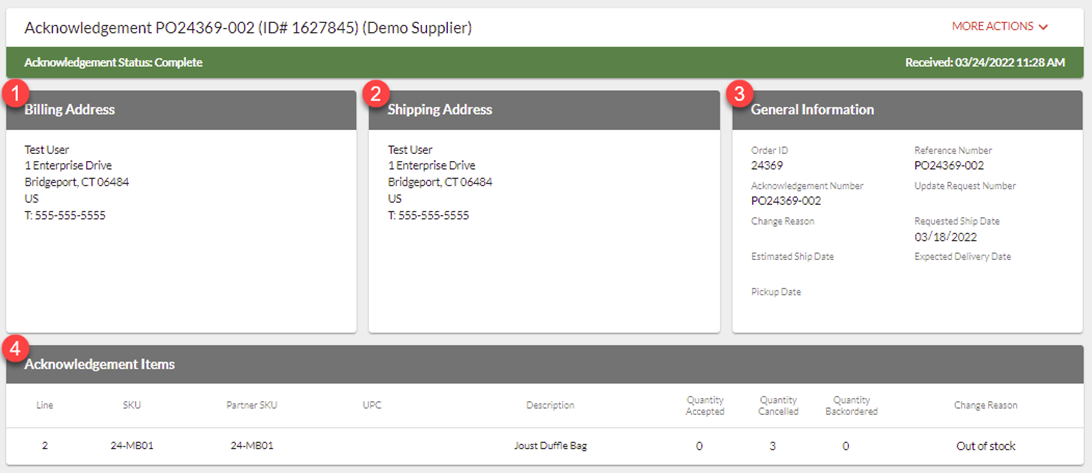
From the portal, users can see documents regardless of the way they are integrated with our system. To see document details, search for the document using the search bar, click on it from the Dashboard or click View on the Orders page. See the acknowledgment document-specific details below. For general document information, see our Documents article.
-
- Order ID – the value the retailer assigns to the order
- Reference Number – also known as the Purchase Order Number – typically the connecting identifier between all documents
- Acknowledgment Number – unique identifier for each individual acknowledgement file that will be submitted. Logicbroker auto-populates this field but it can be modified as needed. Please note: every acknowledgment should have a unique Acknowledgement Number. If you create more than one acknowledgment for an order, be sure to change this field in each document
- Change Reason – Cancellation Reason - the reason why you are cancelling items. Select from the dropdown but make sure the reason you select is accepted by the retailer. If you are unsure which reasons are accepted by the retailer, reach out to the retailer directly Please note: Logicbroker maps to retailer’s accepted cancel codes so your retailer’s specific code may not match what is in the dropdown. For example, a retailer may accept a code of OS to mean out of stock – in this case, Logicbroker will map our code to the retailer’s code so that when the supplier select the code Out of Stock from the dropdown, we will send it to the retailer as their accepted OS
- Requested Ship Date – the date sent on the order that the retailer expects the order be shipped out by
- Estimated Ship Date – the date you plan on shipping out the order by and should always be provided for acceptances and backorders - if there is more than one date due to multiple items being shipped out on different days or being on backorder, select the furthest day out
- Expected Delivery Date – the date sent on the order that the retailer expects the order to arrive to the end consumer by
- Pickup Date – the date the order is being picked up instead of shipped out. Normally this is for larger LTL or freight orders. Select the date from the calendar tool or type in the date using the provided format
Acknowledgment Settings
There are a few acknowledgment settings you can configure in the portal. See below for details on requirements, configurations and how they work:
To change these settings in the portal, go to Settings › Document Settings › Acknowledgement settings.
Create an Acknowledgement (Acceptance, Backorder, Cancellation)
Follow the steps below to create an acknowledgment in the portal. For screenshots of the portal, see our Create an Acknowledgment Quick Start Guide at the end of this section.
Open the acknowledgment form
- Go to Orders and find the order.
- Click the three-dot icon at the end of the order's row and select Accept/Reject. You can also click View to open the order, then click Accept/Reject.
The Accept/Reject option only appears while the order is open. It does not appear once the order is Complete, Cancelled or Failed.
The form opens with these values filled in:
- Quantity Accepted on each line is the ordered quantity, less any quantity already cancelled.
- Acknowledgement Number is ACK_ followed by the Order ID. If the order already has acknowledgments, Logicbroker adds _2, _3 and so on.
- Estimated Ship Date is today plus your Default Days to Ship, if you have set it and the order has no estimated ship date. If you turned on Exclude Weekends, Logicbroker counts business days only.
Accept the order
- Check that Quantity Accepted on each line matches what you will ship.
- Under General Information, enter or check the Estimated Ship Date.
- Click Submit.
Backorder items
- Under Acknowledgement Items, enter the number of units you will ship later in Quantity Backordered. Quantity Accepted goes down by the same number.
- Set the Estimated Ship Date to the date you expect to ship. If items will ship on different dates, use the latest date.
- Click Submit.
Some retailers do not accept backorders. Check your retailer's requirements under Partners › Document Standards.
Cancel some items
- Under Acknowledgement Items, enter the number of units you will not ship in Quantity Cancelled. Quantity Accepted goes down by the same number.
- Select a Change Reason on each line you cancel. Use a reason your retailer accepts.
- Under General Information, select the same reason in Change Reason.
- Click Submit.
If you leave the reason blank on a cancelled line and you have set a Default Cancellation Reason, Logicbroker fills in that reason.
Cancel the whole order
- Select a Change Reason on each line, or set a Default Cancellation Reason before you start.
- Click Cancel All Items, then click Yes.
Cancel All Items sets Quantity Cancelled to the full ordered quantity on every line and submits the acknowledgment straight away. The full ordered quantity includes anything you have already shipped, so do not use this button after a partial shipment.
Acknowledge several orders at once
On the Orders page, select the orders, click Bulk Actions and choose Accept/Reject. Bulk Actions › Quick Cancel cancels every line of the selected orders in full and creates the cancellation for you. For details, see our Bulk Actions article.
After you submit
- The page reloads and shows the new acknowledgment. You cannot edit it. To change what you sent, create another acknowledgment from the order.
- If Logicbroker rejects the acknowledgment, an Error message explains why and no acknowledgment is created. Correct the form and click Submit again.
- The acknowledgment appears under Related Documents on the order.
- After an acceptance, the order usually moves to Ready to Ship.
- When every line is fully cancelled, Logicbroker sets the order status to Cancelled.
An acknowledgment can also fail after it is created. It then shows the Failed status. For common errors and fixes, see the troubleshooting section of our Acknowledgement Specification article.
Quick Start Guide
Cancelling an order at each stage
This section is for suppliers. What you can do depends on how far the order has gone. If you connect by EDI, API or file, you can send the cancellation from your own system, or create it in the portal using the steps above.
- Nothing has shipped. Create a cancellation in the portal or send one from your system. To cancel everything, use Cancel All Items on the acknowledgment form or Quick Cancel on the Orders page. When every line is fully cancelled, Logicbroker sets the order to Cancelled.
- Part of the order has shipped. Cancel only the units you have not shipped. On the acknowledgment form, Quantity Remaining shows the ordered quantity less what has shipped or been cancelled. Enter no more than that number in Quantity Cancelled. Do not use Cancel All Items or Quick Cancel, because both cancel the full ordered quantity.
- Your retailer does not allow partial line cancellations. Some retailers only accept a cancellation for the full quantity of a line. Logicbroker compares the units you cancel with the full ordered quantity of the line, so at these retailers you cannot cancel the rest of a line after you ship part of it. In the portal, the error starts with "The following lines cannot be cancelled because partial line cancellation is not allowed". An acknowledgment sent by EDI or file fails with the event "Cannot Partially Cancel Lines". Ask the retailer how they want the remaining units handled, or contact Support.
- The shipment has already reached the retailer. A cancellation does not undo a shipment the retailer has received. Ask the retailer to handle the shipped items as a return or refund. If you sent the shipment by mistake and the goods did not ship, contact Support before you send anything else for the order.
- The order is already Cancelled. You do not need to cancel it again. Logicbroker makes no change when another cancellation arrives for a cancelled order, and Support cannot reopen a cancelled order. See An order was cancelled by mistake.
- You cannot submit the cancellation yourself. For example, you do not have portal access, or the portal rejects the cancellation and the error does not help. Contact Support with your company name, the retailer, the PO number, the items to cancel and the reason. Support can create the cancellation for you.
Cancellations sent by the retailer
Some retailers cancel orders themselves. How the cancellation reaches Logicbroker depends on the retailer:
- Some retailers send an acknowledgment with cancelled quantities. When the cancelled quantities cover every line, Logicbroker sets the order to Cancelled.
- Some retailers send a separate cancellation order by EDI. Logicbroker then sets the original order to Cancelled.
Before you ship, check that the order status is not Cancelled and that Related Documents on the order shows no cancellation.
If you connect by API, a retailer's cancellation acknowledgment is a separate document, so the Orders endpoints do not return it. Pick it up from the Acknowledgements endpoints, for example GET /api/v3/Acknowledgements/Ready. That endpoint returns acknowledgments sent to your company that are waiting to be picked up. Check QuantityCancelled and ChangeReason on each line.
Troubleshooting acknowledgments and cancellations
These situations come up most often with acknowledgments and cancellations. For errors about quantities, cancellation reasons, SKUs and partial line cancellations, see the troubleshooting section of our Acknowledgement Specification article.
Accept/Reject is missing, or the portal will not let you cancel the order
Who this applies to. Suppliers who acknowledge orders in the portal.
What it means. The portal only offers Accept/Reject while an order is open. Once the order is Complete or Cancelled, you cannot create an acknowledgment for it. Often someone has already cancelled the order, for example a colleague, the retailer or Support.
What to check:
- Click View on the order and read the Status at the top of the page.
- Look under Related Documents for an acknowledgment that cancels the items.
The fix. If the status is Cancelled, the cancellation is done and you do not need to send another one. Do not ship the order. If the status is Complete, you cannot cancel the order. Ask the retailer to handle any shipped items as a return.
When to contact Support. Contact Support if the order is open but Accept/Reject does not appear, or if the order shows Cancelled and you did not expect it. Include your company name, the retailer, the PO number, the status you see and what you tried.
Cancellation rejected because a line is already shipped
Who this applies to. Suppliers cancelling an order that already has a shipment, by any connection method.
What it means. Logicbroker already has a shipment for some or all of the units you tried to cancel. The error says the line is already marked as shipped.
What to check:
- Open the order and look under Related Documents for shipments.
- Click Accept/Reject and compare Quantity Remaining on each line with the units you tried to cancel.
- Confirm with your warehouse whether the goods actually shipped.
The fix. Choose the path that matches what happened.
- If part of the order shipped, create a new acknowledgment that cancels no more than Quantity Remaining on each line. Enter the quantities yourself instead of using Cancel All Items.
- If the goods shipped, do not cancel them. Ask the retailer to handle the items as a return or refund.
- If the shipment was sent by mistake and nothing shipped, contact Support. Support can correct the shipment and cancel the order. Also tell the retailer, so they can refund their customer.
How to check it worked. The new acknowledgment appears under Related Documents on the order. If every line is now fully cancelled, the order status is Cancelled.
When to contact Support. Include your company name, the retailer, the PO number, the shipment ID and tracking number, whether the goods physically shipped, and the exact error.
An order was cancelled by mistake
Who this applies to. Suppliers and retailers.
What it means. Once a cancellation has gone to the retailer, Support cannot reopen the order. Logicbroker makes no change when another acknowledgment tries to cancel an order that is already cancelled. Some retailers reject shipments and invoices for an order they have cancelled.
What to check:
- Open the order and confirm that the status is Cancelled.
- Under Related Documents, find the cancellation acknowledgment. The System column shows how it was created.
The fix. Contact the retailer to agree what happens next, before you ship or invoice anything for the order. If you need to give the retailer a credit and they do not accept credit memos through Logicbroker, arrange the credit with the retailer directly.
When to contact Support. Contact Support if a cancellation appeared that nobody at your company created. Include your company name, the retailer, the PO number, the acknowledgment ID and the value in the System column.
The retailer cancelled an order, but your API integration did not pick it up
Who this applies to. Suppliers connected by API whose retailer sends cancellations as acknowledgments. Not every retailer does this.
What it means. The retailer's cancellation is an acknowledgment, not a change to the order you already downloaded. An integration that only polls for orders does not see it.
What to check:
- In the portal, open the order and check for a cancellation under Related Documents, and for a Cancelled status.
- Check whether your integration calls the Acknowledgements endpoints at all.
The fix. Add a scheduled call to GET /api/v3/Acknowledgements/Ready. Treat any line with a QuantityCancelled above 0 as a cancellation of those units, and stop fulfilling them.
How to check it worked. The retailer's cancellation appears in the response, with the cancelled units in QuantityCancelled.
When to contact Support. Contact Support if the portal shows the cancellation but the endpoint does not return it. Include your company name, the retailer, the PO number, the acknowledgment ID, the request you sent and the response you received.
We're updating this article. Some steps and screenshots may not match the portal yet. If anything is unclear, contact support@logicbroker.com.