
Audience: All users in Logicbroker.
In this article, you will find information related to Invoices. The sections within this article are outlined below:
- Overview
- Invoice Document
- Invoice Settings
- Consolidating Invoices
- Create an Invoice
- Which fee field should I use?
- Retailer says the handling fee is missing
- Payment terms on the invoice are wrong
- Invoice failed
Overview
Logicbroker identifies an Invoice (EDI 810) as a document used by suppliers to request payment from retailers once an order has been fulfilled and includes billing details that are related to the order. Logicbroker can support multiple invoices per order, consolidated invoicing, auto-invoice generation from shipment and credit invoices.
Retailers and suppliers send/receive invoice information depending on how they are integrated with Logicbroker (EDI, API, JSON, XML, CSV, Flat File, Logicbroker Portal).
Invoice Flow
-
- Once the supplier has shipped the order, they will create/send an invoice
- Logicbroker transforms the data to a format the retailer accepts
- Logicbroker sends the invoice to the retailer
Invoice Document
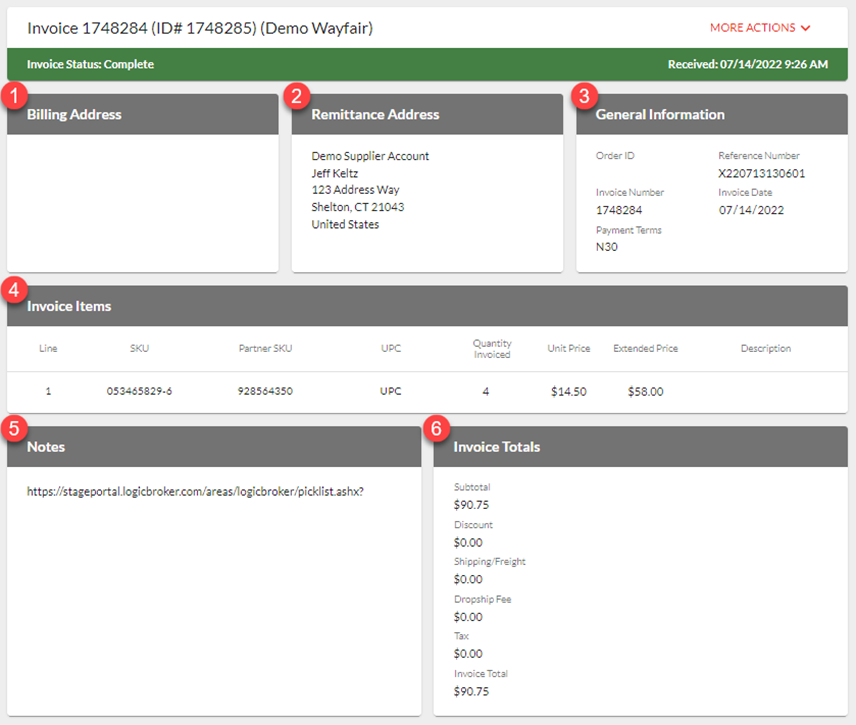
From the portal, users can see documents regardless of the way they are integrated with our system. To see document details, search for it using the search bar, click on it from the Dashboard or click View on the Orders page. See the invoice document-specific details below. For general document information, see our Documents article.
-
- Order ID – the value the retailer assigns to the order
- Reference Number – also known as the Purchase Order Number – typically the connecting identifier between all documents
- Invoice Number – unique identifier for each individual invoice file that will be submitted Please note: Every invoice should have a unique Invoice Number. If you create more than one invoice for an order, be sure to change this field in each document
- Invoice Date – the date you submit the invoice on – this will be defaulted as today’s date but can be modified as needed
- Payment Terms – details set forth between the retailer and supplier regarding how and when payment is made for items on the order. This field is read-only on the invoice. It shows the terms on the retailer's order. If the order has none, Logicbroker adds the payment terms saved in Settings > Document Settings > Payment terms when the invoice is processed.
-
- Subtotal – the Invoice total prior to additions and deductions
- Discount – this field will be discounted from the Invoice Total
- Shipping/Freight – the handling or shipping charge agreed with the retailer. This field is added to the Invoice Total
- Dropship Fee – a separate dropship charge, only if your retailer agreement includes one. This field is added to the Invoice Total
- Tax – any tax applied to the order
- Invoice Totals – the total amount from above additions and deductions being sent and billed to the retailer
Invoice Settings
There are a few invoice settings you can configure in the portal. See below for details on requirements, configurations and how they work:
Consolidating Invoices
Retailers have the option of opting into consolidated invoices in the case that they do not want an invoice for every shipment but rather one invoice per Purchase Order. Logicbroker has the ability to support this using our workflow capabilities. Our system will accept multiple invoices per shipment for a single PO and we will consolidate them into one invoice per PO. The breakdown of the invoice will show all line items that were fulfilled.
This is particularly helpful for big replenishment orders where shipments may have to be split out because of size and quantities.
Create an Invoice
For step-by-step instructions, see Create an Invoice. For every invoice field and format, see the Invoice Specification.
Which fee field should I use?
Who this applies to: suppliers who bill a handling, shipping or dropship charge on invoices.
What it means: the invoice has two separate charge fields. Each one is added to the invoice total. Use only the charges in your retailer agreement.
- Portal: enter a handling or shipping charge in Shipping/Freight in the Invoice Totals card. Use Dropship Fee only for a separate dropship charge.
- API: send a handling charge in HandlingAmount and a dropship charge in DropshipAmount.
- EDI 810: send the charge in a SAC segment. The default code for handling is G821. Some retailers require a different code, such as D500. Use the code in your retailer's EDI specification.
If you do not charge a fee, leave both fields at zero. You do not need to take any other action.
Retailer says the handling fee is missing or the invoice was short paid
Who this applies to: suppliers whose retailer agreement includes a handling fee. Requirements vary by retailer.
What it means: the fee was not on the invoice, or it was sent in a field or code the retailer does not read.
What to check:
- Open the invoice and look at Shipping/Freight in the Invoice Totals card.
- If you send EDI, compare the SAC code you send with the code in your retailer's EDI specification.
- Confirm the fee amount in your retailer agreement.
The fix: on new portal invoices, enter the fee in Shipping/Freight before you submit. EDI and API suppliers correct the field or SAC code in their system and send new invoices. Existing invoices open read-only, so you cannot add the fee to an invoice you already sent. If you charge the same fee on every invoice, Support can set it as a default for your future invoices.
How to check it worked: the Shipping/Freight amount appears on the invoice and is included in the Invoice Total.
When to contact Support: contact Support to set a default fee, or if an invoice already sent needs a correction. Include your company, the retailer, the fee amount, and the PO and invoice numbers.
Payment terms on the invoice are wrong
Who this applies to: suppliers who create invoices in the portal.
What it means: the Payment Terms field is read-only on the invoice. The value comes from the terms set up for your account with that retailer.
What to check: confirm the correct terms with the retailer, for example the net days and any discount percentage and days.
The fix: after the retailer confirms the terms, update them in Settings > Document Settings > Payment terms. If you can't edit that page, ask your account admin or contact Support. If the retailer sends terms on the order, ask the retailer to correct them.
How to check it worked: create a new invoice and check that Payment Terms in the General Information card shows the confirmed terms.
Invoice failed with "Cannot Invoice Unshipped Items", "Cannot Over-Invoice Lines" or "Duplicate Invoice Numbers Are Not Allowed"
Who this applies to: suppliers on any connection. Some retailers turn these rules on and others do not.
What it means:
- Cannot Invoice Unshipped Items: the invoice includes items that do not have a shipment yet.
- Cannot Over-Invoice Lines: the invoiced quantity is more than the order allows, often because an invoice was already sent for those lines.
- Duplicate Invoice Numbers Are Not Allowed: another invoice for this retailer already uses the same invoice number, even on a different order.
What to check:
- Open the failed invoice and read the error details.
- Check that the shipment for those items was sent before the invoice.
- Check the quantities and whether an invoice already exists for the order.
- Check that the invoice number is unique.
The fix: send the shipment first, correct the quantities, or use a new invoice number. To retry or resolve the failed document, follow the Failed Document Summary. Field rules are in the Invoice Specification.
When to contact Support: if the error is unclear or the invoice keeps failing after you correct it. Include your company, the retailer, the PO number, the invoice number, the exact error and what you already tried.
We're updating this article. Some steps and screenshots may not match the portal yet. If anything is unclear, contact support@logicbroker.com.