
Creating an acknowledgement is how a supplier communicates that the order has been
received and the items have been accepted (or not). This information is transmitted to
ZAGENO so we and our customers know what to expect when the order is scheduled to
ship.
Creating a first-time acknowledgement
Follow these steps below to create a first-time acknowledgement via the portal. For
integration specs for acknowledgements, please see here. And for bulk loading
acknowledgements via CSV, please see the PDF attached to this page titled "External_
Creating Acknowledgements via CSV.pdf"
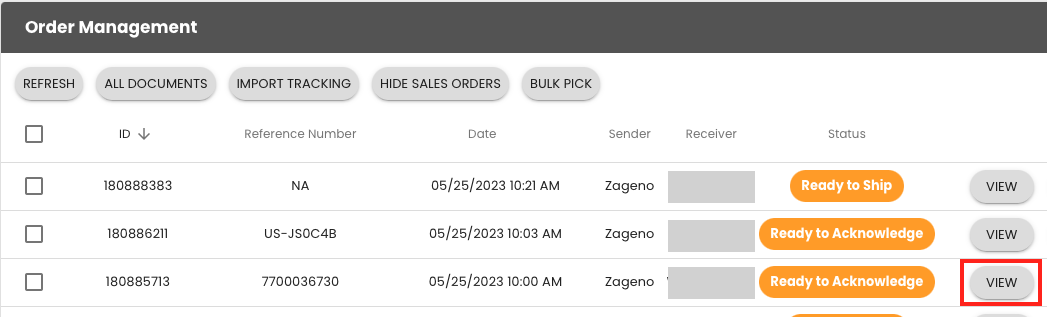
(1) Open the order you want to acknowledge by clicking the view button
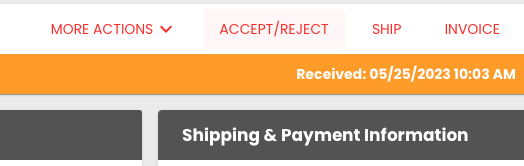
(2) At the top of the order page, click accept/reject
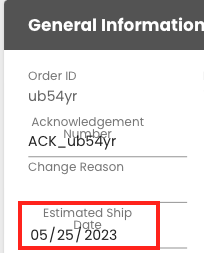
(3) You will now be in the acknowledgement document, first step is to add an estimated ship
date in the top right corner of the page as noted below
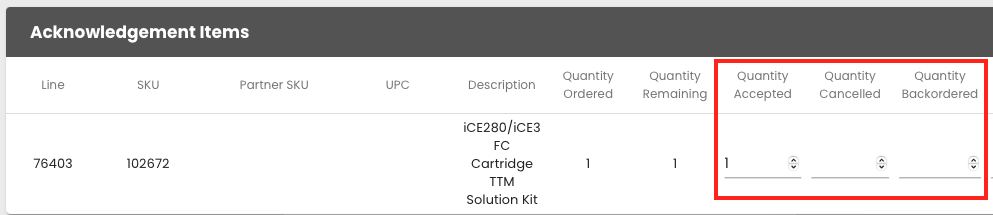
(4) Next scroll down the page and declare which line items and quantities will be accepted,
canceled or back ordered
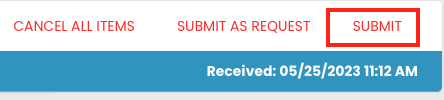
5) Finally, at the top right corner, click the submit button to send the acknowledgement
transmission to ZAGENO
Creating a re-acknowledgement
For re-acknowledging an item - when estimated ship dates change or inventory positions
change - see how to do this below via the portal. We expect suppliers to submit these as
soon as they learn shipping dates or item statuses have changed. This is important so we
can keep our customers informed of any changes to their ordered items.
If you’re processing this through the portal, please follow the steps below. For details on
how to process this in bulk via CSV or via EDI transmission, please see the PDF attached
to this page titled External_ Creating Re-Acknowledgements.pdf
If you're transmitting in cXML, please change your operation to equal "update" instead of "new."
<ConfirmationHeader type="detail" operation="update" noticeDate="2023-06-10T00:30:27+00:00" confirmID="0001662961"/>
(1) Follow steps 1 thru 4 above to get started creating your acknowledgement.
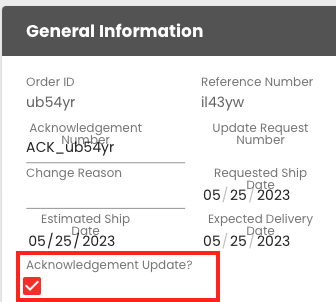
(2) Once you’ve taken those steps above, click the acknowledgement update box under the
general information section of the page. By clicking this, ZAGENO will process this as an
update to your prior acknowledgement and update status for the customer.
(3) Finally, at the top right corner, click the submit button to send the acknowledgement
transmission to ZAGENO
| 🔗External_ Creating Acknowledgements via CSV.pdf
900 KB Download
|
| 🔗External_ Creating Re-Acknowledgements.pdf
600 KB Download
|