
Below are the steps to start the onboarding process. All steps are required for suppliers unless otherwise specified. All steps will be completed in our stage (test) environment.
Accept the invitation and fill out the Onboarding form
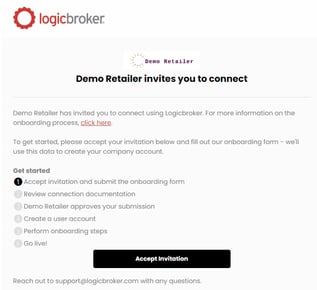
You will receive an onboarding invitation email that will link you to our Onboarding form to get started.
- From the "[Supplier] has been invited to connect with [Retailer]" email, click on Accept invitation Note: If you don't see the email, check your junk folder and add do-not-reply@logicbroker.com to your contact list
- Fill out the Onboarding form
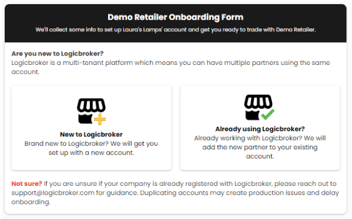
Note: If you are already working with another retailer through Logicbroker, DO NOT click on New to Logicbroker. Doing so will create a duplicate account and delay your onboarding.
Create a user account and access the portal
Once your submission has been reviewed and accepted, we will create your company account and send you next steps.
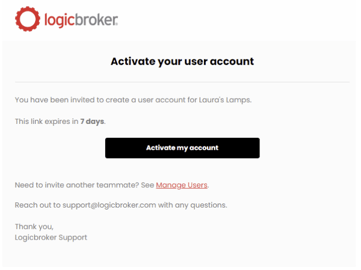
- You will receive a "Welcome to Logicbroker!" email. Click on Activate my account to create a username and password. Note: The link expires after 7 days, if you miss the window, contact your retailer for a new invitation. If you are an existing Logicbroker user, you will not receive this email
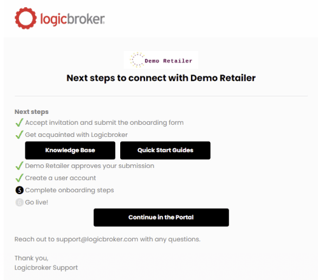
- You will receive a "Connect [Supplier] with [Retailer] – Next steps" email. Review next steps and click on Continue in the portal to access the portal to complete onboarding steps
Review onboarding steps
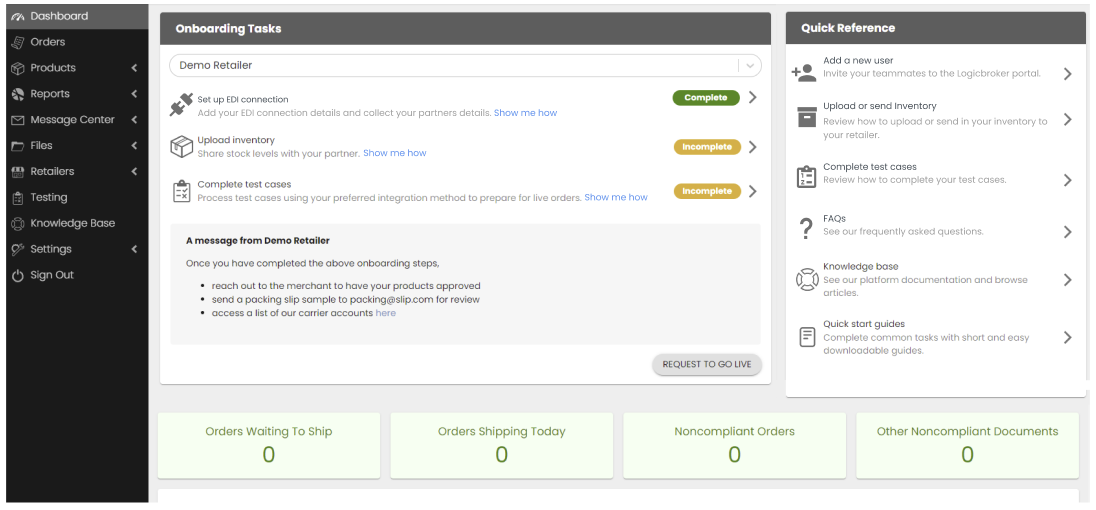
Once you log into the portal, you will see the Onboarding Task Manager which will show the onboarding tasks along with the progress. Note: This will only capture completion, not compliance. If there are any errors you need to fix, you may need to revisit the step.
Troubleshooting onboarding access
The situations below are the ones suppliers ask Support about most often during onboarding. Each one says who can fix it: you, your retailer or Logicbroker Support.
I didn't get the invitation, the link expired or it went to the wrong person
Applies to: suppliers who are new to a retailer, on any connection type.
There are two emails. The retailer sends the onboarding invitation, which opens the Onboarding form. After the form is accepted, Logicbroker sends the "Welcome to Logicbroker!" email so you can create your username and password.
What to check:
- Search your inbox, junk and spam folders for mail from do-not-reply@logicbroker.com. If your company uses a spam filter outside your mailbox, ask your IT team to look there and to allow that address.
- If the email shows no buttons, open it in another mail app or browser. One supplier found the Accept invitation button only after the email was displayed in full.
- Ask your retailer contact which email address the invitation went to. The retailer's onboarding page shows the contact on file.
- Check whether your company already has a Logicbroker account. Someone at your company may already be a user, and that user can invite you from My Profile › Manage Users. See Manage Users.
How to fix it:
- You never received the onboarding invitation: ask your retailer to resend it. The retailer has to send the first invitation, so Support cannot start onboarding for you before that.
- The invitation should go to a different person: ask your retailer or Support to resend it to the new contact's email address.
- The "Welcome to Logicbroker!" link expired: the link works for 7 days. Ask your retailer or Support to send a new user invitation.
- A resend still doesn't arrive: the address may be blocked because an earlier email to it bounced. Ask Support to check it. Once Support clears the address, ask the sender to resend the invitation. Make sure your mail server isn't blocking Logicbroker emails.
How to check it worked: the new email arrives, and the button in it opens the Onboarding form or the page where you create your login.
When to contact Support: send your company name, the retailer you are connecting to, the email address that should receive the invitation and what you already tried.
I chose New to Logicbroker, but my company already has an account
Applies to: suppliers who already work with another retailer through Logicbroker, or who started onboarding with another retailer before.
Choosing New to Logicbroker creates a second company account. That second account is separate from the connections you already have and can delay your onboarding.
What to check:
- Ask your colleagues whether your company already logs in to Logicbroker. An account that started onboarding with another retailer may exist only in the stage (test) environment.
- If you haven't submitted the form yet, choose the option for companies already using Logicbroker. Then select your existing account.
- If your existing account doesn't appear in the list, stop and contact Support before you submit the form.
How to fix it: if you already submitted the form as new, contact your retailer or Support. Ask them to connect the invitation to your existing account and resend it if needed.
How to check it worked: after you log in, the new retailer appears in the Onboarding Tasks partner list of your existing account.
When to contact Support: send the name of your existing account, the retailer that invited you and whether you already submitted the form.
The Onboarding form asks for information that doesn't apply to me
Applies to: suppliers filling in the Onboarding form. The fields vary by retailer.
Some fields are required even when they don't fit your company. You still have to fill them in before the form will submit.
What to enter:
- Merchandiser name and title: enter the person on your team who handles partnerships or merchandising. If there is no such person, enter your own name and email. If the contact has no other job title, enter Merchandiser as the title. The retailer may see this contact, and you can see it in your own account in the portal.
- Website: enter your company's website, not the retailer's.
- Tax number fields: enter your company's tax details for that country. If a tax ID doesn't apply to you, for example a Canadian tax ID for a US company, enter "N/A" or a short note. These fields accept free text.
After you submit: the retailer reviews the form. Your company account and the "Welcome to Logicbroker!" email follow only after the retailer accepts it. You also need to accept the invitation and submit the form before technical setup, such as EDI, can start. If the form is waiting for acceptance, ask your retailer contact for an update.
When to contact Support: send your company name, the retailer, the field name and a screenshot of the form.
"It looks like your company is not enabled in production."
Applies to: suppliers who are still onboarding, on any connection type.
This message appears when you log in to the production portal before your account is live. During onboarding, your account exists only in the stage (test) environment. Your account isn't locked, and the portal isn't down.
What to do:
- Log in at stageportal.logicbroker.com with your username. The message also has a click here link to the stage portal.
- Do all your testing there. Send test documents to Stage only. Production doesn't accept test documents.
- When your onboarding tasks are done, click Request to go live under Onboarding Tasks in the stage portal. The retailer then reviews your tasks and approves or rejects the request.
How to check it worked: the button changes to Requested to go live. After the retailer approves, you can log in to production.
Some retailers also require approval of your product assortment or a completed Stripe setup before go-live (see Stripe invitation is missing). For the full testing steps, see Testing Overview.
When to contact Support: if the stage portal shows the same message, send your company name, username and retailer, with a screenshot.
Stripe invitation is missing or verification keeps returning to the same page
Applies to: suppliers whose retailer pays through Stripe. Only some retailers use this step. For those retailers, Stripe is required before go-live and is the only payment option.
Who controls what: Logicbroker Support sends the Stripe invitation link. Stripe handles the identity checks and your account requirements.
How to fix it:
- You don't have a Stripe invitation: ask Support to send the Stripe invitation link to the right person on your team.
- Verification keeps sending you back to the same page: ask Support for a new verification link. If the new link does the same thing, Support can generate a new invitation.
- You need to use a different finance email: if you can, finish the verification with the email you started with. If you can't, ask Support for a new Stripe invitation for the new email and start again.
- Stripe asks for more documents or shows a restriction: contact Stripe Support. Logicbroker can't change your Stripe requirements.
How to check it worked: Stripe shows your account as Enabled. Support can confirm this for you.
When to contact Support: send your company name, the retailer, the email used for Stripe and a screenshot of the page that repeats.
My vendor number is wrong or the retailer can't find my company
Applies to: suppliers and retailers during onboarding.
Your vendor number comes from the retailer, not from Logicbroker. If the retailer's records have the wrong vendor number, orders may not reach you even after go-live.
What to do:
- Suppliers: get your vendor number from your retailer contact and enter it exactly as given. If you entered the wrong number on the Onboarding form, ask your retailer whether they need you to submit the form again.
- Retailers who can't see a supplier on the Supplier Onboarding page: click Show Ignored. Suppliers that were set to ignored stay hidden until you do.
- Retailers who need a supplier's name or reference changed: contact Support with the supplier name and reference you want, your accounts payable (AP) number for the supplier and whether the supplier replaces an existing one.
How to check it worked: the supplier appears on the retailer's onboarding page, and new orders show up in the supplier's portal.
When to contact Support: send the company names, the vendor number, a PO number that didn't arrive and the exact error the retailer saw.
We're updating this article. Some steps and screenshots may not match the portal yet. If anything is unclear, contact support@logicbroker.com.