
Audience: All users in Logicbroker.
In this article, you will find information related to the Manage Users Page. The sections within this article are outlined below:
At a Glance
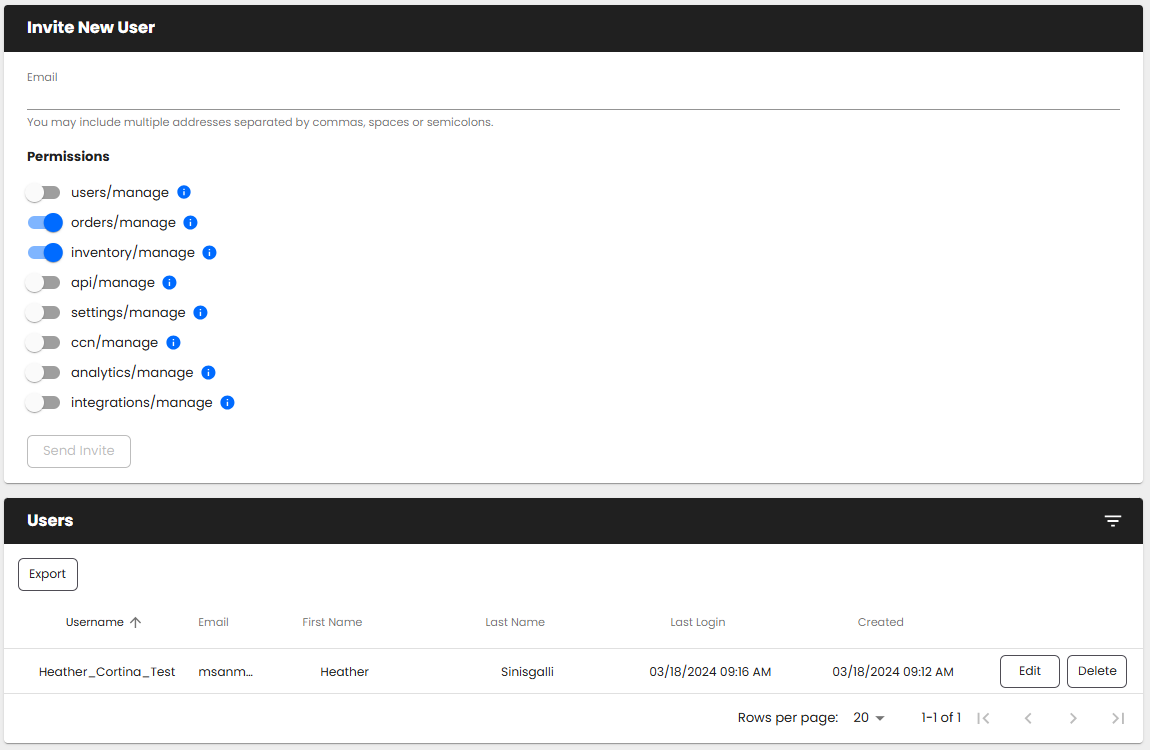
The Manage Users page provides users with the ability to see and manage active account users. Open it from My Profile > Manage Users. Logicbroker credentials provide access to: Stage Portal, Production Portal and Learn Logicbroker.
Actions
The Manage Users page provides users with a variety of actions that can be taken on users. Please note: To add, edit, delete, import or export users, you must have the User Management permission enabled on your account. Only users with this permission see the Edit, Delete, Import and Export buttons.
- Username
- First Name
- Last Name
- Title
- Permissions
- Last Login
- Created
Change who manages users
Logicbroker has no single admin role. Any user with the User Management permission can invite, edit and remove users for your company. To change who manages users, change that permission.
If someone at your company has User Management:
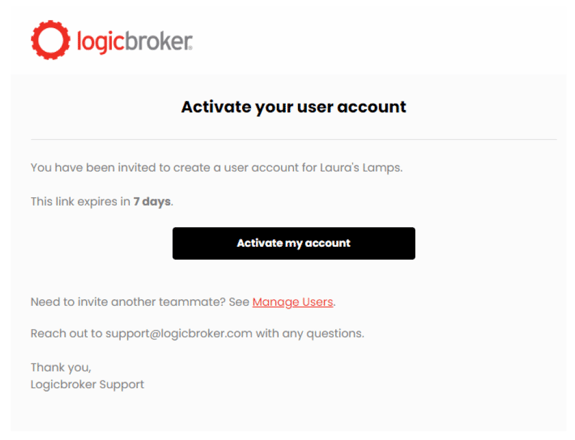
- If the new person has no login yet, invite them as described above.
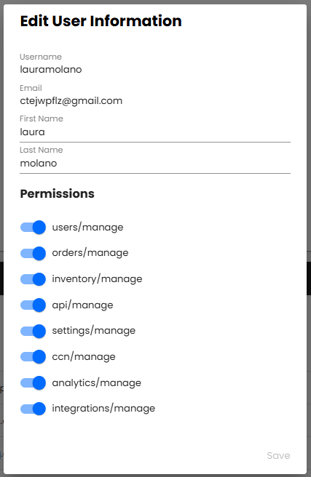
- Click Edit next to the new person, turn on User Management and click Save.
- To take the permission away from someone, edit them and turn off User Management. To remove a person who has left, delete them.
- Ask the new person to log out and log back in. The permission takes effect after they log in again.
If nobody at your company has User Management, for example because that person left: email support@logicbroker.com. Include:
- your company name and the retailer you work with;
- the email address of each person to invite;
- the username or email address of each person to remove;
- who should have User Management.
Support can tell you which users currently manage users, send invitations and remove users. Support cannot share a former employee's password, because password reset emails go to that person's mailbox. Support can create a new login for you instead. Each person needs their own login, so don't share one login between several people.
You can only invite people to your own company. To get access to a partner's account, ask someone at that company who manages users, or ask Support.
Troubleshooting
"Failed to send invitation to" or no Edit and Delete buttons
Who it applies to: any supplier or retailer portal user who tries to add or change users.
What it means: every user sees the Invite New User form, but only users with the User Management permission can send invitations or see Edit, Delete, Import and Export.
What to check:
- Look for Edit next to the users in the Users list. If you don't see it, you don't have User Management.
- Filter the Email column for the address you are inviting. If the person is already listed, they have a login. Their username is in the Username column, and they can use Forgot Password on the login page.
The fix:
- No User Management: ask a teammate who has it to send the invitation or to give you the permission. If nobody has it, see Change who manages users.
- You were just given User Management: log out with the button at the bottom of the menu, log back in and send the invitation again.
How to check it worked: the portal shows "Sent invitation email to" followed by the address.
When to contact Support: if the invitation still fails, email support@logicbroker.com with your company name, your username, the address you are inviting and a screenshot of the error.
Fields are read-only or a menu is missing
Who it applies to: supplier and retailer portal users.
What it means: some menus and fields only appear for users with a certain permission. The portal reads your permissions when you log in, so a new permission doesn't show until you log out and log back in. Some menus also depend on your company's Logicbroker account, not on your permissions.
What to check:
- Log out completely with the button at the bottom of the menu, then log back in. If nothing changes, log out and in once more.
- Ask a teammate with User Management to open Edit on your user and check your Permissions. Examples:
- Connections > API needs API/Webhook Management.
- Connections > EDI and Connectors, and Settings > Scheduled Tasks, need Settings Management. Without Settings Management or API/Webhook Management, the Connections menu doesn't appear.
- Adding and editing users needs User Management.
- Check which portal you are in. The Testing menu only appears in the Stage portal.
The fix: a teammate with User Management turns on the permission you need, and you log out and back in. If nobody can change your permissions, or a field such as Payment Terms stays greyed out after you log back in, email Support.
How to check it worked: after you log back in, the menu item appears or the field can be edited.
When to contact Support: email support@logicbroker.com with your company name, your username, the menu or field you need, the page and document ID where the field is greyed out, and a screenshot.
I can log in to Production but not Stage
Who it applies to: supplier and retailer users who test or onboard in the Stage portal.
What it means: Stage and Production are separate portals. Stage is for testing and Production is for live orders. Your login can have access to a company in one environment and not the other. A company only exists in Logicbroker after it submits its onboarding form, so nobody can be given access before then.
What to check:
- Go to stageportal.logicbroker.com for Stage. Production is portal.logicbroker.com. You can also use Switch to Stage or Switch to Production at the bottom of the menu.
- Close all other Logicbroker windows and tabs so only one is open.
- Clear your browser's cache and cookies, then log in again.
- If Production shows "It looks like your company is not enabled in production.", your company is not live in Production yet. If your company is new to Logicbroker, log in to the Stage portal instead.
The fix: if Stage still refuses your login, Support can add Stage access to your login. After Support confirms, log out and log back in.
How to check it worked: you can log in at stageportal.logicbroker.com and see your company.
When to contact Support: email support@logicbroker.com with your username, your company name, your retailer and a screenshot of the error you see in Stage. For more on testing, see Testing Overview.
"See all tickets" shows access denied
Who it applies to: anyone who opens Help > See all tickets and sees "403 Sorry, you don't have access" or "You don't have access to this portal".
What it means: the ticket history is only available to certain members of paid Logicbroker customer teams. Supplier accounts don't have access, so this message is expected for suppliers.
What to do:
- Supplier: to follow up on a ticket, email support@logicbroker.com with your ticket subject and company name.
- Paid customer team member who should have access: email support@logicbroker.com with your company name, your email address and a screenshot of the message. Support checks your access.
How to check it worked: See all tickets opens a list of your company's tickets.
We're updating this article. Some steps and screenshots may not match the portal yet. If anything is unclear, contact support@logicbroker.com.