
Regardless of communication method (EDI, API, Portal, etc.), you must first load some sample inventory and create your test orders in order to start working through the test cases.
Loading Test Inventory
Test orders cannot be generated until test inventory has been loaded. Ideally, you would load an inventory file that has real inventory data to ensure all data can be handled properly.
- EDI - load the 846 file through the established EDI AS2 connection or via FTP/SFTP.
- Excel or CSV - load the file through Stage Portal.
- See steps below for the template and steps.
- We recommend using an Excel file if you are not familiar with CSV-formatted files.
1. Navigate to Inventory and click Import.
- NOTE: If you don't see the Import button, ask a teammate who has permission to manage inventory to import the file.
2. Under Partner, select the Retailer you are testing with.
3. Under Templates, click Inventory Feed Template to download a CSV file.
- To see the fields your Retailer requires, click Review Retailer's Requirements under Specifications.
- Use the Matching SKU Feed Template to assign a Retailer SKU to items you have already loaded. If you upload this file, choose Matched SKUs Feed as the Feed Type in step 5.
4. Update the file with the appropriate information.
- For testing, the only required fields are SupplierSKU, MerchantSKU, UPC and Quantity. Additional fields may be required depending on the Retailer specifications.
- Be sure to load at least 5 unique SupplierSKUs. Logicbroker builds test orders from the items in your inventory. If there are not enough items, you will see the message "Items on this order are missing SKU information. You may need to add items to your inventory feed."
- NOTE: UPCs are typically 12 digits long, and we advise you format the field at Text to ensure the number is not converted into a scientific number.
5. Under Feed Type, select Inventory Feed.
6. Drag and drop your CSV or XLSX file in the Upload File section OR click inside the dotted box to select a file to upload. Then click Import.
- If the file has problems, a Validation Warnings message lists them. Click Cancel, fix the file and import it again.
- When the upload succeeds, an Import Complete message confirms that the file is queued for processing.
7. To check the result, go back to Inventory and open the Events tab, which shows your imported feeds and any errors. Click View on an event to see its details. If a file is attached to the event, you can download it there.
- NOTE: To download the inventory that is currently loaded, click Export on the Inventory page and choose Inventory Feed, Retailer Feed or Unmatched SKU Feed.
You are now ready to generate your test orders.
Generate Test Orders
Regardless of the communication method (EDI, API, Portal, etc.), you will use the Testing module in Stage Portal to generate your test orders and review the results of your testing. Testing is only available in the Stage Portal.
- EDI - all sent/received documents will be done through the connection you've established (AS2 or FTP/SFTP). You still need to generate the test orders in the Portal. Instructions below.
- API/JSON/XML - all sent/received documents will be done through the connection you've established (API, FTP, SFTP). You still need to generate the test orders in the Portal. Instructions below.
- Portal - all activities will be completed through the Portal.
- NOTE: You are able to combine actions. For example, you can do some actions via EDI and some via Portal (aka "mix and match").
1. Navigate to Testing.
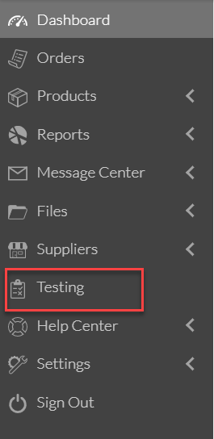
2. If you have multiple Retailers (aka Partners), you may have the option to select which Retailer you would like to test. Select the appropriate Retailer by clicking View.

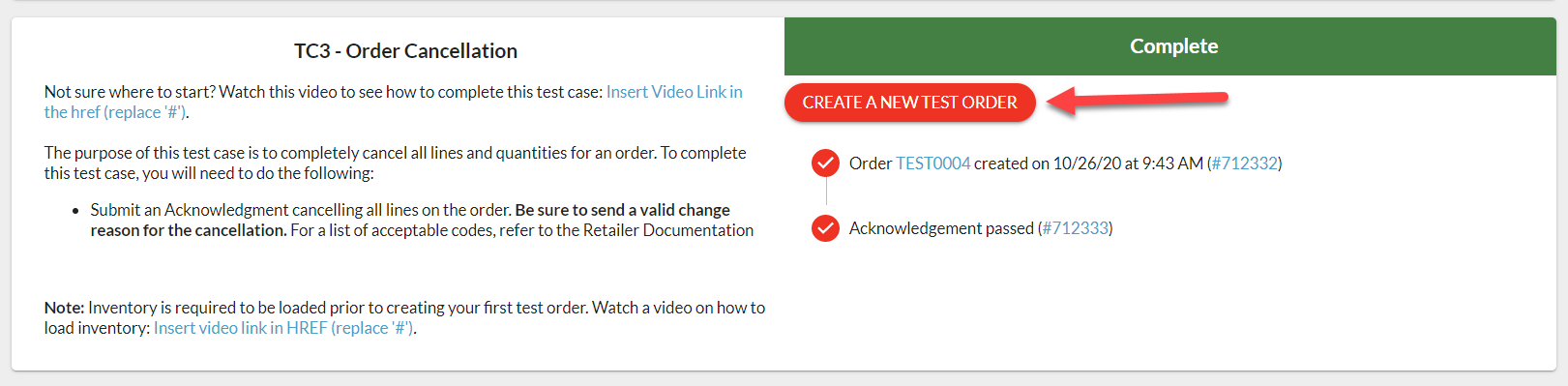
3. The listing of required testing cases to complete are provided. Click on Create a New Test Order for the first test.
- NOTE: Some test cases open a Test Order Options window where you enter or change order details, such as the SKUs to use. Fill in the fields and click Continue.
- NOTE: When you generate the order, it creates a test order that will be visible in the Portal but will also send via EDI, API, etc. depending on your communication method.
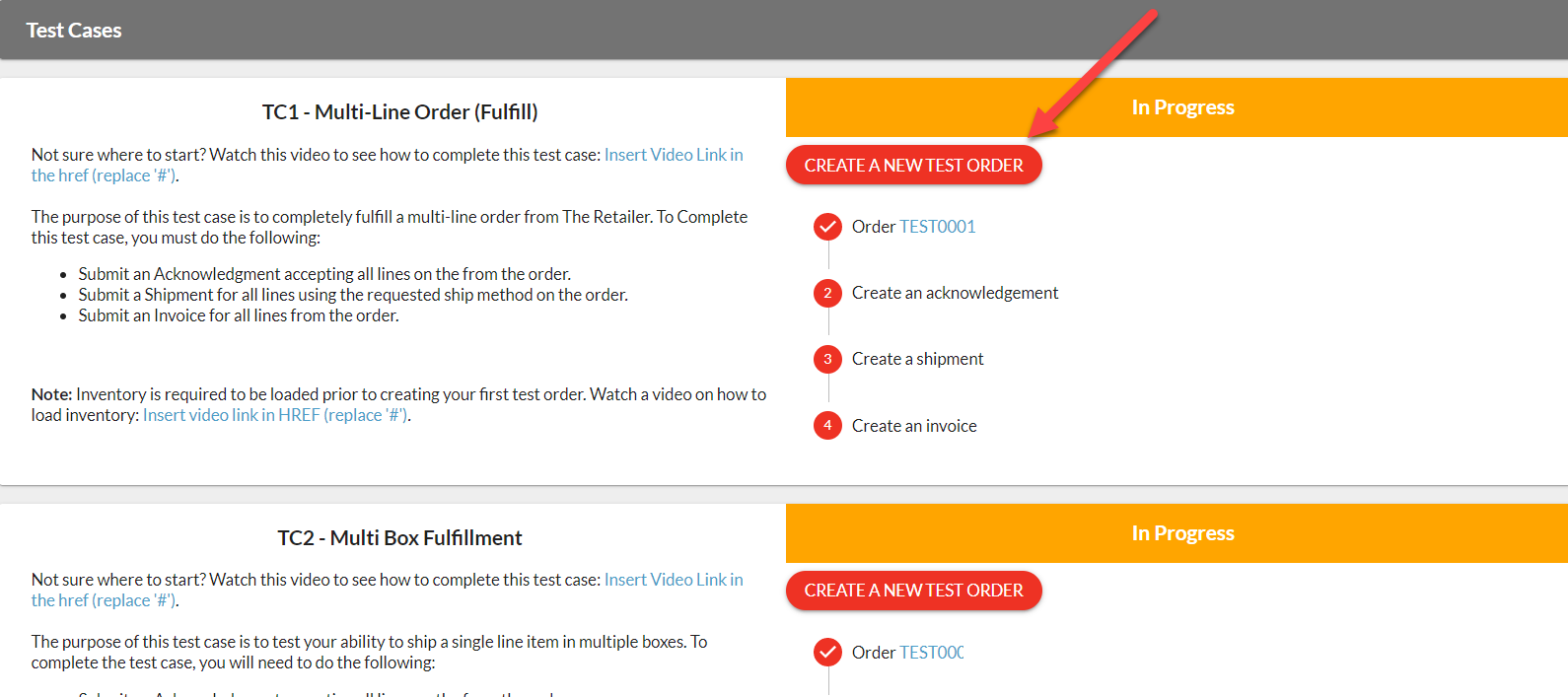
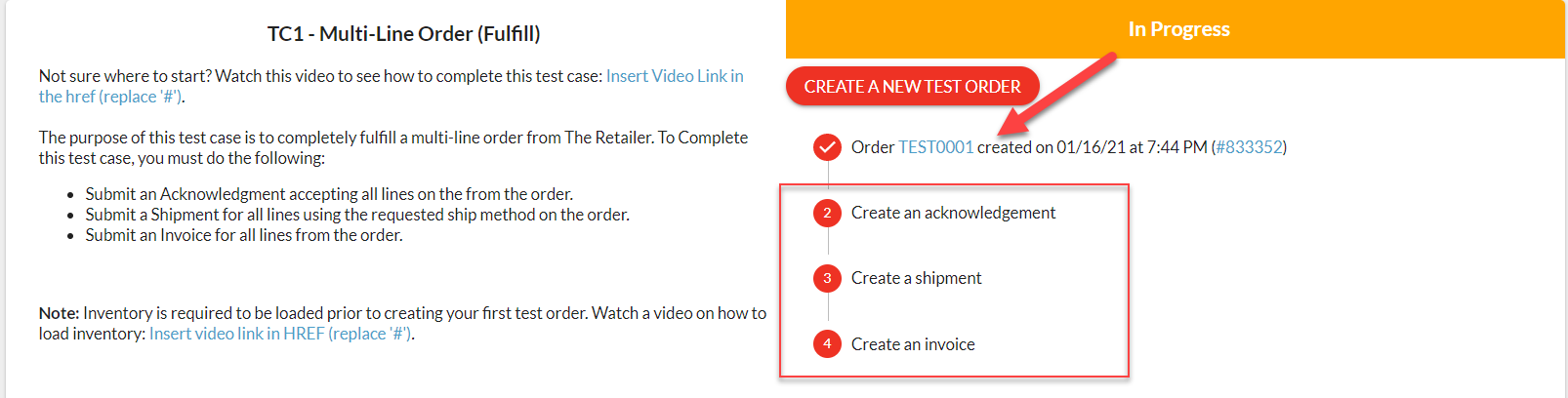
4. Now that you have generated the order, you review the order. Click on the order number.
- NOTE: Below the order number, you can see the expected steps/documents you should be taking. The description on the left also includes more details on the actions expected.
- NOTE: Once you click on the order, you can see Instructions for test case at the top of the order. Click the test case name to see its instructions and progress without leaving the order. It may take a moment (less than 30 seconds) for the test order to be "ready" to start taking action on.

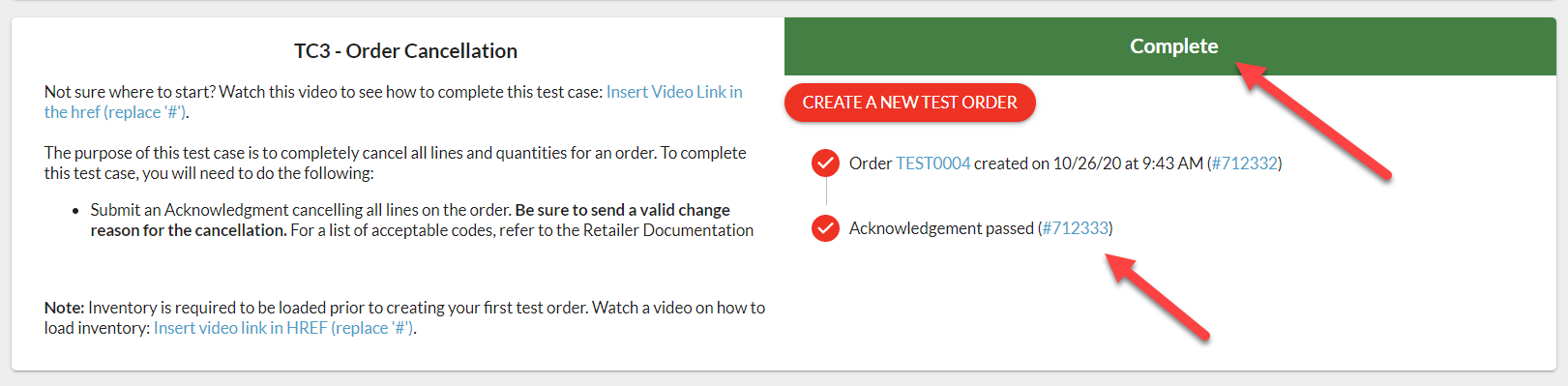
5. Once you complete a test, the status moves to Complete (green).
6. At any time, you can generate a new test order if you would like to start over, try again, etc. Just click on Create a New Test Order. The Starting over, retesting or skipping a test case section below explains what happens to the previous test order.
Completing your test cases
Each test case describes a scenario your Retailer wants to see. Read the description on the left of the test case before you create the order. It lists the documents to send back and the details they must include.
- Send back every document the test case lists. The steps below the order number show each expected document (for example, Create an acknowledgement, Create a shipment and Create an invoice). The test case is Complete only when every listed document has passed.
- Test with the connection you will use in Production. If you will exchange documents over EDI (for example, AS2) or API in Production, send your test documents over that connection in Stage, not only through the Portal.
- Send documents for the current test order. If you create a new test order for a test case, send your documents for the new order. Logicbroker sets documents sent for the replaced order to Ignored with the message "This document is not connected to an active round of testing."
- Only send the document types the test case asks for. Logicbroker sets other document types to Ignored with the message "This document type is not being tested in this test case."
When Logicbroker receives each document, its step shows either passed or received but there was an error. If there is an error, the step shows "The following differences were found between this document and the expected document:" and then lists each difference. For example, a quantity or line number may not match what the test case expects. Correct the document and send it again for the same test order.
- NOTE: If a document fails one of your Retailer's rules before Logicbroker can compare it, the step shows "This document failed before it could be validated against the test case." Open the document to see the error, correct it and send it again.
Each test case shows one of these statuses:
- Not Started: no test order has been created yet.
- In Progress: a test order exists, but not every document has passed.
- Complete: every document the test case lists has passed.
- Not Required: some Retailers set up alternative test cases. When you complete one of them, the others change to Not Required.
When every test case is Complete or Not Required, the Testing page shows Testing Complete for that Retailer.
Retailer-specific scenarios
Each Retailer sets up its own test cases. These are the most common reasons a test document does not pass:
- Cancellations. If the test case asks you to cancel the whole order, your acknowledgement must cancel every line. An acknowledgement that accepts the order will not pass. If the test case asks for a partial cancellation, your acknowledgement must cancel the quantities the test case describes. If you have already accepted some units, send another acknowledgement that cancels the remaining units.
- One invoice or several. If the test case asks for a single invoice with all lines, send one invoice that includes every line. Separate invoices for each line will not match.
- Carriers and ship methods. Ship with the carrier and service the test case asks for. Send a ship method your Retailer accepts. You can see your Retailer's ship method codes under Settings > Shipment Options. Some Retailers reject a shipment with a ship method they do not recognize, with the error "Invalid Ship Method".
- Unique invoice numbers. Some Retailers do not allow the same invoice number twice. Use a new invoice number on every test order. If you reuse one, the invoice fails with "Duplicate Invoice Numbers Are Not Allowed".
- Multiple packages. Some test cases ask you to ship the units in separate packages, each with its own tracking number.
- Customization. Some Retailers include a test case with personalization (customization) details on the order. Check that these details reach your system in the form you need.
- Prices. Test orders use preset test prices, which will not match your real prices.
For your Retailer's full requirements, review their specifications under Partners > Document Standards.
Starting over, retesting or skipping a test case
- Starting over. Clicking Create a New Test Order creates a new test order with a new order number and resets that test case, even if it was Complete. If the previous test order was not finished, Logicbroker sets it to Ignored. You do not need to cancel old test orders yourself.
- Changing your connection method. If you are already live with a Retailer and are moving to a new connection method (for example, from Portal to EDI or API), complete the test cases again over the new connection. Test cases from your earlier testing may still show Complete. Click Create a New Test Order on each one to start again. Your Retailer decides which test cases must be repeated.
- A scenario that does not apply to you. A test case may describe something you will never do with this Retailer, such as splitting an order across packages. Before you request to go live, contact Logicbroker Support at support@logicbroker.com and explain why. Support can mark the test case as complete. Some Retailers must approve this first.
Request to go live
When you finish testing, request to go live from the Stage Portal.
1. Navigate to Dashboard.
2. In the Onboarding Tasks section, select the Retailer. Check that Complete test cases and your other onboarding tasks are done.
3. Click Request to go live and confirm. Your Retailer reviews your onboarding tasks and approves or rejects your request.
- NOTE: Some Retailers require every onboarding task to be completed before you can request to go live. Until you complete them, the button is not available.
- NOTE: After you request, the button shows Requested to go live.
I uploaded inventory but cannot create test orders
Who this applies to: suppliers creating test orders on the Testing page of the Stage Portal, whatever connection method you use.
What it means: Logicbroker fills each line of a test order with an item from the inventory you loaded for that Retailer. If it cannot find an item with a SupplierSKU for every line, it does not create the order. Instead you see "Items on this order are missing SKU information. You may need to add items to your inventory feed."
What to check:
1. Go to Inventory and open the Events tab. Check that your import finished without errors. Logicbroker queues each import, so a file you just uploaded may not be processed yet.
2. Check that you imported the file for the Retailer you are testing with. Test orders only use inventory loaded for that Retailer under Partner.
3. Check that every item has a SupplierSKU. Logicbroker skips items without one.
4. Check that you loaded at least as many items as the test order has lines. Each line uses a different item.
The fix:
- Too few items, or items without a SupplierSKU: add the items to your inventory file and import it again for this Retailer. When the Events tab shows the import, click Create a New Test Order again.
- The Test Order Options window opens: fill in a SKU for each line where the window asks for one, then click Continue. Where it asks for both, enter your SKU and the Retailer's SKU.
- You want the Retailer's SKUs on your test orders: Logicbroker picks items that have a Retailer SKU first. Load the MerchantSKU column, or upload a Matched SKUs Feed.
How to check it worked: the test case shows "Order TESTnumber created on" with the date, and its status changes to In Progress.
When to contact Support: contact support@logicbroker.com if the Events tab shows your import for this Retailer without errors and you still see the message. Also contact Support if you sent inventory over EDI (846) and it does not appear on the Inventory page. Include your company name, the Retailer, the test case name, the file name or EDI control number, when you sent it and the exact message.
My test case is not Complete
Who this applies to: suppliers completing test cases in the Stage Portal over EDI, API or the Portal.
What it means: a test case is Complete only when every document listed under its order number has passed. Logicbroker checks each document when it arrives and updates its step. The status changes when the last document passes.
What to check:
1. Go to Testing, click View for the Retailer and find the test case.
2. Read each step under the order number:
- A step that still reads "Create a shipment" (or acknowledgement, or invoice) means Logicbroker has not received that document for this test order.
- A step that reads "received but there was an error" means the document arrived but did not match the test case. The text below the step lists the differences.
- A step that reads "passed" is done.
3. Check that you sent the documents for the order number shown on the test case. Documents for an older test order are set to Ignored and do not count.
The fix:
- A document is missing: send it for the current test order.
- A document has differences: correct what the step lists and send the document again for the same test order. See Completing your test cases above.
- "This document failed before it could be validated against the test case": open the document from the step, fix the error it shows and send it again.
- The scenario does not apply to you: see A scenario that does not apply to you above.
How to check it worked: each step shows "passed" and the test case shows Complete in green. When every test case is Complete or Not Required, the Testing page shows Testing Complete for that Retailer.
When to contact Support: contact support@logicbroker.com if every step shows "passed" and the test case is still not Complete. Also contact Support if you sent a document over EDI or API and its step still reads "Create a...". Include your company name, the Retailer, the test case name, the TEST order number, the document IDs, your connection method and what you already tried.
Request to go live is unavailable
Who this applies to: suppliers who have finished testing and want to request to go live from the Dashboard in the Stage Portal.
What it means: the Request to go live button is available only while your onboarding with this Retailer is open for a request. Some Retailers also require every onboarding task to be Complete first. If the button shows Requested to go live, you have already sent the request and your Retailer is reviewing it.
What to check:
1. Go to Dashboard. In Onboarding Tasks, select the Retailer.
2. Look for any task marked Incomplete. These tasks count towards the request when they appear:
- Upload/send inventory
- Upload/send product feed or Upload/send products
- Complete test cases
- Upload shipping label for approval
3. Read any red message at the top of the card and any "A message from" box from your Retailer.
The fix: complete each Incomplete task. Click a task to go to the page where you complete it. Complete test cases turns Complete when the Testing page shows Testing Complete for this Retailer. Then open the Dashboard again.
How to check it worked: the Request to go live button is available. After you click it and confirm, it shows Requested to go live.
When to contact Support: contact support@logicbroker.com if every task shows Complete and the button is still unavailable. Include your company name, the Retailer, a screenshot of the Onboarding Tasks card and any message it shows. Your Retailer approves or rejects the request itself, so ask the Retailer about the go-live date.
My test order is missing or wrong
Who this applies to: suppliers testing in the Stage Portal. It matters most if you receive test orders over EDI, AS2 or SFTP.
What it means: a test order is created only when you click Create a New Test Order, or when Support creates one for you. It goes out over the connection set up for your account in Stage. A test order cannot be repaired after it is created. If it is wrong, you replace it with a new one.
What to check:
1. Go to Testing, click View for the Retailer and find the order number on the test case.
2. Open the order in the Stage Portal. If you can see it there but not in your own system, the problem is the delivery of the order, not the order itself.
3. If you test over EDI, go to Connections > EDI in the Stage Portal. Check that My EDI Identifiers lists your Stage qualifier and ID, and that My EDI Connection lists your Stage AS2 or SFTP connection. Check EDI Transmission Failures at the bottom of the page.
4. Check the order details. Look for wrong SKUs, or items that are not in your inventory.
5. Check the date of the test order. If it is several weeks old, documents you send for it now may not pass.
The fix:
- The order is in the portal but did not reach your system: fix your Stage connection on Connections > EDI. See AS2 Information and SFTP/FTP. Then click Create a New Test Order to send a new order.
- The order has missing or wrong SKUs: fix your inventory as described in I uploaded inventory but cannot create test orders above. Then click Create a New Test Order. Process the new order and ignore the old one. If Support created the order, ask Support to create a new one.
- The order is old, or you need a fresh one for any other reason: click Create a New Test Order. Send your documents soon after you create it. The previous order is set to Ignored if it was not finished.
- You cannot see Connections > EDI, or no EDI arrives at all: contact Support. Support may need to set up EDI for your account in Stage, or give you access to the page.
How to check it worked: the test case shows the new order number, and the order arrives in your system over your connection.
When to contact Support: contact support@logicbroker.com if a new test order still does not arrive, or if you want Support to create the test order for you. Include your company name, the Retailer, the test case name, the TEST order number, your connection method (AS2, SFTP or API), your Stage EDI qualifier and ID, and what you already tried.
Moving EDI or AS2 from Stage to Production
Who this applies to: suppliers and their EDI providers who tested over EDI (AS2 or SFTP) in the Stage Portal and are going live.
What it means: Stage and Production are separate. Your EDI settings in the Stage Portal do not move to Production. The Connections > EDI page in Stage says: "These settings will only be applied to your stage environment. You will need to configure a separate EDI connection in production." Your Retailer's Stage and Production EDI IDs are also different.
Who does what:
- Your Retailer approves your request to go live. Your Retailer, or Logicbroker at your Retailer's request, then moves your account to Production.
- You or your EDI provider add your Production EDI settings in the Production portal, the same way you added them in Stage. You decide which of you does it. Your EDI provider needs a login to your account to do it.
- Support can add the settings for you if you send them. Support can also add a login for your EDI provider.
What to set up in Production: wait until your Retailer moves your account to Production. Then log in to the Production portal and go to Connections > EDI.
1. Under My EDI Identifiers, click Add my identifiers and enter your Production qualifier and identifier.
2. For AS2, under My AS2 Certificates, click Add a new AS2 certificate and upload your Production certificate. Then add or edit your connection under My EDI Connection. Enter your Production AS2 URL in Address URL and your Production AS2 ID in My AS2 ID, and select the certificate in AS2 Certificate. See AS2 Information.
3. For SFTP, check that your connection under My EDI Connection points to the Production address, not the Stage address. See SFTP/FTP.
4. In your own EDI system, switch your Retailer's receiver qualifier and ID to the Production values. Find them in your Retailer's specifications under Partners > Document Standards.
How to check it worked: your first Production orders arrive over your connection, and the documents you send back appear in the Production portal. If your documents appear in the Stage Portal instead, your system is still sending to Stage. Update it to send to Production.
When to contact Support: contact support@logicbroker.com if you want Support to add your Production settings, or if documents do not arrive after you set them up. Include your company name, the Retailer, your Production EDI qualifier and ID, your Production AS2 ID and AS2 URL (attach the certificate as a .cer file in a zip folder), a PO number or document ID, and the exact error.
What happens after I request to go live
Who this applies to: suppliers who clicked Request to go live on the Dashboard in the Stage Portal, whatever connection method you use.
What it means: the request tells your Retailer that you finished testing. Your Retailer, not Logicbroker, approves the request and sets your go-live date.
What happens next:
1. Your Retailer reviews your onboarding tasks and approves or rejects the request.
2. Some Retailers send one more test order in Stage before they approve, sometimes called a golden order. Process it like any other test order over your test connection. Send the acknowledgement, shipment and invoice. Do not ship any product. Other Retailers send a golden order in Production after you go live. Follow your Retailer's instructions for that order.
3. Your Retailer, or Logicbroker at your Retailer's request, moves your account to Production. If you use EDI, add your Production settings as described in Moving EDI or AS2 from Stage to Production above.
4. Send your inventory in Production by the same method you used in testing. Some Retailers ask for it at least once a day.
How long it takes: your Retailer decides when you go live.
How to check it worked: you can log in to the Production portal and see your Retailer's orders there.
When to contact Support: if you have no open tasks and are waiting for approval, ask your Retailer contact about the date first. Contact support@logicbroker.com if your Retailer says it has approved you but you cannot see Production orders. Include your company name, the Retailer, the date you requested to go live and your connection method.
We're updating this article. Some steps and screenshots may not match the portal yet. If anything is unclear, contact support@logicbroker.com.