
Audience: All users in Logicbroker.
In this article, you will find information related to the Manage Users Page. The sections within this article are outlined below:
At a Glance
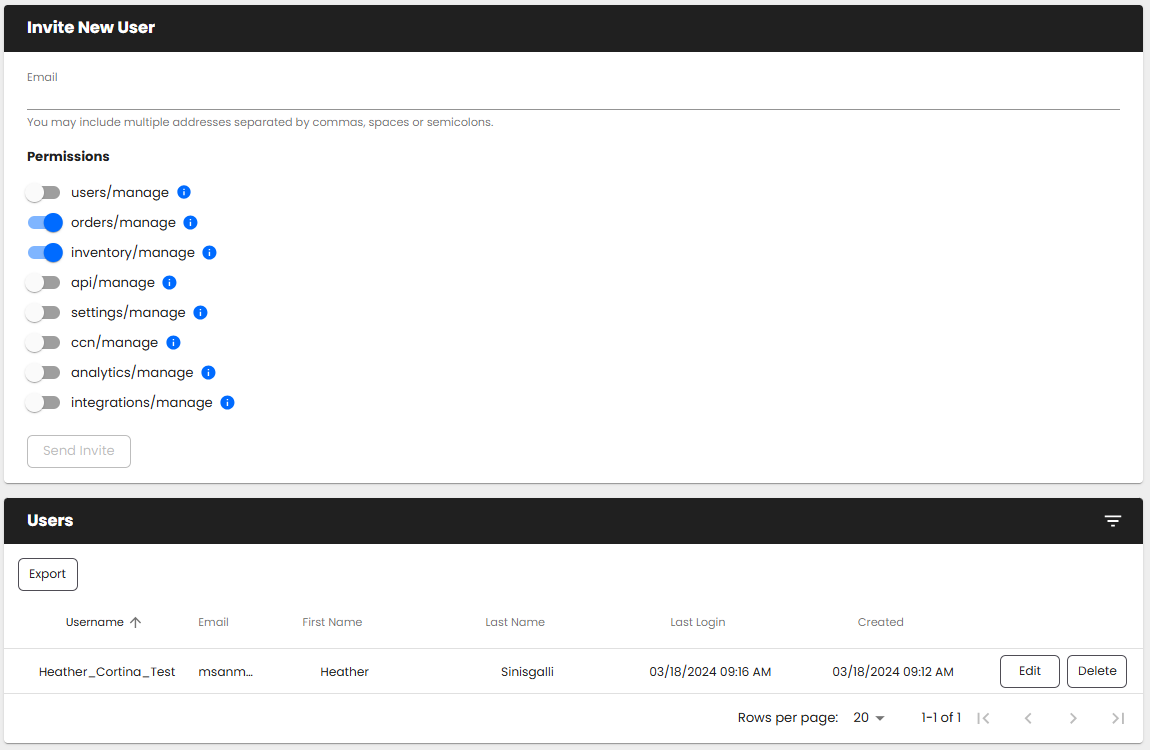
The Manage Users page provides users with the ability to see and manage active account users. Logicbroker credentials provide access to: Stage Portal, Production Portal and Learn Logicbroker.
Actions
The Manage Users page provides users with a variety of actions that can be taken on users. Please note: To add, manage or export users, you must have the users/manage permission enabled on your account.
Invite a new user
1. Type in the name
email address of the user you want to invite - you can add up to 50 emails separated by commas, spaces, or semicolons
2. Adjust the
permissions - by default,
orders/manage and
inventoy/manage will be enabled
3.
Send invite
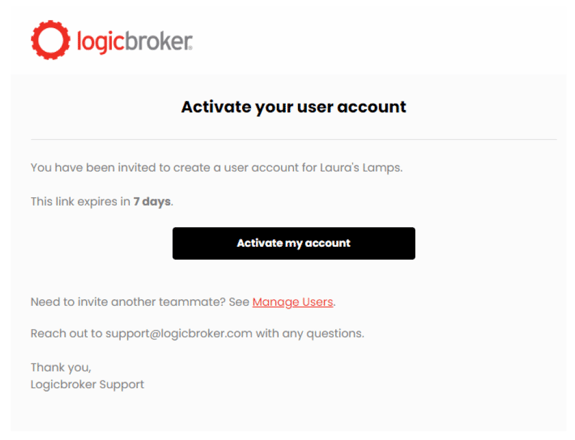
4. The user will receive an email notification with the
Subject Line: "Welcome to Logicbroker!" where they will create their username and password - this invitation will allow the new user to create a login and password to the Logicbroker platform. If you d
on’t see the email, check your junk mail folder and add do-not-reply@logicbroker.com to your contact list Please note: Invitations expire within 7 days - reach out to your account manager or support@logicroker.com to have the invitation resent
5.
Once the user has activated their account, they will appear in the
Users
section
Modify or delete a user
1. Scroll down to
Users and locate the user you want to modify or delete
2. Click on
Edit or
Delete
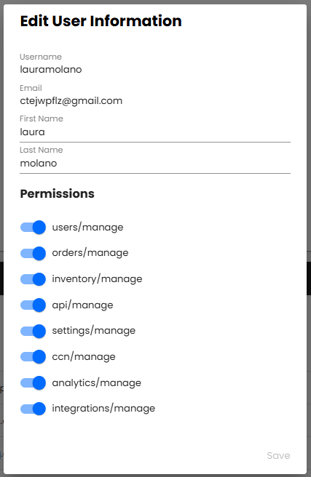
3. If modifying, you can modify
First Name,
Last Name, and
Permissions - you cannot modify username or email address. Delete the user and have them register again with their new information.
Export
1. Scroll down to
Users
2. Click on
Export
3. The export will include:
- Username
- First Name
- Last Name
- Permissions