
Audience: API users
In this article, you will find information related to API Authentication Page, connectivity and documentation. The sections within this article are outlined below:
- Dev documentation
- Set up your API connection
- Stage and Production keys
- 401 or 403 errors
- "API request limit exceeded" (429 too many requests)
- "API Error 422" on a failed document
🗒️Note:
The API Authentication page in the portal is only available to users with the api/manage permission. For more information on permissions, see Manage Users.
Dev documentation
- Dev documentation to set up an API integration with our Rest API: https://dev.logicbroker.com
- Stage Logicbroker API URL: https://stage.commerceapi.io
- Production Logicbroker API URL: https://commerceapi.io
Set up your API connection
-
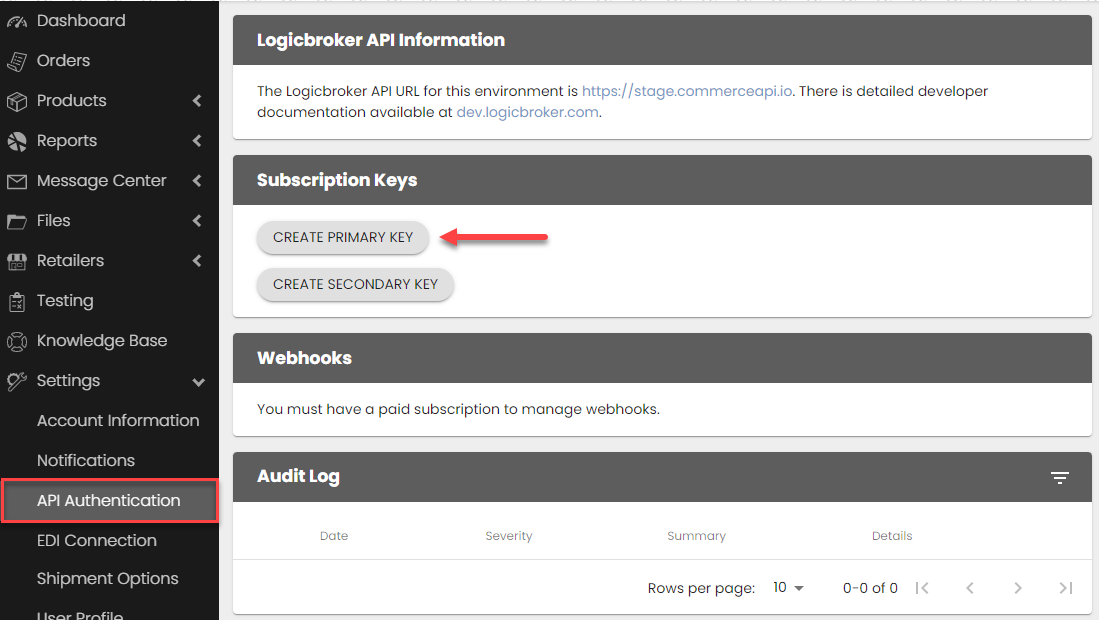
In the portal, go to Connections > API. This opens the API Authentication page.
(Stage link: API Authentication, Production link: API Authentication) -
Under Subscription Keys, click Create Primary Key. You can also click Create Secondary Key for a second key.
-
If you are using a custom API requests and responses, you will need to provide those details either by emailing support@logicbroker.com
Note: When a key already exists, the page shows it with a Regenerate button. Check with everyone at your organization who uses the key before you click Regenerate. A new key can break any connection that still uses the old key.
✨Tip:
The Primary Key is generally for your internal use whereas the secondary key can be shared with your 3rd party development or external resources. Every request must have the API key as a URL query parameter (subscription-key).
Stage and Production keys
Applies to: suppliers and retailers connecting by API, or through a third-party system that asks for a Logicbroker API key.
Stage and Production are separate environments, each with its own portal, API URL and keys. A key created in the Stage portal works only with the Stage API URL. A key created in the Production portal works only with the Production API URL. The API Authentication page shows the API URL for the environment you are logged in to.
- Log in to the portal for the environment you are testing: Stage or Production.
- Go to Connections > API and create or copy the key under Subscription Keys.
- Send requests to the API URL shown on the same page.
If you are switching an existing connection to API, Support asks you to test in Stage first. Contact Support to have your Stage account set up, then complete your test cases there. See Testing Overview.
If you can't see Connections > API, your user doesn't have the api/manage permission. Ask your account admin to add it in My Profile > Manage Users, then log out and log back in.
401 or 403 errors
Applies to: anyone calling the Logicbroker API directly or through a third-party system.
A 401 means the API could not identify your account from the request. A 403 means the API identified you but refused the request. The message in the response body tells you which case you hit:
- "Unauthorized Access. No subscription key or OAuth token found." The request had no key. Add your key as the subscription-key query parameter on every request.
- "Unauthorized Access. Invalid subscription key." The API doesn't recognise the key. Common causes: the key was regenerated, the key has extra spaces or missing characters, a Stage key is being sent to the Production URL (or the reverse), or your company account isn't active. Copy the current key from Connections > API in the matching environment and try again.
- "Permission Denied" with a 403. Your account isn't allowed to perform that action. Contact Support with the endpoint you called.
How to check it worked: the same request returns a success status instead of the error.
When to contact Support: if the error continues with the current key, send your company name, the environment (Stage or Production), the endpoint and method, the time of the request and the exact error. Never send the full key. The first few characters are enough.
"API request limit exceeded" (429 too many requests)
Applies to: anyone calling the Logicbroker API, in Stage and Production.
The API limits how many requests each account can send to each endpoint. When you go over the limit, the API returns status 429 with this message: "API request limit exceeded. Please wait at least N second(s) before making additional requests."
Limits differ by endpoint. The API documentation lists the limit in each endpoint's description, for example "Request rate limited to 10 requests per second with bursts up to 100 requests." Some endpoints that create documents allow far fewer requests, such as 1 request every 10 seconds.
What to do:
- Check the limit for the endpoint in the API documentation.
- Throttle your requests to stay under it.
- When you get a 429, wait the number of seconds in the message, then retry the same request.
Support can't raise these limits. They are the same for every account on the platform.
"API Error 422" on a failed document
Applies to: accounts where Logicbroker sends documents to another system through an API connection, such as an online store or fulfillment system. Example: API Error 422: {"errors":["Invalid fulfillment order line item quantity requested."]}
The error comes from the other system, not from Logicbroker. Logicbroker shows the status code it received and then the other system's own message. A 422 means that system understood the request but refused the data in it.
What to check:
- Read the text after the status code. It names the field or rule that failed.
- Open the order in the other system. For a fulfillment quantity error, check whether the items are already marked as shipped or fulfilled there.
- Compare the quantities and line items on the Logicbroker document with the order in the other system.
The fix: if the order is already fulfilled in the other system, ask the owner of that system how they want to handle it. If the data is wrong, correct it, then retry the failed document. See Failed Document Summary and Shipment Specifications.
How to check it worked: the document leaves Failed status and the update appears in the other system.
When to contact Support: send your company, the retailer, the PO number, the document ID, the exact error text and what you already checked in the other system.
We're updating this article. Some steps and screenshots may not match the portal yet. If anything is unclear, contact support@logicbroker.com.