
Audience: All users in Logicbroker.
In this article, you will find information related to the Notifications Page. The sections within this article are outlined below:
- At a Glance
- Defaults
- Scheduled Reports
- Filters
- Definitions
- Send notifications to several people
- I do not get New Order emails, or they go to the wrong person
- Notifications keep coming after the order shipped
- I need a report or export of my orders
At a Glance
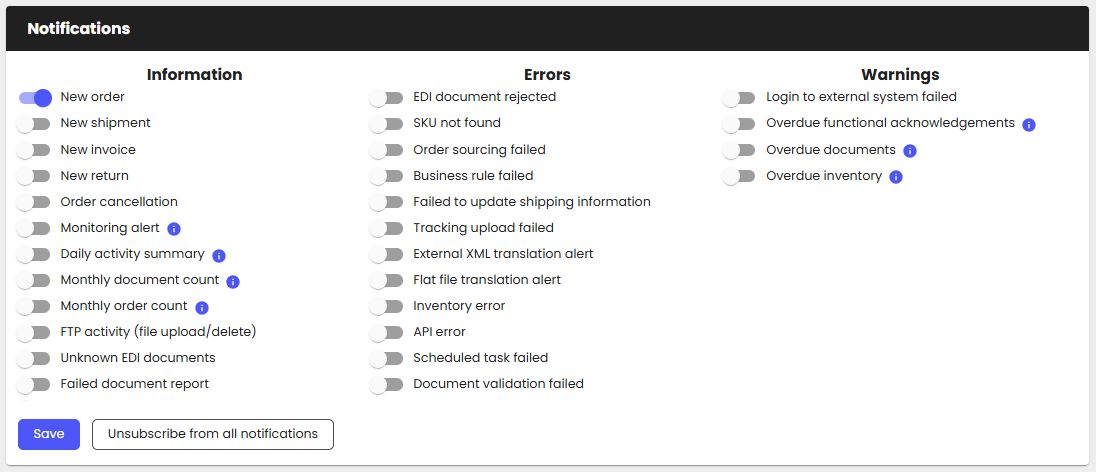
The Notifications page provides users with the ability to see and manage their email notifications and set filters. To open it, go to My Profile > Notifications. Turn on the notifications you want and click Save. Please note: These notifications are set on a user-by user basis.
Defaults
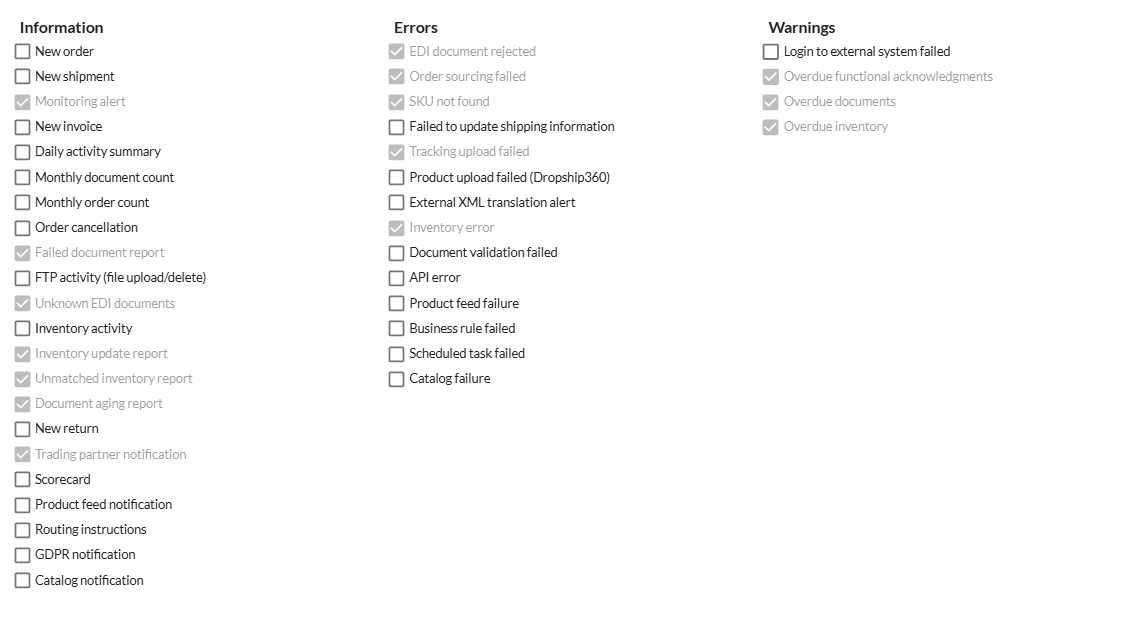
All users will be set up with default notifications initially (see below). Retailers can also set up default notifications on behalf of their suppliers by contacting support@logicbroker.com and sharing the list of notifications they want enabled for all their suppliers. Users will still be able to disable or unsubscribe once they are in the portal.
Scheduled Reports
All the notifications with a blue info icon require a scheduled report to be configured. Click the info icon to see what specific report you need to configure from the Scheduled Reports page under Reporting. To add one, go to Reporting > Scheduled Reports and click Add report. You need permission to manage settings to add a report. Please note: To access the Scheduled Reports page, you will need a Logicbroker subscription.
Filters
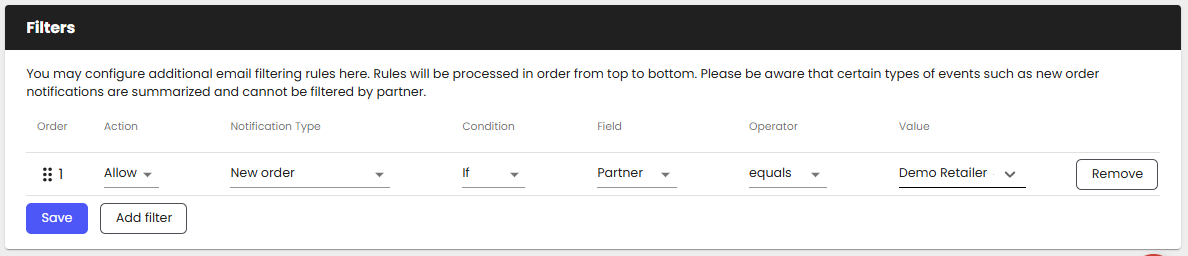
The filters section allows users to filter the notifications they receive. This is helpful to reduce the number of emails received and ensure only important notifications are received. Each user sets their own filters. Rules run from top to bottom, and the last rule that matches decides. Summary emails such as New order list all partners together, so a partner filter can't limit them to one partner. See below an example of a filter.
Definitions
See below for what each notification will provide along with information on if it is enabled by default for users.
| Notification | Description | Default |
|---|---|---|
|
Provides a count of all new orders received in the past hour. Will include a link to view the new orders in the Portal. Provides an alert to the first sales order from a retailer and the first purchase order between partners sent to both the retailer and supplier. |
||
|
Provides a count of all new shipments received in the past hour. Will include a link to view the new shipments in the Portal. |
||
|
Provides a count of all new invoices received in the past hour. Will include a link to view the new invoices in the Portal. |
||
|
Provides a count of all new returns received in the past hour. Will include a link to view the new returns in the Portal. |
||
|
Triggered when an order is cancelled. |
✅ |
|
|
Monitoring alert |
Enables monitoring reports with thresholds configured on the Scheduled Reports page. To learn more about monitoring configurations see the monitoring section below. |
✅ |
|
Will provide a daily a list daily of total documents transmitted through the system, with a breakdown of Total Orders, Open Orders, Complete Orders, Total Shipments, and Total Invoices. This can be configured on the Scheduled Reports page, no parameters are required for configuration. |
||
|
Will send once a month including all information breakdown of all documents sent in that month. This includes # of orders, shipments and invoices. Must setup the Monthly Document Report on the Scheduled Reports page to receive email notification. |
||
|
Will send once a month and include the total number of orders received for that month. Must setup the Monthly Order Report on the Scheduled Reports page to receive email notification. |
||
|
Logicbroker monitors all SFTP/FTP activity on the hosted on the platform. If a user uploads, deletes, or edits a document on the SFTP/FTP server the username, company id, IP address, and directory the action took place will be logged in the email. This is to track when users are logging in and verify when files are downloaded. |
||
|
Will trigger when an EDI document is received for your account an your partner's identifiers do not match any partners you are connected to. |
✅ |
|
|
Need to configure on the Scheduled Reports page to set up a full list of all documents that are in a Failed status within the system. This includes Orders, Acknowledgements, Shipments, and Invoices. |
✅ |
|
|
Need to configure on the Scheduled Reports page. Subscribing will provide an inventory update summary for all your partners once every 24 hours. It will include Total Items, Total Updates, Matched Items, Matched Updates, Unmatched Items and In Stock % for each partner. |
✅ |
|
|
Need to configure on the Scheduled Reports page. Will provide an update every 24 hours with all partners unmatched items count. |
✅ |
|
|
Will provide an update every time inventory is uploaded by one of your partners. This will include number of items and the link to the file uploaded to download. |
||
|
Will need to configure on the Scheduled Reports page. Will provide a full list of all partners and order counts for all documents not complete with their aging. Ranges include < 7 days, 7-14 days, 14-30 days, 30-60 days, and >60 days. The report can be configured to run daily at midnight or morning. |
✅ |
|
|
Email will be sent when a trading partner sends a message. The message can be sent through the messaging center or through EDI like an 864 text message. In addition, if a document is received that does not map to a standard Logicbroker Document Type (Order, Acknowledgement, Shipment, Invoice, Return or Inventory) a notification will be sent with details as well. |
✅ |
|
|
Will provide a weekly score card for all your partners. This will include overall score, shipment time, shipment % and cancel %. |
||
|
Available if using routing instructions (for EDI this is the 754) with your channel/retailer. Notification will provide refernce numbers, shipment pickup time, carrier, and carrier contact information. |
||
|
Will provide an update of all redacted documents related to your account. |
||
|
Will provide an update when testing has been completed for your partner. |
| Notification | Description | Default |
|---|---|---|
|
Used if connected to a system and a SKU couldn’t be found when inserting a document into your system. |
✅ |
|
|
Used if using Logicbroker's purchase order routing logic. Occurs when a supplier can not be found to create a purchase order off of a sales order received. |
✅ |
|
|
Triggered if a business rule fails to run, this will typically contain complex validation logic for all documents sent or received. |
||
|
Sent when shipments failed to update on the order. This occurs when items do not match the original order. |
||
|
Triggered when an a bulk CSV/XLSX upload is made in the portal (under Order Management) and the upload fails. Will provide detailed information for the failure reason. |
✅ |
|
|
Triggered if you are using a custom XML format and translation fails to create the document inside the Logicbroker system. |
||
|
Will provide an email if you or your partner attempted to process and inventory update and it failed. Notification will provide a link to download the file and details on why the update failed. |
✅ |
|
|
Triggered if you are integrating using an API connection to a system and Logicbroker fails to connect to that system. |
||
|
Triggered if there is a scheduled job setup on your account and fails to process. This can include a job scheduled to pick up files from an external SFTP/FTP site or sending data to a configured connection; for example sending inventory updates on a schedule. |
||
|
Triggered when a document either sent or received fails validation from wither you or your partners requirements. Full details will be provided in the email. |
| Notification | Description | Default |
|---|---|---|
|
Triggered if you are connected to a system using a pre-built connector and Logicbroker receives a connection error. The connection will continue to retry, however the warning is sent with full details for visibility to potential issues. |
||
|
Will provide a list of all orders that are awaiting functional acknowledgements (997), this is set to orders that haven't been acknowledged over 24 hours. |
✅ |
|
|
Configured on the Scheduled Reports page. Will provide a list of documents that are still open. Similar to the aging report however will provide a list of open orders, with a maximum of 50 in each report. |
✅ |
|
|
Provides a list of all partners who haven't provided inventory in over 24 hours. Total Items, Matched Items, and Unmatched Items are also provided. |
✅ |
To set up your custom monitoring reports, go to Reporting > Scheduled Reports. For all configurations that use a threshold you will need to make sure Monitoring alert is turned on under My Profile > Notifications; this will enable receiving emails for the configured reports.
| Notification | Description | Default |
|---|---|---|
|
Will provide a full list of all partners and order counts for all documents not complete with their aging. Ranges include < 7 days, 7-14 days, 14-30 days, 30-60 days, and >60 days. |
||
|
Same as Document Aging Report except runs daily at midnight. |
||
|
Same as Document Aging Report except runs daily at 9:30AM EST. |
||
|
Lists all documents that remain in the Submitted status for over 1 hour. Typically indicates the documents have not been picked up by you or your partner's system yet and could indicate a potential issue. |
||
|
Provides a full list of all documents that are in a Failed status within the system. Can be configured for Orders, Acknowledgements, Shipments, and Invoices. |
||
|
Same as Failed Document Report, however the report will run at midnight. |
||
|
Provides a report of all failed documents hourly. |
||
|
Will provide an inventory update summary for all your partners once every 24 hours. It will include Total Items, Total Updates, Matched Items, Matched Updates, Unmatched Items and In Stock % for each partner. |
||
|
Provides a summary of all documents processed for the month. Includes a count for orders, acknowledgements, shipments and invoices. |
||
|
Provides a summary count of all orders processed for the month. |
||
|
Monitors how often you expect documents to be received in your system. For example if you expected minimum of orders received is 400, then you can set the threshold to 400 and the report will get triggered when the # of order received is below that 400 threshold. |
||
|
Same as above, however will run at midnight. |
||
|
Lists all orders that have not shipped within 72 hours. A maximum of 50 orders will be listed. |
||
|
Will provide a list of documents that are still open. Similar to the aging report however will provide a list of open orders, with a maximum of 50 in each report. |
||
|
Same as above, however will provide a list for all orders overdue after 48 hours. |
||
|
If you are communicating with your partner using EDI, all documents sent to your partner expect to receive a FuncAck (997), if one is not received in over 48 hours the report will include a the document. |
||
|
Same as above however the report will run 9:30AM |
||
|
Provides a full list of orders that have shipments applied to them, however not all items have been fully shipped. |
||
|
Will provide an update every 24 hours with all partners unmatched items count. Used only for retailers. |
||
|
Provides a weekly summary of all partners score card information. This will include overall score, shipment time, shipment % and cancel %. Used only for retailers. |
Send notifications to several people
Who this applies to: suppliers and retailers on any connection type.
What it means: Notifications belong to each user login. Logicbroker sends them to the email address on that user's login. You can't add extra email addresses to one user's notifications.
How to set it up:
- Make sure each person who needs the emails has their own user login. An admin can invite new users from My Profile > Manage Users. See Manage Users.
- Each person signs in with their own login and goes to My Profile > Notifications.
- Each person turns on the notifications they want and clicks Save.
Notifications by region or team: One Logicbroker account can't split notifications by country or region. If each region needs its own notifications, contact Support about setting up separate accounts. Support can also turn notifications on or off for an address on your account.
How to check it worked: When a person opens My Profile > Notifications, the notifications they chose are switched on. They receive the next email that Logicbroker sends for those notifications.
When to contact Support: Send your company name, the email addresses involved and the notifications they should get.
I do not get New Order emails, or they go to the wrong person
Who this applies to: suppliers on any connection type. Your orders arrive in Logicbroker. The New order email is an alert that orders are waiting in the portal.
What it means: Each user receives the New order email only if they turned it on. A filter on the Notifications page, your spam folder or an undeliverable email address can also stop it.
What to check:
- Sign in as the person who should get the email and go to My Profile > Notifications.
- Click Order Lifecycle, turn on New order and click Save.
- Check the Filters section on the same page. A Block filter for New order stops those emails.
- Check your spam or junk folder.
The New order email is sent hourly. It lists the new purchase orders from the past hour and links to them in the portal. You don't get a separate email for each order.
The email goes to the wrong person: Logicbroker sends it to every user who has New order turned on. Ask that user to turn it off on their Notifications page. If the person has left your company, contact Support to stop all emails to their address.
You want orders from one partner to stand out: One New order email lists new orders from all sources together. To flag one source inside the combined email, set up a rule in your email program that looks for the source name in the message body.
How to check it worked: The user gets a New order email in the next hour that brings new orders.
When to contact Support: If the setting is on and no emails arrive, contact Support. Support can check whether the address is on the email bounce list and remove it. Include your company name, the email address, the retailer and a PO number that arrived without an email.
Notifications keep coming after the order shipped
Who this applies to: suppliers who get Overdue documents or other reminder emails for orders they already shipped or confirmed.
What it means: Reminders such as Overdue documents list open documents that were not completed in the expected time. A shipment doesn't always complete an order. The order can stay open, for example in Ready to Invoice, until you send the invoice. Some retailers also keep an order open for their own process.
What to check:
- Open the order in the portal and look at its status.
- Check whether the order still needs an invoice.
- Check whether every item was shipped. Orders with only some items shipped stay open.
The fix depends on the cause:
- The order is waiting for an invoice: send the invoice. See Create an Invoice.
- Items are still unshipped: send a shipment for the remaining items, or ask the retailer to cancel them.
- The order was canceled after you shipped it: you can't cancel items that were already shipped. Ask the retailer how they want to handle it. The retailer may need it to stay open.
- You don't need the reminder: turn it off in My Profile > Notifications and click Save. This stops it for all orders, not only one. If the reminder comes from a scheduled report, a user who can manage settings can edit or delete it in Reporting > Scheduled Reports.
How to check it worked: The order moves to a completed status and no longer appears in the next reminder.
When to contact Support: Include your company name, the retailer, the PO number, the name of the notification and a copy of the email.
I need a report or export of my orders
Who this applies to: suppliers and retailers on any connection type. Notifications give counts and alerts. To get a list of documents, use Advanced Export.
How to export:
- Go to Reporting > Advanced Export.
- Choose a profile from Select profile..., for example Default Order Export or Orders With Item Detail. Profiles that your team or Support saved for you also appear in this list.
- In Document Filter, set the Document Type. Add a Date Range filter. Choose Custom to enter your own start and end dates. Add a Status filter if you need one.
- In Output Format, choose CSV, XLSX, XML, JSON or External XML.
- Click Download.
The file downloads in your browser and can take a few minutes. Logicbroker has no page to download it from later. The date filters use your time zone, and the dates in the file are in UTC.
Large exports: Always add a Date Range, Sender or Receiver filter. For a long period, export one month at a time and change the start and end dates for each file.
The export times out: Clearing your browser cache and trying again can help. This also applies to the export on the Failed Documents page. See Failed Document Summary.
Get the export on a schedule: Accounts with access to Reporting > Scheduled Reports can add a report that uses a shared export profile. The report gives you a link to the file.
When to contact Support: Include your company name, the profile name, the document type, the filters and date range you used, and the exact error.
We're updating this article. Some steps and screenshots may not match the portal yet. If anything is unclear, contact support@logicbroker.com.