
Audience: All users in Logicbroker.
In this article, you will find information related to Bulk Actions - users can perform actions in bulk to process orders, download attachments or reprocess failed documents. The sections within this article are outlined below:
- Document Selection
- Accept/Reject
- Ship/Cancel
- Invoice
- Export
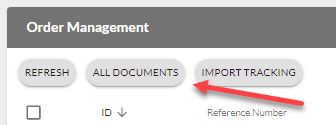
- Import Tracking
- Download Packing Slips
- Download GS1 Labels
- Download Shipping Labels
- Retry
- Closing or cancelling many old orders
🗒️Note:
Bulk actions do not support some options that may be available on individual order creation/processing such as scheduled ship dates, multiple boxes/tracking numbers etc. For more information on actions available on individual documents see our document articles found in the Order Management section.
Document Selection
1. Set filters– depending on which documents you want to perform an action on, you may need to set filter(s). Common filters include document types (order, shipment, etc.) and document status (Ready to ship, Ready to invoice, Failed, etc.) You can select more specific filters with Filters on the Orders page or Filter results on the All Documents page.
2. Select documents– Once you see the documents you want to work on in your Orders page, select the specific ones you want to act on. To do so, click the box for individual documents or click the select all box in the top. Please note: clicking select all will only select the documents visible on the page. You can increase the rows per page to select more, but you cannot select from multiple pages. To export all documents, use our Advanced Export tool.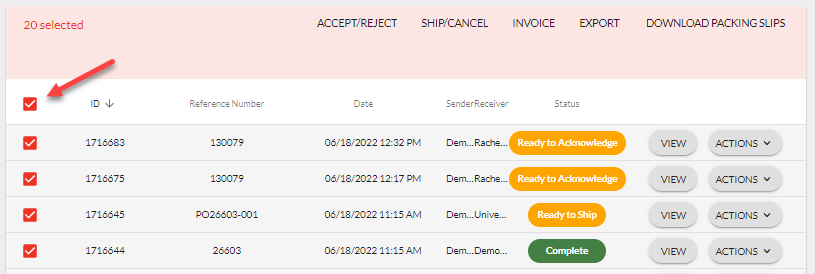
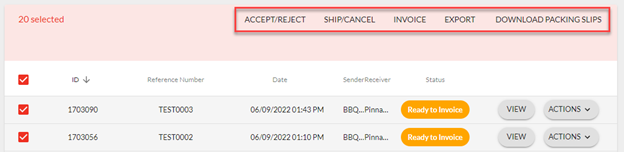
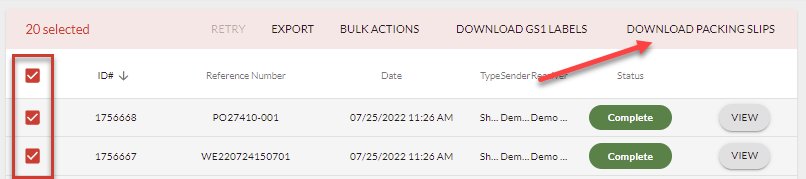
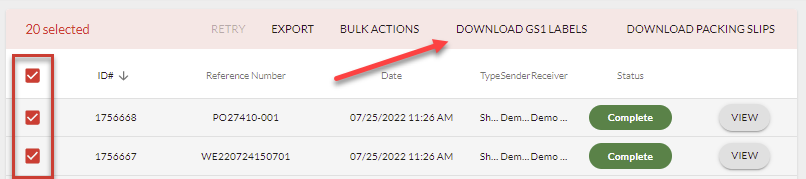
3. Select action – based on the types of documents you selected, a list of actions will appear. For example, the Accept/Reject action will only appear on orders. Retry, Export and Download Packing Slips appear as buttons once you select documents. Click Bulk Actions to open Bulk Document Actions, which lists Accept/Reject, Ship/Cancel, Invoice and Ignore. The Orders page also lists Quick Cancel.
Accept/Reject
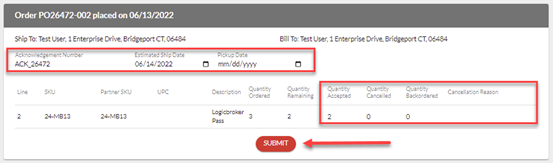
This option is only available on Orders - this action allows you to create an acknowledgment for orders to either accept, cancel or backorder items. You can acknowledge orders in Ready to Acknowledge or Ready to Ship status. Make sure you review your retailer's documentation and the Document Standards tab in the portal to know what fields are required. For more information on retailer document requirements, see our Document Standards article and for more information on acknowledgments including fields, settings and instructions on individual document creation, see our Acknowledgments article.

Ship/Cancel
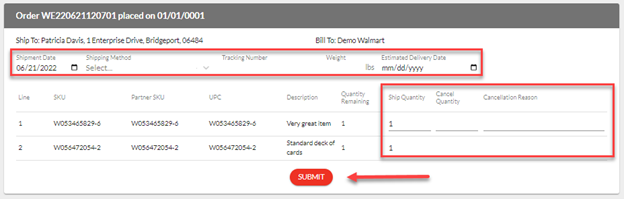
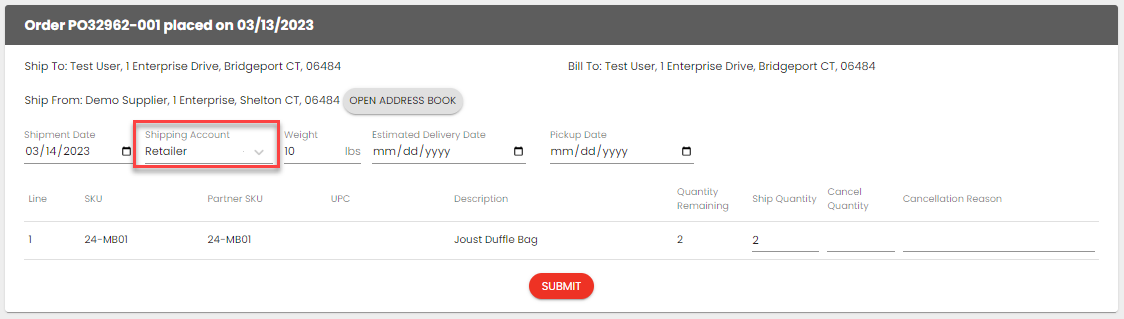
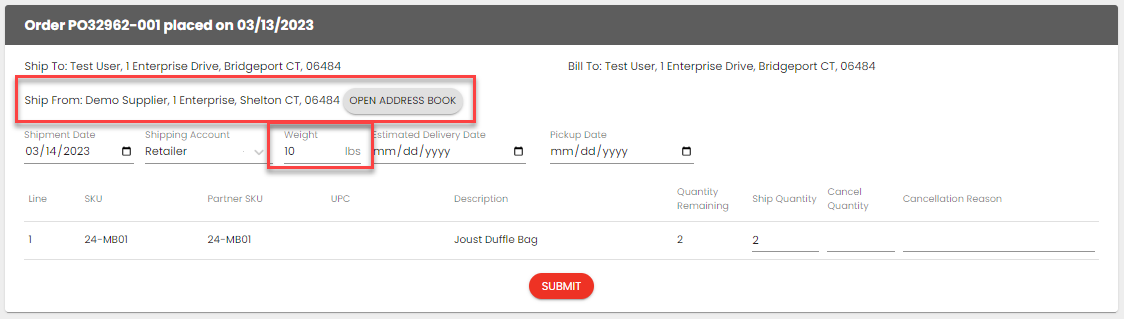
This option is only available on Orders - this action allows you to create an acknowledgment or a shipment for orders to either ship or cancel items. You can cancel or ship orders in Ready to Acknowledge or Ready to Ship status. Make sure you review your retailer's documentation and the Document Standards tab in the portal to know what fields are required. For more information on retailer document requirements, see our Document Standards article and for more information on acknowledgments and shipment including fields, settings and instructions on individual document creation, see our Acknowledgments and Shipments article.


-
- Ship From Address - this can be defaulted, see Document Settings > Ship From Addresses for setup instructions
- Weight - if this is available on the order, we will default it on the shipment - if not, it will have to be input manually
Invoice
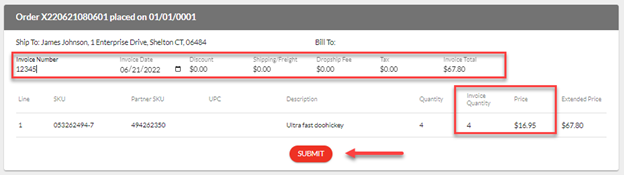
This option is only available on Orders and Shipments - this action allows you to create an invoice for all shipped items. You can invoice orders that have already been shipped and are in a Ready to Invoice status. It is recommended to invoice off shipments instead of orders that way you can be certain you are only invoicing shipped items. Make sure you review your retailer's documentation and the Document Standards tab in the portal to know what fields are required. For more information on retailer document requirements, see our Document Standards article and for more information on invoices including fields, settings and instructions on individual document creation, see our Invoices article.

Export
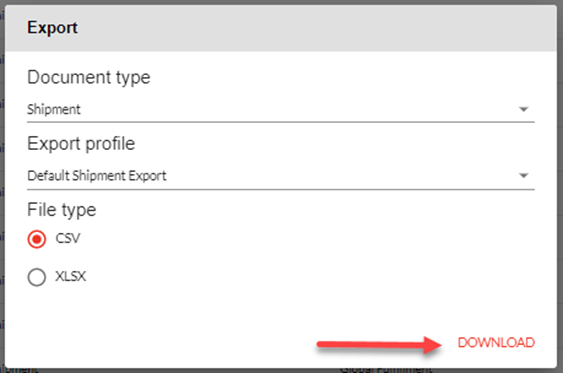
This option is available on all document types - this action allows you to export document information in a CSV or XLSX format. For more information on our Advanced Export tool including profiles, formats, filters, fields and instructions, see our Advanced Export article.
Import Tracking
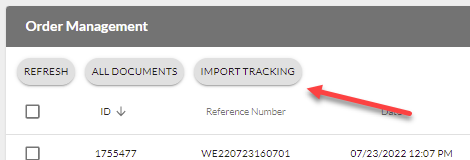
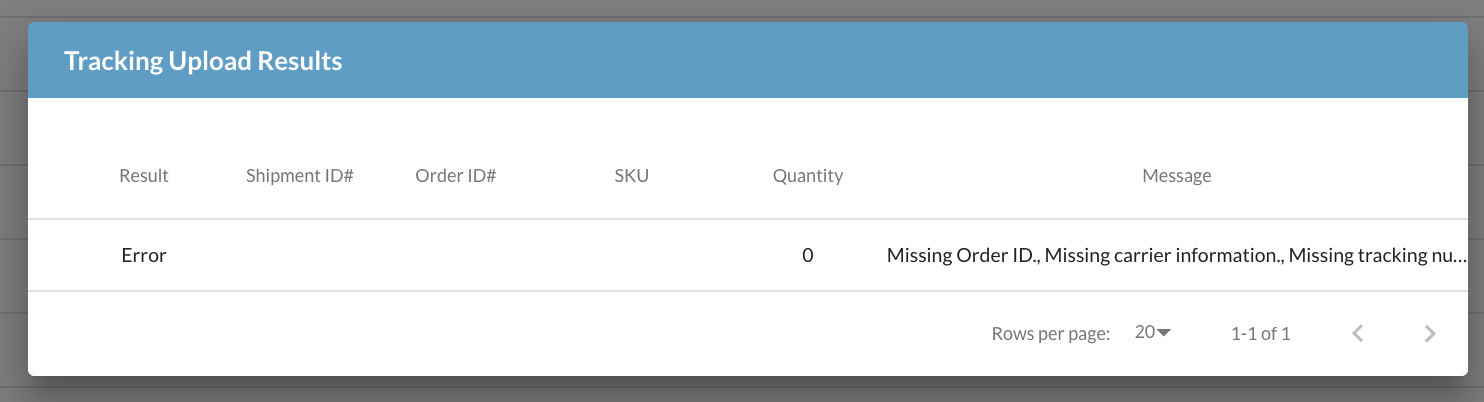
This option is only available on Orders - this action allows you to import tracking information for open orders by automatically creating Shipments (ASNs) using a spreadsheet (Excel or CSV format). Make sure you review your retailer's documentation and the Document Standards tab in the portal to know what fields are required. For more information on retailer document requirements, see our Document Standards article and for more information on our Advanced Import tool including profiles, formats, filters, fields and instructions, see our Advanced Import article.
-
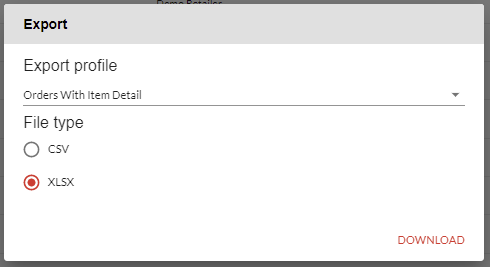
- Orders With Item Detail - this option allows you to mark items as shipped on a line level *recommended
- Orders Without Item Detail - this option marks items as shipped on an order level
-
- TrackingNumber
- CarrierCode
- ShipFromAddress.CompanyName
- ShipFromAddress.Address1
- ShipFromAddress.Address2
- ShipFromAddress.City
- ShipFromAddress.State
- ShipFromAddress.Zip
- ShipFromAddress.Country
- QuantityShipped
Please note: The key identifier that links to your orders will be the ID column. This is the ID of the document in Logicbroker.
Download Packing Slips
This option is available on complete Orders and Shipments - this action allows you to download a PDF of the packing slips for all selected orders for review or to print on an order or line level. These will be downloaded by how they were received, so if we receive order A, order C, and order B (in that order) the packing slip will appear in that same order. This is also true for the API endpoints.
Download GS1 Labels
This option is available on Shipments - this action allows you to download a PDF of the GS1 Labels for all selected shipments for review or to print. These will be sorted by shipment and then by container code. Please note: before downloading GS1 labels, make sure you have configured your UCC 128 Company ID. For more information on setting up your UCC 128 Company ID, see our Document Settings article and for more information on downloading GS1 labels on individual shipments, see our Shipments article.
Download Shipping Labels
Please note: Only for suppliers using a shipping integrator such as ShipEngine or working with a retailer that is using a shipping integrator.
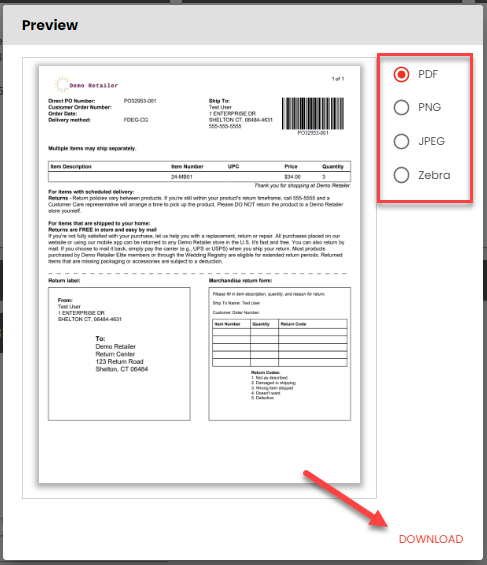
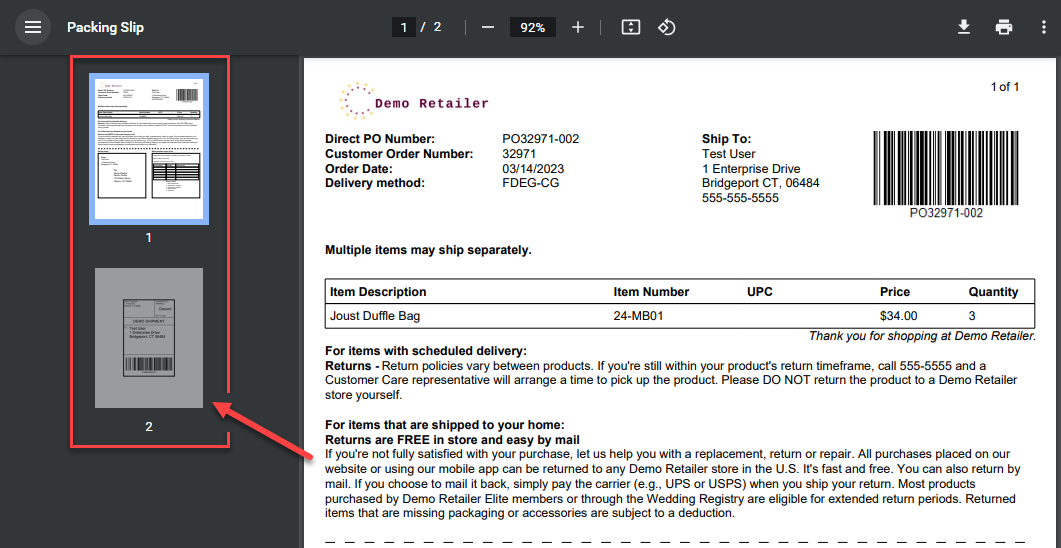
This option is available on complete Shipments - this action allows you to download a PDF of the shipping labels for all selected shipments for review or to print.
Retry
This option is available on documents in a Failed status - this action sets the status of documents back to New and allows them to flow through the normal status flow once more. Do this if the documents failed due to a time-out error or if new logic has been put in place to fix previous errors. If a document continues to fail, this indicates there may be something wrong with that document. Click on View > Most recent event to troubleshoot and resolve the error.

Closing or cancelling many old orders
Use this section when many orders are still open in Logicbroker but are already fulfilled, cancelled or closed in your own system or your partner's system. The right action depends on what should happen to each order:
- If the items will never ship, cancel the orders so the retailer is told. See Cancelling many orders that will not ship.
- If the orders failed and nobody needs them processed, move them to Ignored. See Old failed orders you no longer need.
- If the orders were handled outside Logicbroker and you only need them closed, see There is no "Complete" option in Bulk Actions.
You cannot do these things yourself in the portal:
- Set many orders to Complete at once. No bulk action sets a status of Complete.
- Set a document to any status you choose, unless your account has Change Status. Change Status works on one document at a time.
- Delete an order. Support cannot delete orders either, but can move them to Ignored.
- Add, remove or swap items on an order. Ask the retailer how to proceed. The retailer may need to send a change or a new order.
- Reopen a cancelled order. See An order was cancelled by mistake.
Please note: The portal applies Retry, Ignore and Quick Cancel in groups of 50. If you select more than 50 orders, check afterwards that every order changed. Select any that did not change and repeat the action.
Cancelling many orders that will not ship
Who this applies to. Suppliers on any connection. EDI, API and file suppliers can also send the cancellations from their own system. If the supplier cannot send them, the retailer can cancel the orders in the portal instead.
What it means. A cancellation is an acknowledgement with cancelled quantities. Logicbroker sends it to the retailer, and Support cannot reopen the order afterwards. When every line on an order is cancelled, the order moves to Cancelled. For more on cancelling a single order, see Cancelling an order at each stage.
What to check.
- On the Orders page, use Filters to find the orders you want to cancel.
- Open a few of the orders. In Order Items, compare Quantity Shipped with Quantity on each line.
- Sort the orders into two groups. In the first group nothing has shipped. In the second group part of the order has shipped.
The fix when nothing has shipped.
- Select the orders, click Bulk Actions, then Quick Cancel.
- Click Yes to confirm.
Quick Cancel sets every selected order to Cancelled, whatever its current status. Logicbroker then creates a cancellation acknowledgement for the full ordered quantity of each line, unless the order already has an acknowledgement that cancels it. Suppliers can choose the reason it uses in Settings > Document Settings > Acknowledgement settings > Default Cancellation Reason. Leave out orders in New status. If a group of 50 includes one, none of the orders in that group change.
The fix when part of the order has shipped. Do not use Quick Cancel, because it also cancels the quantity you shipped.
- Select the orders, click Bulk Actions, then Accept/Reject.
- On each order, find the lines you will not ship. Enter the unshipped quantity in Quantity Cancelled. Use no more than the line's Quantity Remaining.
- Set Quantity Accepted to 0 on those lines. The form fills it in by default.
- Choose a Cancellation Reason for each cancelled line.
- Click Submit on each order or Submit all at the bottom of the page.
How to check it worked. Refresh the Orders page. A fully cancelled order shows Cancelled, and its Related Documents list the cancellation acknowledgement. A partly shipped order moves to Complete once every line is shipped or cancelled, and invoiced or cancelled. See Why is my order still open?
There is no "Complete" option in Bulk Actions
Who this applies to. Suppliers and retailers who use the portal, for example after orders were shipped and paid outside Logicbroker.
What it means. The portal has no bulk action that sets orders to Complete. Logicbroker moves an order to Complete by itself once every line is shipped or cancelled and invoiced or cancelled. Some accounts have More Actions > Change Status on the document page, which changes one document at a time.
What to check.
- Open one of the orders and review Order Items and Related Documents.
- Decide whether anyone will still send a shipment, invoice or cancellation for the order.
The fix. Pick the path that matches the order.
- The order still needs documents. Send the missing shipment, invoice or cancellation, and the order completes by itself. See Why is my order still open?
- Only a few orders are affected and your account has Change Status. Open each order, click More Actions, then Change Status.
- Many orders were closed outside Logicbroker and nobody will send more documents. Ask Support to change them. See Asking Support to close orders in bulk.
Complete only changes the status. It does not create a cancellation for lines that did not ship. If the retailer still expects those items, cancel them first.
How to check it worked. The order shows Complete on the Orders page.
Old failed orders you no longer need
Who this applies to. Suppliers and retailers on any connection.
What it means. Ignore moves a Failed document to Ignored, and Logicbroker stops processing it. Ignore does not send a cancellation to the retailer. If the retailer still expects the order, cancel it instead.
What to check.
- Filter by the Failed status. Use the Orders page for orders, or All Documents for other document types.
- Open a few of the documents and read the Most recent event. Confirm that you do not need them. If you need a document processed, fix it and use Retry instead.
The fix.
- Select the documents, click Bulk Actions, then Ignore.
- Click Yes to confirm.
Ignore only changes documents in Failed status. Other selected documents stay as they are.
How to check it worked. The documents show Ignored and no longer appear when you filter by Failed. For more on when to ignore a document, see the Failed Document Summary.
Asking Support to close orders in bulk
Who this applies to. Suppliers and retailers with many orders that need a status they cannot set themselves, such as Complete.
What Support can do. Support can move a list of orders to Complete, Cancelled or Ignored. Before completing orders that are still Ready to Ship or Ready to Invoice, Support may ask whether you still expect shipments or invoices for them. If you do, the supplier needs to send those documents instead.
What to include in your request:
- Your company name and the partner the orders are with.
- The PO numbers as text or in a spreadsheet, not as a screenshot.
- The status each order should have: Complete, Cancelled or Ignored.
- Whether anyone will still send shipments, invoices or cancellations for these orders.
- Why the orders need closing, for example "shipped and paid before we moved to Logicbroker".
- What you already tried, such as Quick Cancel or Ignore.
How to check it worked. When Support confirms the change, review the orders on the Orders page. Reply to Support with any order that is still open.
We're updating this article. Some steps and screenshots may not match the portal yet. If anything is unclear, contact support@logicbroker.com.